Participant
October 29, 2025
Answered

Problem with "Back Up" in Lightroom

  • October 29, 2025
  • 3 replies
  • 250 views

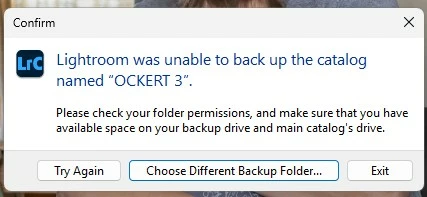
When I try to back up my catalog, I get the message as shown below:
 

Correct answer JohanElzenga

Please mark my answer as correct, do others see the issue has been resolved and how.


3 replies

Participant
November 6, 2025

Thank you. The problem has been solved.

JohanElzenga
Community Expert
JohanElzengaCommunity ExpertCorrect answer
Community Expert
November 6, 2025

Please mark my answer as correct, do others see the issue has been resolved and how.


-- Johan W. Elzenga
JohanElzenga
Community Expert
Community Expert
October 29, 2025

This is a problem that has been reported here quite a few times. It is caused by catalog corruption. Lightroom Classic 14 and 15 appear to be more susceptible to it than previous versions, so the corruption could be very old already, meaning using a backup may not solve it. What you can try is this, so far it works for almost all people: Create a brand new catalog and choose 'File - Import from Another Catalog'. Select your old catalog to import. In the import dialog choose to import all photos, but do not move them. This will create an exact copy of your old catalog, but usually without the corruption. The only thing that won't come across is any publishing services you may have. You will have to recreate those. If you synced your catalog then you will have to enable sync for the new catalog. There are some reports that this could cause a problem. Here’s how to solve that: https://www.danhartfordphoto.com/blog/2025/1/lr026-fixing-sync-problems-caused-by-switching-the-sync-catalog


-- Johan W. Elzenga
AxelMatt
Community Expert
Community Expert
October 29, 2025

Check the points that show in the error message.


Do you have the appropriate rights to the drive and/or folder in which the backup will be created? The best is you've full access rights.

How to Change Folder Permissions on Windows | V2 Cloud


Do you have enough free disk space on the appropriate drive for backup and on the drive (mostly drive C) for the temporary files?


If this doesn't help, try to reset the Lightroom preferences.

https://www.lightroomqueen.com/how-do-i-reset-lightrooms-preferences/

It's recommended to backup your preferences before you reset the preferences to the default settings:

https://helpx.adobe.com/lightroom-classic/kb/preference-file-and-other-file-locations.html


If this also doesn't help, provide a copy of your 'System Info'. This can be get from the LrC Help > System Info menu item. There's a copy button in the System Info dialog. Press this button and paste the info into your next forum post.


My System: Intel i7-8700K - 64GB RAM - NVidia Geforce RTX 3060 - Windows 11 Pro 25H2 -- LR-Classic 15 - Photoshop 27 - Nik Collection 8 - PureRAW 6 - Topaz Photo AI
