
Participant
December 15, 2024
Question

Problem with import from iPhone to LRC

  • December 15, 2024
  • 6 replies
  • 1691 views

I'm using Lightroom Classic 14.1 on macOS Sonoma 14.7.2  I'm trying to import photos and videos from my iPhone 14 Pro/iOS 18.0.  The import process never ends.  What happens is:

  • Start the import process to import ~1000 items from my iPhone attached directly via USB-C Lightning cable.  The destination folder is one which Lightroom has successfully imported photos from my SD card.
  • At the start of the import process, previews for a few photos are displayed initially and then none until I cancel the import.
  • After a few minutes, the progress bar shows no progress.
  • If I cancel the import process, an error is displayed. "The following files were not imported because they could not be read or the destination is not writable (1)"
    • The error shows a number of video files that could not be imported.  In this example, these files are 452,659,828MB.
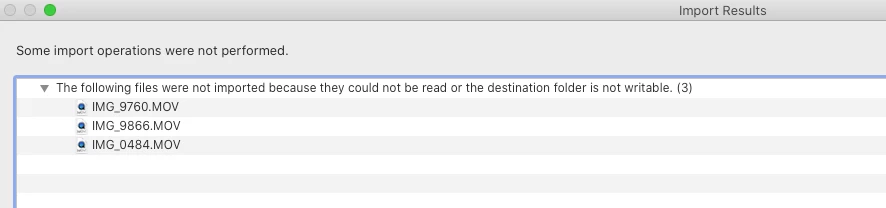
       

  • Over several imports, videos over 1GB in size have been imported from the iPhone, so sizeof the .MOV files doesn't seem to be the issue.
  • The error is misleading because the destination is writable because 100s of photos have been imported in previous attempts. I have checked all permissions in MacOS and all is as it should. 


For  whatever reason, the import process gets stuck when importing certain videos. For example, I let one import attempt go for about 2.5 hours. Over several import attempts, I've been able to get most of the 1000 items imported.  But in total, it's taken me hours to do so when it should have taken me a fraction of the time. It gets stuck when it encounters an error and the only way to see the error is to cancel the import.  As a user, I don't know if progress is really taking a long time or whether it's stuck.


My walkaround today was to use "image capture", the built in MacOS-app that allows you to import to folder. It also got stuck on a .MOV file, without an error other than "your phone was disconnected during import". There is no problem with my cable or connector. I just selected the file below the .MOV file that caused the problem and it could without any problems import the rest. 

My thought are that once LRC identifies a problem with a file it will not import files as it should. Even though I unselected the .MOV file that where the problem. 

6 replies

Participant
June 28, 2026

I have just started having this problem on my 17 Pro. (Yes, I aam running the latest Tahoe and the latest LRC update - which might be the problem? ) Anyway. LRC knows images (JPG and DNG)  and movs are there, but it can’t get the actual data and refuses to import the images it can see. 
I am at a loss.


johnrellis
Legend
May 24, 2026

[View this post in your web browser. It contains formatting and images that don't appear in email.]


@stephanie de leng Camera import doesn’t even show my iPhone in devices


By “Camera import”, are you referring to LR?  


Have you tried using the Mac’s Image Capture app?


I use only Dropbox so I’m doing this now but it is like watching grass grow. Says will take a day. In 12 hours has only uploaded 29 photos of 450


Use syncing from LR Mobile to LR Cloud to LR Classic as I outlined previously. It usually goes much faster for most people. By the time they get back to LR Classic, all the phone photos have been synced (leave LR Classic running on your computer and LR Mobile on your phone).

johnrellis
Legend
May 24, 2026

[View this post in your web browser. It contains formatting and images that don't appear in email.]


@stephanie de leng in June 2026 and I still cannot import iPhone photos


Are you trying to import via USB cable?  That process seems to get flakier every year. A couple of alternatives:


- Use the Mac’s Image Capture app to import from the camera to a folder on your local disk, and then import into LR from there.


- Install the LR Mobile app on the iPhone. Enable the option Settings > Import > Photos. That will automatically add photos from the phone’s camera roll to LR Cloud. Then in LR Classic, enable syncing with LR Cloud by clicking on the Cloud icon in the upper-right corner.


Many of us use this second option. Once it’s set up, it’s usually pretty reliable -- whenever the LR Mobile app is running on the phone, photos will automatically sync into your LR Classic .

stephanie de leng
Participating Frequently
May 23, 2026

So here I am as above in June 2026 and I still cannot import iPhone photos - yo none of my computers now. LR does not even see 25% of the photos. I had let this pass as my cameras worked okay but now I have a wedding entirely on an iPhone 13 plus pro and LR and not see it, neither on my IMAC 201 nor my MacBook air pro 2022. Even the ones it can see, it doesn’t import more than 30. I have been telling everyone to look for different computers and smart phones because this is not error on my part. 


I have exhausted all options. Any help?


DrayeC
Participant
March 12, 2026

Hello,

I’m having this same problem. Never happened before after many previous imports without issue. Did you get it resolved?

stephanie de leng
Participating Frequently
May 24, 2026

Not in the slightest. Camera import doesn’t even show my iPhone in devices

Participant
December 16, 2024

I use apple `photos to import all my Iphone images directly to the cloud when the appear on my Apple photos app, if i want to edit them i export to a folder on my mac prefrably a external Hd, because these are the good photos (this is  the same process as my Canon camera ) i then have ave a safe copy of my image i then import these into LR and edit anyway i want.to get them back on your phone simply import with apple photos app and they will tunn up with icloud sync 

I am assuming you using Icloud. please tell me you are. 

MartinWesAuthor
Participant
December 18, 2024

Hi Craig. 

Thank you for providing another walk around than mine, but my question is if this is a bug in LRC and if more people are experiencing the same problem. 

Typically I do this 1-2 times per year and normally around 2000 pictures every time. The export that you are suggesting is not ideal using those amout of pictures and it will also use more than the included icloud storage. But it´s a good idea for a smaller number of pictures.

MindStormPhoto
Known Participant
December 20, 2024

I have your same problem with the same components (iPhone 14 Pro running iOS 18.1.1).  I came here hoping to find a fix. So far, nada... 😞 


FWIW, I do NOT use iCloud at all (other than password chain). Too expensive for WAY too little value.