CMass
Community Manager
Community Manager
November 25, 2021
Question

Quick Tips: Optimize LrC preferences for better performance

  • November 25, 2021
  • 7 replies
  • 16181 views


Optimizing LrC preferences for better performance


Did you know you can easily optimize your Lightroom Classic preferences for better performance? 


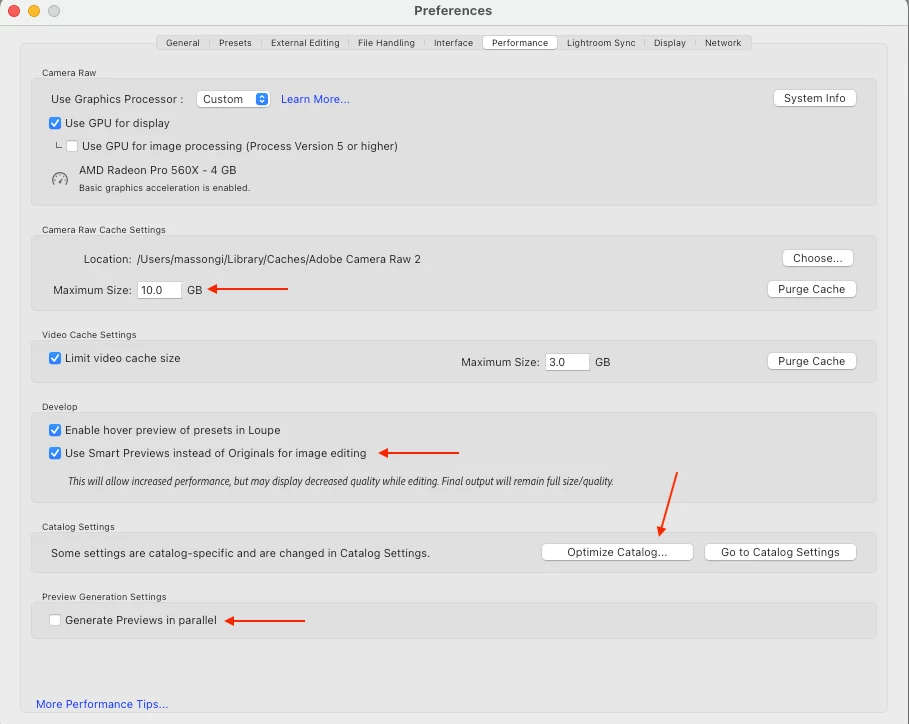
Open Lightroom Classic Preferences 

  • macOS: Lightroom Classic > Preferences > Performance
  • Windows: Edit > Prefereces > Performance


Optimize your performance

  • Increase the Camera Raw Cache to 10GB
  • Enable/check the option to Use Smart Previews instead of Orignals for image editing
  • Optimiz your catalog if it has been a while. 
  • Disable/Uncheck the option to Generate Previews in parallel


Relaunch Lightroom Classic

Once your catalog has completed the optimization proccess, relaunch Lightroom Classic for changes to take effect. 


For more ways to optimize your Lightroom Classic catalog check out these helpful steps in our Optimize performance article. 


7 replies

Participant
September 16, 2022

These images do not match what is on my screen. I go to prefences and it is just graphic card information.

Rob_Cullen
Community Expert
Community Expert
September 16, 2022

If you are seeing this-

Then you are using Lightroom (-Desktop. The 'Cloud' Version).

The images given for "Quick Tips", and the hints, are for Lightroom-Classic.


Regards. My System: Windows-11, Lightroom-Classic 15.1.1, Photoshop 27.3.1, ACR 18.1.1, Lightroom 9.0, Lr-iOS 10.4.0, Bridge 16.0.2 .
Known Participant
January 31, 2022

How disable/uncheck the option to "Generate Previews in parallel" is expected to speed up operations?

josephlavine
Community Expert
Community Expert
January 24, 2022

Excellent information.

My only question or concern is regarding standard-size previews. The heading says to keep them "as small as possible," but then says stay closest to the screen resolution. With so many 4k, 5k, and 6k monitors, this equates to rather large preview files and thus large Lightroom Catalogs, which can slow down a system.

Advice?

Warmly/j

Art M.
Known Participant
January 19, 2022

LR Classic regularly uses 10.35 gig of memory on my M1 Mac.  I don't think the problem started with 11.1 though, not sure. The catalog is not large at all, and I'm editing a group of 12 RAW photographs.  See snapshot of Utility Monitor.  Is this memory leaks or considered normal?  I'm up to date on the OS, evverything really.   Thank you.  (PS: I was going to start a new thread on this but can't find the "new thread" command alas.)  


Inspiring
January 19, 2022

Hi Art M.

LRC shouldn't be using 10.35G of memory! LRC (ver 11.1) uses 1.2 G of memory on  my system. Even Photoshop uses less than 5G. I don't know what the problem is, but that sounds like too much memory usage to me. Good Luck!


Known Participant
August 11, 2022

How much memory LR uses is related to how much you have available (as well as your settings, particulary in PS preferences). I have 128GB in my new (nearly loaded) Mac Studio, and LR and PS commonly use 50-60GB each, and I've seen LR get up to 95GB prior to freezing. Apple's powerful new machines are rending bare Adobe's poor coding and ongoing bugs that have plagued the programs for YEARS. Adobe seems not to be able to (permanently) get rid of the GPU memory leaks in LR, while adressing features and bugs that do not relate directly to the performance degradations that we've all be suffering through for years. Importing/exporting may have gotten a bit faster with the 'new' (cough!) Apple Silicon versions, but little else has changed; waiting up to 10 seconds to render at 1:1 is just plain silly, and affects my day-today massively. 


If only there were an alternative that was a true contender to replace LR...

Inspiring
January 13, 2022

The tips for speeding up LRC really worked for me. Thank you for the good information!

Participant
December 25, 2021

Thanks it's really helpful. Really good information.

Randy Hufford
Community Expert
Community Expert
December 18, 2021

This is really helpful. Really good info.