
Known Participant
May 24, 2021
Answered

Random Photos in LR Mobile iOS with distorted background compared to LR Classic counterpart?

  • May 24, 2021
  • 6 replies
  • 3235 views

I sync a few folders from LR Classic to LR Mobile iOS. Occasionally a photo in mobile will have some odd problem with the background (not the whole photo) being pixelated or washed out but the actual photo in LR Classic does not appear this way. Attached are 2 versions of two separate photos that have this effect. The A versions are exported from LR Classic to the desktop. The B versions were shared from LR Mobile to the Camera Roll and then exported from Photos as Original (to try and remove any effect of downsizing. I understand that the B versions are smaller versions than the A versions, but the way they appear now is how they appear in LR Mobile, whereas most of my photos do not appear this way and do not have this effect. I'm trying to figure out what is happening with these and how to fix it. Thanks for any feedback.


This topic has been closed for replies.
Correct answer Todd Shaner

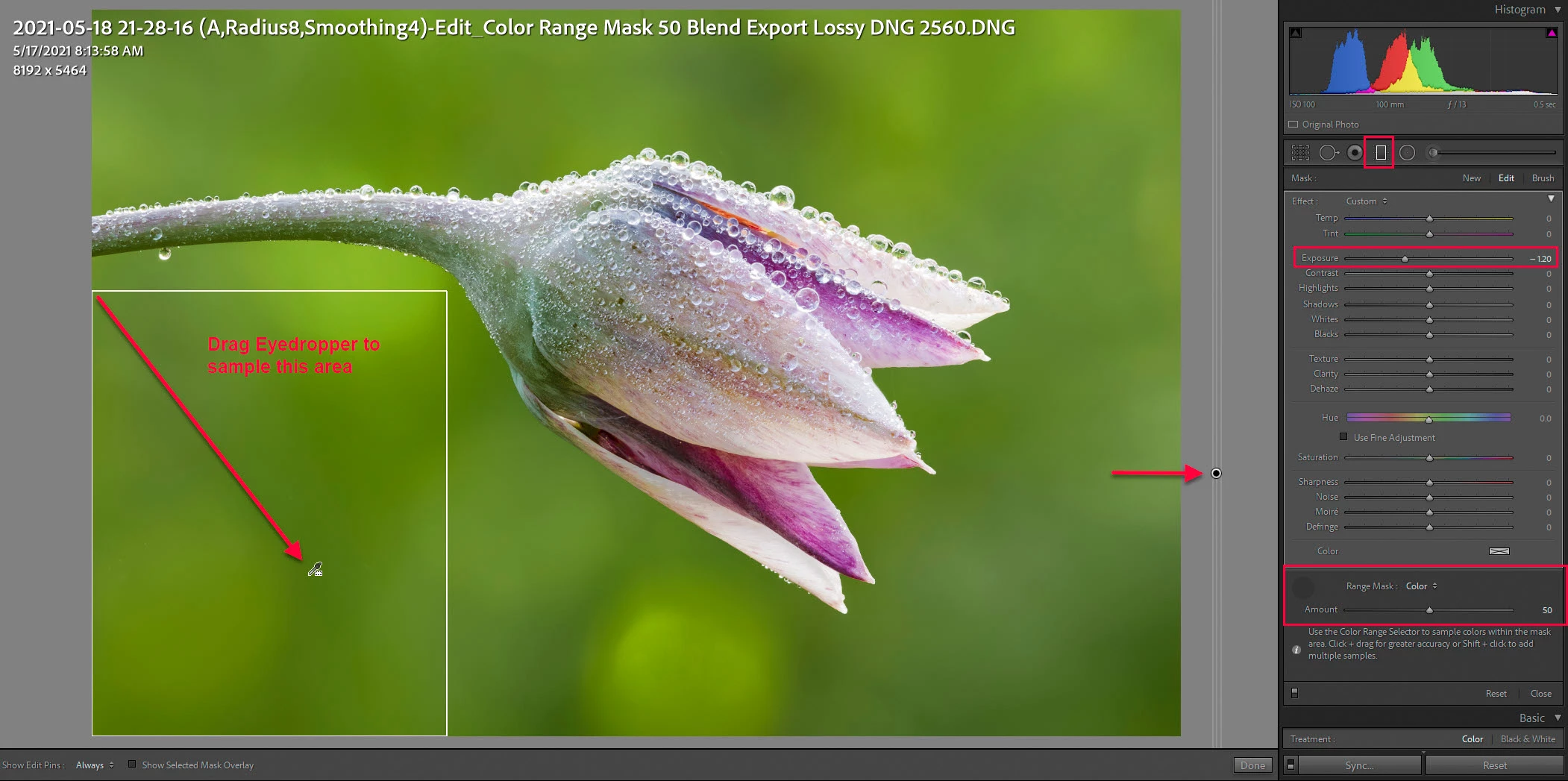
After removing settings one-by-one it appears the HSL Luminace -30 Yellow and -72 Green are causing the Smart Preview artifacts. If I set them both to 0 and use the Graduated filter dragged off canvas with the Color Range mask set to -1.2 Exposure the Smart Preview looks much better. I have no idea why the HSL Yellow and Green Luminance settings cause this artifacting in synced Smart Previews. The other option is to create resized 2560 Long Edge JPEGs and sync them for the affected image files.


6 replies

Todd Shaner
Legend
June 6, 2021

I checked your LrC Develop settings to see if something was over-the-top. You have the Sharpening Amount set to 115, which is causing the Smart Preview artifacting. I changed it to 50 and the image is still very sharp with no artifacts in the Smart Preview. Forgot to check LrC Export module Resize 2569 Long Edge. The artifacts are still there so we really need to see the original CR3 file with your settings exported to DNG.

Todd Shaner
Legend
June 6, 2021

I downloaded th DNG file and exported it in LrC to Lossy DNG with 2560 long edge, which is the same as Smart Previews synced to the Cloud. I can see the same artifacts. However, the DNG file does not appear to be created using the original CR3 raw file. (see below) The LrC Basic panel Profile only shows Color or Monochrome profiles indicating the DNG file was created using a non raw file (TIFF or JPEG). We really need to see the original CR3 raw file with your settings applied that exhibit the artifacts when synced to the Cloud. Also please use the LrC Export module to create the DNG file from the CR3 file using the settings shown in my reply above from June 1.


History Parameters : converted from image/x-canon-cr3 to image/dng, saved to new location*converted from image/dng to image/tiff*converted from image/tiff to application/vnd.adobe.photoshop*from application/vnd.adobe.photoshop to image/vnd.adobe.photoshop*converted from image/vnd.adobe.photoshop to image/dng, saved to new location

jmorg65Author
Known Participant
June 9, 2021

Todd, thanks. The file in question is a tif file created using Helicon Focus from a stack of CR3 files. Perhaps that is part of the issue, but I have many such similar images, processed the same way, that do not show similar artifact. Any thoughts on further troubleshooting?

Todd Shaner
Todd ShanerCorrect answer
Legend
June 9, 2021

After removing settings one-by-one it appears the HSL Luminace -30 Yellow and -72 Green are causing the Smart Preview artifacts. If I set them both to 0 and use the Graduated filter dragged off canvas with the Color Range mask set to -1.2 Exposure the Smart Preview looks much better. I have no idea why the HSL Yellow and Green Luminance settings cause this artifacting in synced Smart Previews. The other option is to create resized 2560 Long Edge JPEGs and sync them for the affected image files.


Todd Shaner
Legend
June 1, 2021

"Yes I see them on the web at the site you provided."


lightroom.adobe.com is a universal link that takes the user to their uploaded image files in the Lightroom Web app. As Jao mentioned LrC synced collections upload resized DNG Smart Previews that use lossy compression. However, the compression artifacting in the image files you posted is unusually high. This could be due to one or more of the settngs you applied in LrC. To determine that it would be helpful if you could export the flower image to DNG file format with the below settings. Make sure the Develop settings you used that exhibit the issue are still applied as they will be embedded in the DNG export file and allow us to see what's going on.


jmorg65Author
Known Participant
June 3, 2021

Todd, I exported as DNG but cannot upload it here as I get the attached message listing compatible file types and dng is not one of them. Other suggestions?

Community Expert
June 3, 2021

Put it on a file sharing site such as dropbox, creative cloud, OneDrive, iCloud or somesuch and post the public sharing link here

Todd Shaner
Legend
June 1, 2021
quote

I sync a few folders from LR Classic to LR Mobile iOS. Occasionally a photo in mobile will have some odd problem with the background (not the whole photo) being pixelated or washed out but the actual photo in LR Classic does not appear this way.


By @jmorg65


Look at the photo on the Web at lightroom.adobe.com. Do you see the same artifacts there?


jmorg65Author
Known Participant
June 1, 2021

Yes I see them on the web at the site you provided.

Community Expert
June 1, 2021

This is a limitation of the way Classic syncs to the cloud. It only uploads smart previews which are downscaled dng copies using lossy compression. On some images such as what you show here this can cause posterization artifacts that are just due to the compression used in the smart previews. Classic unfortunately and very annoyingly cannot upload full raw images to the cloud but that is the solution to this problem. This can be done through Lightroom Desktop which is the port of the mobile Lightroom app to desktop operating systems. When you open that you will see the cloud synced images in there just like on mobile. Just drag the raw files you need onto it and it will upload them and place them in the cloud alongside the smart previews. This should allow the cloud to create better image previews and export higher quality images.


Add your voice here if you also think Classic should be able to sync full raw images: https://feedback.photoshop.com/conversations/lightroom-classic/lightroom-classic-should-be-able-to-sync-full-raw-files-to-the-cloud-not-just-smart-previews/5f5f45df4b561a3d426443a6  

jmorg65Author
Known Participant
June 1, 2021

That seems nuts. The more feature-rich app has smaller more limited mobile upload. Ugh. 

Abambo
Community Expert
Community Expert
May 24, 2021

There is no foreground or background in photos, at least no from a technical point of view. What you see is probably some kind of clipping that probably stronger visible in the background because of the less contrasted colours. It may well be that it is just visible on HDR screens.

ABAMBO | Hard- and Software Engineer | Photographer
jmorg65Author
Known Participant
June 1, 2021

Why would this only show in certain photos? Many other sync'd photos definitely do not show this artifact or phenomena. Only a very limited few do so. The only thing I can think of is that one or two have had adjustments in photoshop (not just LR) and the others have been converted to B&W using Silver Efex Pro. 

Abambo
Community Expert
Community Expert
June 6, 2021
quote

(...) had adjustments in photoshop (not just LR) and the others have been converted to B&W using Silver Efex Pro. 


By @jmorg65

What is your bit depth? Clipping happens at low bit depth at least when editing over the edge...

ABAMBO | Hard- and Software Engineer | Photographer