Inspiring
Nov 2, 2026 10:20 PM UTC
Question

RAW files appear as Jpegs in Lightroom

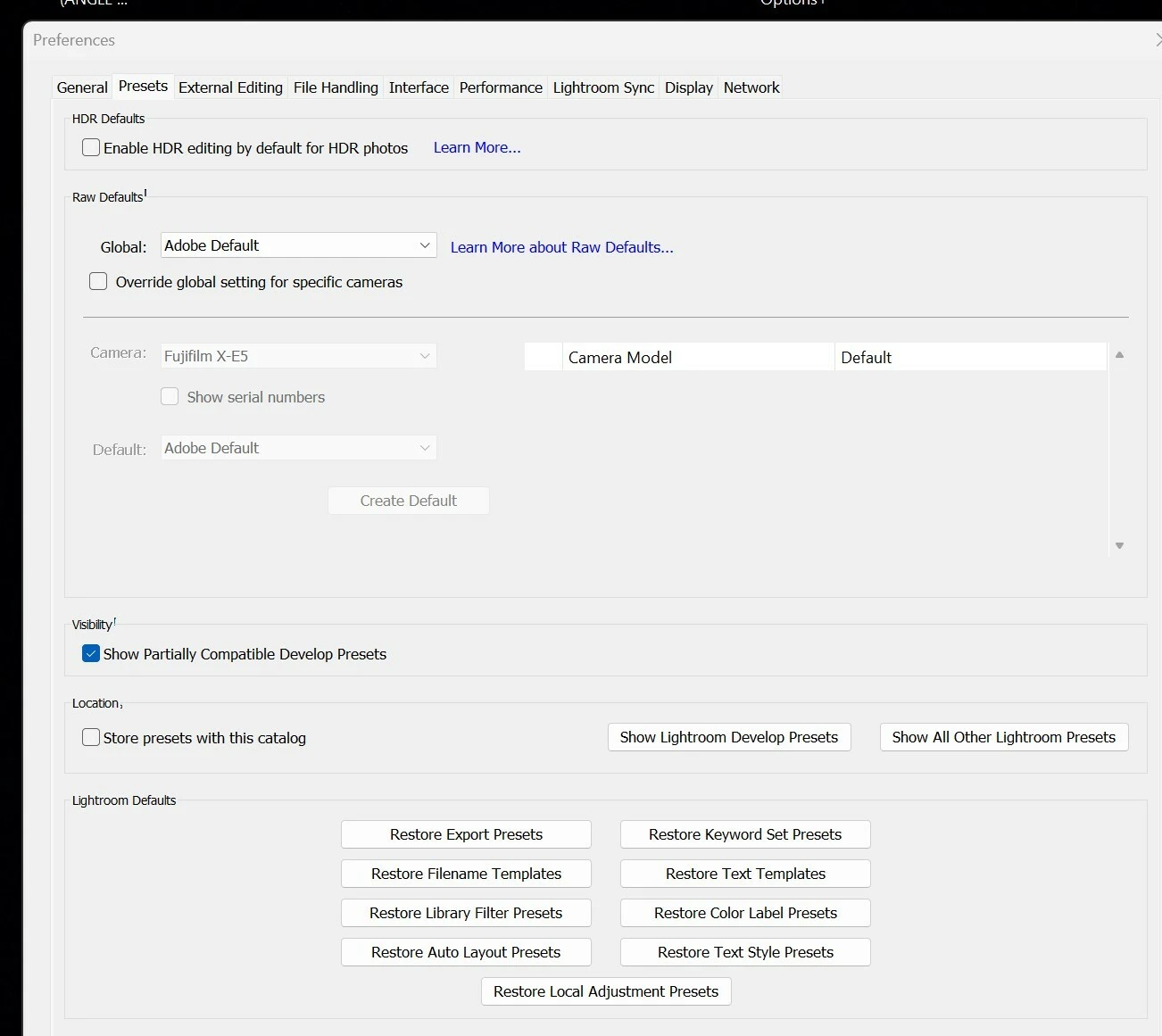
I shoot both in RAW and Jpeg on my Fujifilm camera. When I import the RAW files into Lightroom Classic or CC the files retain their Jpeg look, they don’t look like RAW files at all. This happens not just in the grid preview but in the Develop mode as well and with all the sliders set to 0, which makes it very difficult to edit a photo accurately since the colours etc. are all wrong. I’ve checked the RAW default setting in the Presets tab in Preferences and it is set to Adobe Default as it should be. In the Develop mode the profile is set to one of the Adobe profiles. Where am I going wrong? Thanks for any advice.
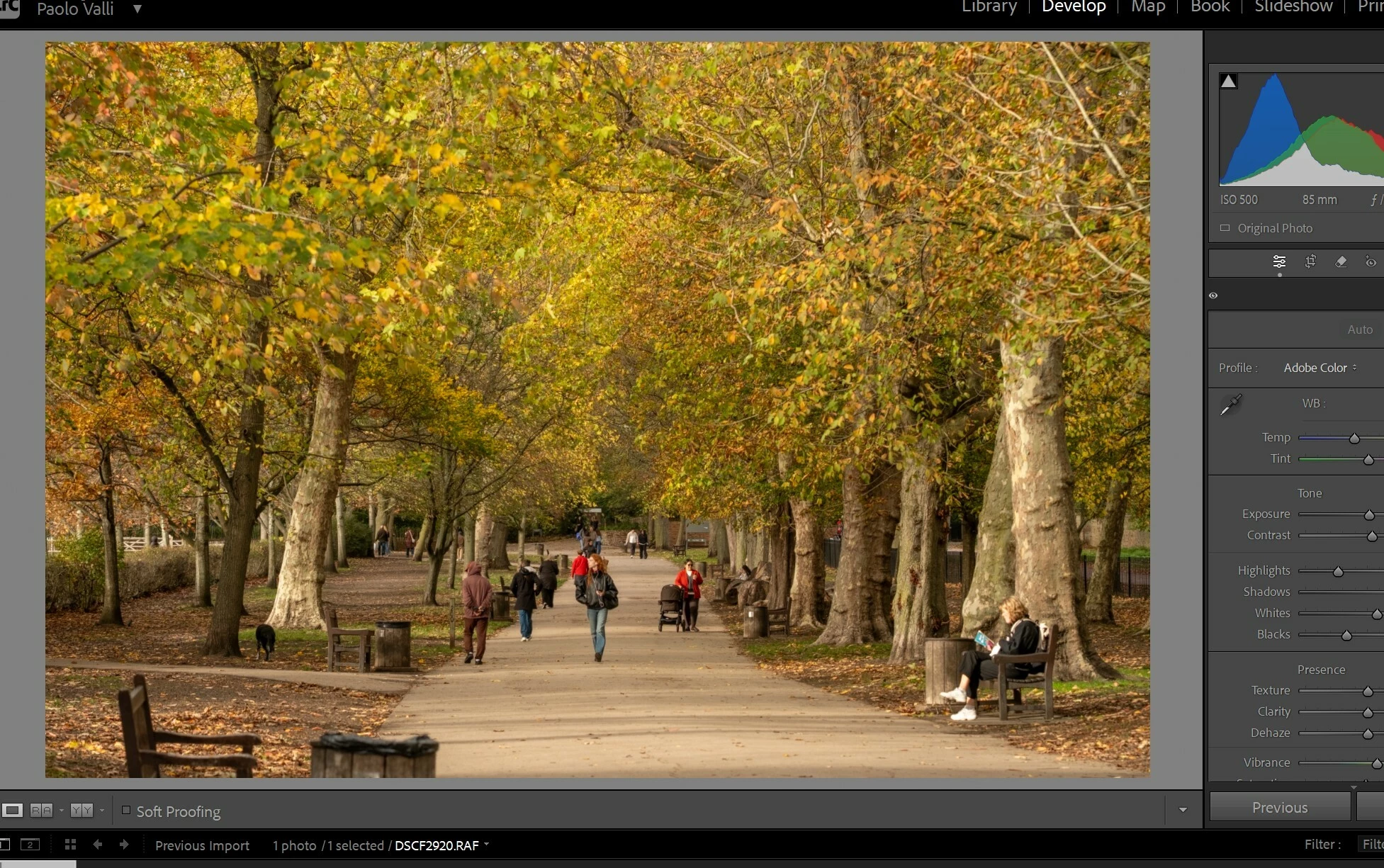
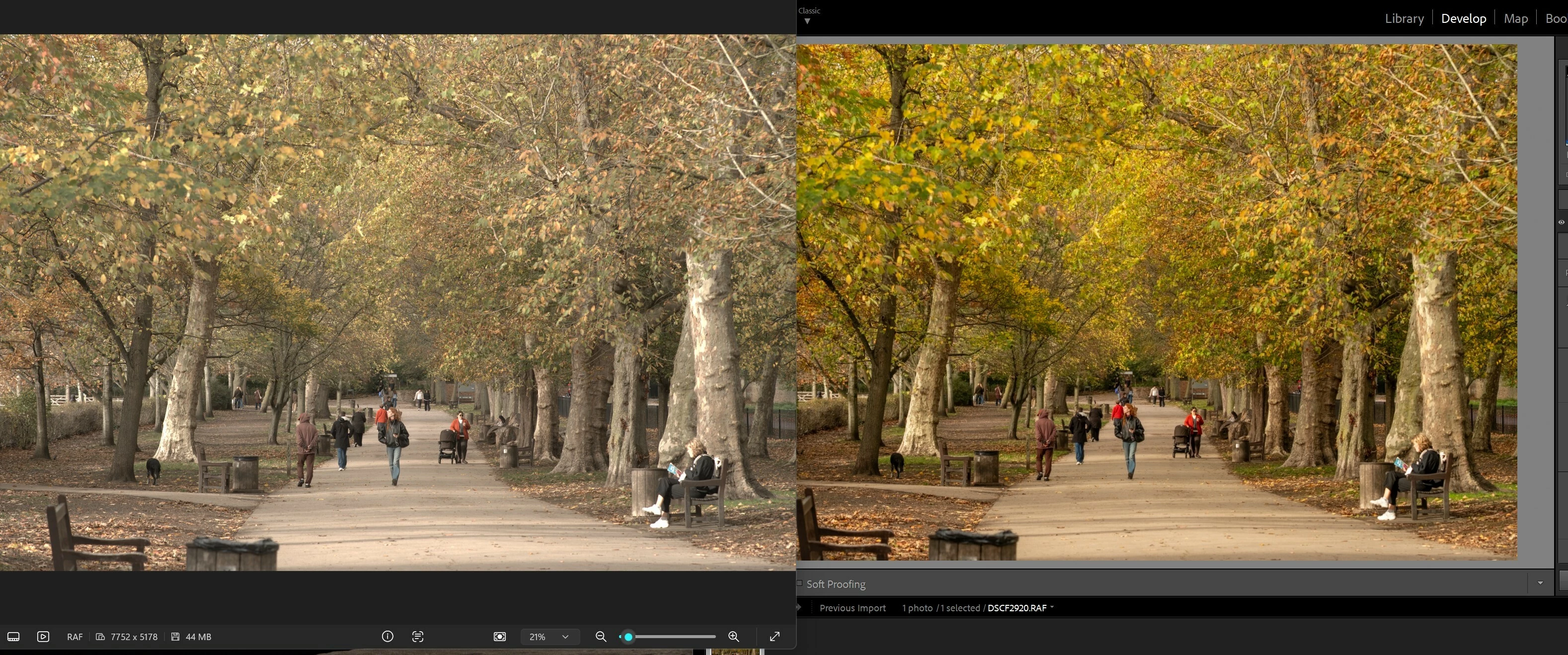
Left is from Camera Roll, right is in Lightroom develop mode. 


    5 replies

    Participant
    Nov 3, 2026 8:31 AM UTC

    Adding to Califdan2's question: a raw file never shows up completely "flat" in Lightroom, because a profile is always applied, and the default Adobe Color is designed to look close to a typical JPEG. If you want a flatter starting point for editing, switch the profile to Adobe Neutral. If you'd rather match your Fuji JPEGs exactly, look under Camera Matching in the profile browser. It includes the Fujifilm film simulations like Provia and Classic Chrome.

    Translate
    Zack Harris | Electrician, Cheyenne WY
    Califdan2
    Inspiring
    Nov 2, 2026 11:10 PM UTC

    In your bottom 2 screen shots, all the images are being shown as RAF files (DSCF2920.RAF).   

    Can you please explain what you mean by “they retain their JPG look and they don’t look like RAW files at all”.  

    I’m also not able to see in your screen shots what profile is being used or what presets have been applied (if any). I do see portions of the sliders in the Basic Panel that seem to no longer be at zero so it is likely that some preset has been applied or you have manually made adjustments.  

    RAW files by their nature are typically dull and boring like the left hand hand image on your 3rd screen shot so in normal operation using LrC we rarely ever see them that way - even immediatly after import.   I don’t know what applicaiton you are using to show the left hand image in the bottom screen shot but it is not LrC.  Is that what you mean by ‘the look’ of a RAW file?  

    Please provide screen shot of your entire Basic Panel (including profile name and profile amount).  Also screen shot of entire expanded History Panel. 

    Translate
    paoloveeAuthor
    Inspiring
    Nov 3, 2026 9:58 PM UTC

    Hi thanks for your reply. The image on the the is the RAF file as viewed in Win Camera Roll. The one on the right is the same file as it appears in Lightroom. The profile is set to Adobe Color. But if you tell me that LR doesn’t show the RAF files in their “natural” state, e.g. dull and flat like the left hand image I’ll take that as the best answer. I assumed that LR would show a RAW file for what it is, dull and flat, but maybe that’s not the case as you say.

    Translate
    Claire H.
    Community Manager
    Community Manager
    Nov 2, 2026 10:54 PM UTC

    Hi ​@paolovee, Since you’ve already checked RAW Defaults and the Adobe profile, I’d focus on whether an import setting or a rendering/display issue is affecting the RAFs:

    • Check camera-specific RAW defaults: In Preferences > Presets, look for an override for your Fujifilm model or serial number.

    • Run a clean import test: Import a new RAF directly from the card with Develop Settings: None. Changes to RAW Defaults won’t affect existing imports.

    • Check adjustments beyond Basic: On a virtual copy, reset the image and inspect Tone Curve, Color Mixer, Color Grading, Calibration, and masks.

    • Compare profiles: Try Adobe Neutral versus your current Adobe profile to isolate how much of the colour/contrast comes from the profile.

    • Compare the RAF and matching JPEG within LrC, rather than Camera Roll versus Develop, to eliminate differences between viewers.

    • Test the display pipeline: Temporarily turn off Use Graphics Processor under Preferences > Performance. If you use a calibrated monitor, also check that the correct ICC profile is active.

    • Check camera support: Confirm your LrC version fully supports that Fujifilm model, particularly if it’s a newer camera.

    Which Fujifilm model, LrC version, and exact Adobe profile are you using? Does this affect every RAF, or only recent imports? ^CH

    Translate
    paoloveeAuthor
    Inspiring
    Nov 3, 2026 9:52 PM UTC

    thanks for your reply. In Preferences > Presets I have now checked the Override global settings for specific cameras but it made no difference.

    I cannot compare the RAF with the matching JPEG as Lightroom will not import the JPEGs. Do I need to change something in order to do this?

    Lightroom recognizes my Fuji X-E5. 

    Translate