


Participant
June 27, 2025
Answered

Re: How to create a book from multiple collections?

  • June 27, 2025
  • 1 reply
  • 175 views

The current behavior is quite terrible. A book is limited to one collection and you can only add photos to your book from one collection. After you save the book and you want to add photos from another collection, you cannot just click on the other collection and drag photos to your existing book, because clicking on another collection creates a new book and re-populates all pages with pictures only from that other collection. This is frustrating. Instead you have to open the other collection in library module, drag the photos to the saved book collection, go to the book collection and add photos from there. Organizing photos this way is really tedious, especially if you want to have chapters in your book. It completely eliminates the organization of photos in collections for a book, e.g. for different chapters of your book.


Feature request: There should be an option to switch between collections, while a given saved book is and remains open. For example when I organize photos for different chapters of a photo book in different collections of a collection set. When I am working on a book, I would like to be able to click on one collection, see the photos in the bottom filmstrip, and drag and drop photos to the existing open book that I am working on. Then click on another collection - while the existing book that I am working on remains open and unchanged - and choose photos from that other collection and drag them to the book. This would allow for much better organization of photos in a book.

    Correct answer Rob_Cullen

    "you cannot just click on the other collection and drag photos to your existing book, because clicking on another collection creates a new book and re-populates all pages with pictures only from that other collection."

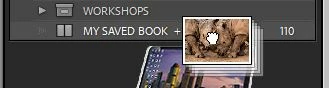
    This does not occur if you select and drag the new collection of images to the saved BOOK Collection. So Yes you can drag photos to an existing book.

    So the workflow would be like this-

    1. Create your initial book  from a standard collection [A].


    2.  Create a 'Saved Book'  which will create a special BOOK Collection of you [A] photos.

    (***Hint: You can check the box to make this the Targeted Collection and keyboard [b] will 'bounce' any selected image into the Saved Book Collection at a later time.)


    3. Press [G] to go to Grid view and select all the photos in Collection [B], or from any Folder in Library View!


    4. Drag these selected photos to the Saved BOOK Collection (NOT the old standard collection!) (Or as per hint- [b] for Target Collection)


    5. Reopen the Book by-

    a) a [DOUBLE-CLICK] on the Saved BOOK Collection, OR

    b) [ONE CLICK] on the white arrow that appears at the end of the Saved BOOK Collection name.  OR

    c) Press [CTRL + ALT + UP ARROW] that will return you to the Book page.


    6. You newly added photos will show on the filmstrip (they don't automatically fill the book pages.) where you can drag them onto page photo cells.


    1 reply

    Participant
    June 27, 2025

    The current behavior is somewhat frustrating. A book is limited to one collection and you can only add photos to your book from one collection. After you save the book and you want to add photos from another collection, you cannot just click on the other collection and drag photos to your existing book, because clicking on another collection creates a new book and re-populates all pages with pictures only from that other collection. This is frustrating. Instead you have to open the other collection in library module (potentially create a stack), drag the photos to the saved book collection, go to the book collection and add photos from there. Organizing photos this way is really tedious, especially if you want to have chapters in your book. It is also quite unnecessary because you organized your photos already in collections, so why can't you use that in the book module, e.g. for creating different chapters of your book?


    Feature request: While working on a saved book, it should be possible to switch between collections, while a given saved book is and remains open. For example when I organize photos for different chapters of a photo book in different collections of a collection set. When I am working on a book, I would like to be able to click on one collection, see the photos in the bottom filmstrip, and drag and drop photos to the existing open book that I am working on. Then click on another collection - while the existing book that I am working on remains open and unchanged - and choose photos from that other collection and drag them to the book. This would allow for much better and more efficient organization of photos in a book.

    Rob_Cullen
    Community Expert
    Rob_CullenCommunity ExpertCorrect answer
    Community Expert
    June 28, 2025

    "you cannot just click on the other collection and drag photos to your existing book, because clicking on another collection creates a new book and re-populates all pages with pictures only from that other collection."

    This does not occur if you select and drag the new collection of images to the saved BOOK Collection. So Yes you can drag photos to an existing book.

    So the workflow would be like this-

    1. Create your initial book  from a standard collection [A].


    2.  Create a 'Saved Book'  which will create a special BOOK Collection of you [A] photos.

    (***Hint: You can check the box to make this the Targeted Collection and keyboard [b] will 'bounce' any selected image into the Saved Book Collection at a later time.)


    3. Press [G] to go to Grid view and select all the photos in Collection [B], or from any Folder in Library View!


    4. Drag these selected photos to the Saved BOOK Collection (NOT the old standard collection!) (Or as per hint- [b] for Target Collection)


    5. Reopen the Book by-

    a) a [DOUBLE-CLICK] on the Saved BOOK Collection, OR

    b) [ONE CLICK] on the white arrow that appears at the end of the Saved BOOK Collection name.  OR

    c) Press [CTRL + ALT + UP ARROW] that will return you to the Book page.


    6. You newly added photos will show on the filmstrip (they don't automatically fill the book pages.) where you can drag them onto page photo cells.


    Regards. My System: Windows-11, Lightroom-Classic 15.1.1, Photoshop 27.3.1, ACR 18.1.1, Lightroom 9.0, Lr-iOS 10.4.0, Bridge 16.0.2 .