Inspiring
April 17, 2025
Answered

Re organising photos and catalogues LcR

  • April 17, 2025
  • 3 replies
  • 352 views

For various reason, not imortant, my photos have moved from one drive to another and as a result LR does not know where they are located. I want to delete ALL my old Ircat files and restart with a new catalogue based on the current locations of the photos stored and protected on my hard drive (F as it happens to be called) with a backed up set on an external drive so I am not worried about loosing the actual photos and edits.

Because of the moves and multiple restores / backups, I have multiple locations for the "old" Ircat files. I am a user not a nerd so I just want to "Clean My House" and start again. In simple terms is there anyone who can help me. I have over 20000 photos some with edits so I will not move them to yet another drive but I have capacity to put a new catalogue anywhere either on the same drive of a different one.

Correct answer Per Berntsen

The edits for your 20,000 photos are in the catalog, so you need to point LrC to the new location of the files.

If you create a new catalog and import the photos, you will have to edit them again.

The only fix for this is to reconnect the photos with your current catalog.

https://www.lightroomqueen.com/lightroom-photos-missing-fix/


Is your F drive an external drive?

If so, before doing anything, assign it a drive letter towards the end of the alphabet, like X or Z.

This will prevent the drive letter from changing in the future.

Let's say that your F drive is not connected, and you connect a different drive. Windows will assign it the first available letter in the alphabet. If this letter is F, and you then connect the drive with the Photos, it will be assigned G, and Lrc will report all your photos as missing.


To change the drive letter, open the File explorer, right click This PC, then choose Manage.

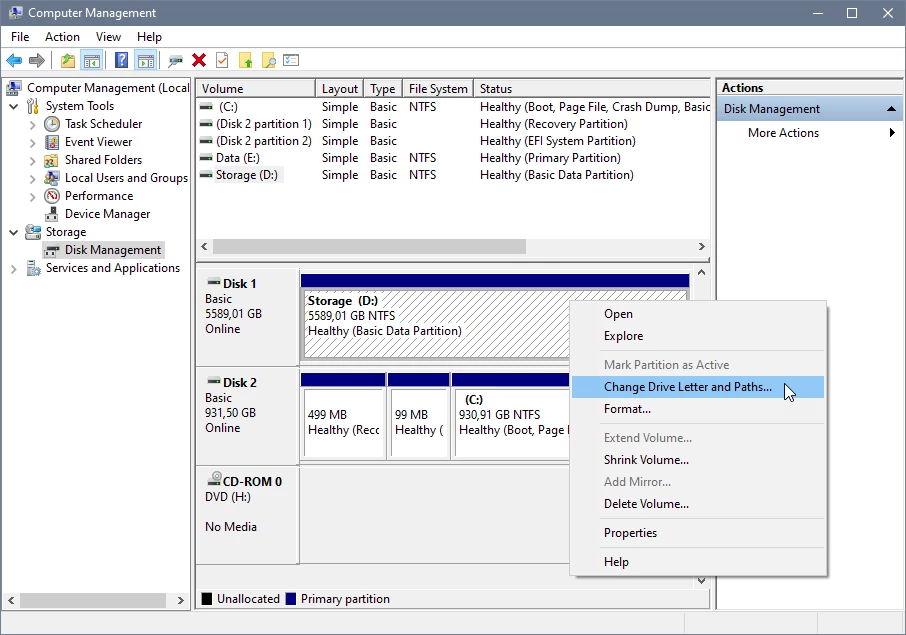
Click Disk Management on the left.

Right click the F drive, and choose Change drive letter and paths.

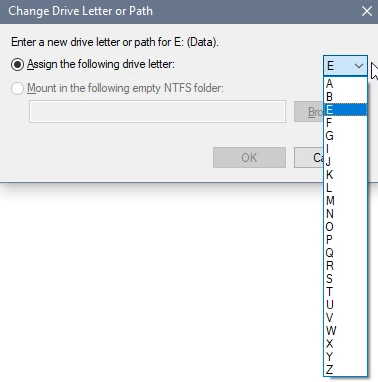
Click Change in the dialog that appears, choose the new drive letter and click OK.


3 replies

kglad
Community Expert
Community Expert
April 17, 2025

in the future, to find the best place to post your message, use the list here, https://community.adobe.com/

p.s. i don't think the adobe website, and forums in particular, are easy to navigate, so don't spend a lot of time searching that forum list. do your best and we'll move the post (like this one has already been moved) if it helps you get responses.


<"moved from using the community">
Per Berntsen
Community Expert
Per BerntsenCommunity ExpertCorrect answer
Community Expert
April 17, 2025

The edits for your 20,000 photos are in the catalog, so you need to point LrC to the new location of the files.

If you create a new catalog and import the photos, you will have to edit them again.

The only fix for this is to reconnect the photos with your current catalog.

https://www.lightroomqueen.com/lightroom-photos-missing-fix/


Is your F drive an external drive?

If so, before doing anything, assign it a drive letter towards the end of the alphabet, like X or Z.

This will prevent the drive letter from changing in the future.

Let's say that your F drive is not connected, and you connect a different drive. Windows will assign it the first available letter in the alphabet. If this letter is F, and you then connect the drive with the Photos, it will be assigned G, and Lrc will report all your photos as missing.


To change the drive letter, open the File explorer, right click This PC, then choose Manage.

Click Disk Management on the left.

Right click the F drive, and choose Change drive letter and paths.

Click Change in the dialog that appears, choose the new drive letter and click OK.


dj_paige
Legend
April 17, 2025

Agreeing with @Per Berntsen , starting over by importing your photos into a new catalog is not the way to proceed. You just need to relink the catalog to the new drive location of the photos. How to do this (with screen captures) is explained here: https://www.computer-darkroom.com/lr2_find_folder/find-folder.htm (in particular see Figure 4). Also a good idea to force the external drive letters to be at the end of the alphabet (I use drive V, but it doesn't matter the exact letter at the end of the alphabet).


Also, in many (most) cases, one catalog is a better solution than many catalogs.

Ged_Traynor
Community Expert
Community Expert
April 17, 2025

@FWG99 you'd be better off posting on the Lightroom Classic forum