MarkDS
Inspiring
January 14, 2025
Answered

Recognition of XMP data in second copy of Lightroom

  • January 14, 2025
  • 2 replies
  • 696 views
Lr 13.2 on my M1 MacBook Pro does not recognize the adjustments made to the same file on the Mac Studio M1 Desktop using the same Lr version, even though the XMP file from the Studio Desktop is downloaded to the MBP and sits right underneath the raw photo in the MBP finder. The raw photo had already been imported to the MBP at time of capture when there was no XMP associated with it. I was under the impression that once an XMP is associated with a raw file which is in the Lr catalog, Lr should pick-up the XMP data and make the requisite adjustments to the photo, but it does not. Is this a bug or a feature, and if the latter, how does one get edits that have been done in the desktop version of Lr recognized in the laptop version of Lr? It would seem perhaps one needs to get the XMP into the catalog as well, but there appears to be no way of doing this. I need this functionality in order to print to the Epson P5300 from my laptop.
 
[moved from bugs to discussions according to the community rules - Mod.]

 
Correct answer johnrellis

[This post contains formatting and embedded images that don't appear in email. View the post in your Web browser.]


"I was under the impression that once an XMP is associated with a raw file which is in the Lr catalog, Lr should pick-up the XMP data and make the requisite adjustments to the photo, but it does not."


LR doesn't do this automatically -- when the metadata stored in the .xmp sidecar (or, for non-raws, in the photo file itself) has been modified since the it was last imported into the catalog, you need to give the command Metadata > Read Metadata From File to tell LR to read the new metadata into the catalog.


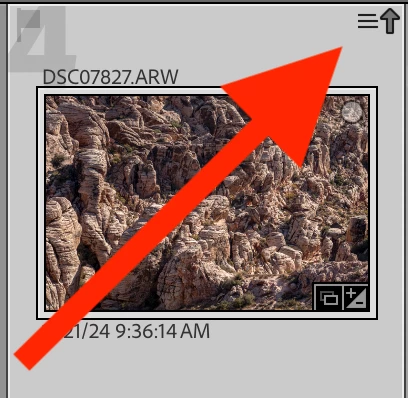
The metadata status indicator in the upper-right of a thumbnail changes to indicate that the on-disk metadata is newer than what's in the catalog:


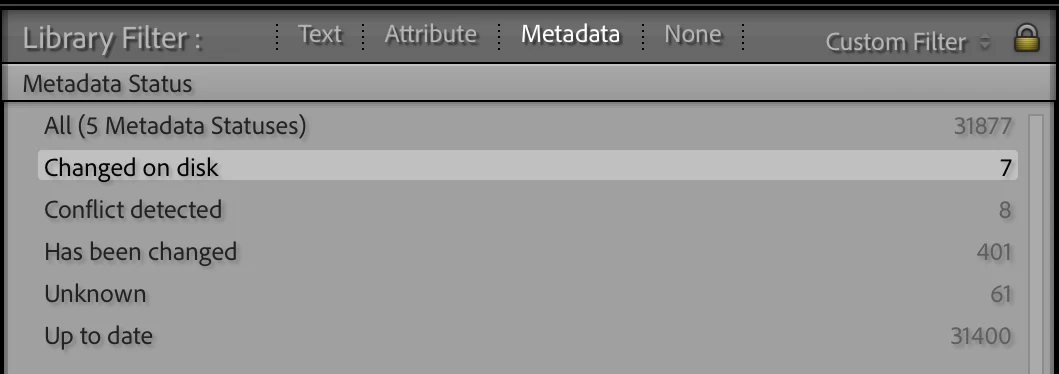
You can use the Metadata Status column of the Library Filter bar's Metadata browser to find all such photos:


2 replies

johnrellis
Legend
January 14, 2025

Instead of copying photos and .xmp sidecars between the two computers, you might consider File > Export As Catalog and File > Import From Another Catalog, which gives more flexibility about how you transfer photos and their settings and could help you avoid mistakes.

MarkDS
MarkDSAuthor
Inspiring
January 14, 2025

Thanks John, but I think there may be a problem with this because there is a limitation of Lightroom's permissions for copying between computers on a wireless network - I recall having had such an issue some time ago, but I forget the details. Anyhow, I could try again as you suggest.

johnrellis
Legend
January 14, 2025

I just tested, and File > Import/Export As Catalog work with network volumes. I recall that they didn't used to, but they seem to now.  But if you run into issues, you can export to a folder on the local disk, copy the folder to the remote computer, and import from there.

johnrellis
johnrellisCorrect answer
Legend
January 14, 2025

[This post contains formatting and embedded images that don't appear in email. View the post in your Web browser.]


"I was under the impression that once an XMP is associated with a raw file which is in the Lr catalog, Lr should pick-up the XMP data and make the requisite adjustments to the photo, but it does not."


LR doesn't do this automatically -- when the metadata stored in the .xmp sidecar (or, for non-raws, in the photo file itself) has been modified since the it was last imported into the catalog, you need to give the command Metadata > Read Metadata From File to tell LR to read the new metadata into the catalog.


The metadata status indicator in the upper-right of a thumbnail changes to indicate that the on-disk metadata is newer than what's in the catalog:


You can use the Metadata Status column of the Library Filter bar's Metadata browser to find all such photos:


MarkDS
MarkDSAuthor
Inspiring
January 14, 2025

Thank you John, I shall try that today with my next attempt.