
Inspiring
December 11, 2016
Question

Remove Photos from System Tray

  • December 11, 2016
  • 3 replies
  • 2298 views

I don't know the terminology for what I'm asking. I'm referring to the lower section of Lightroom. See Image
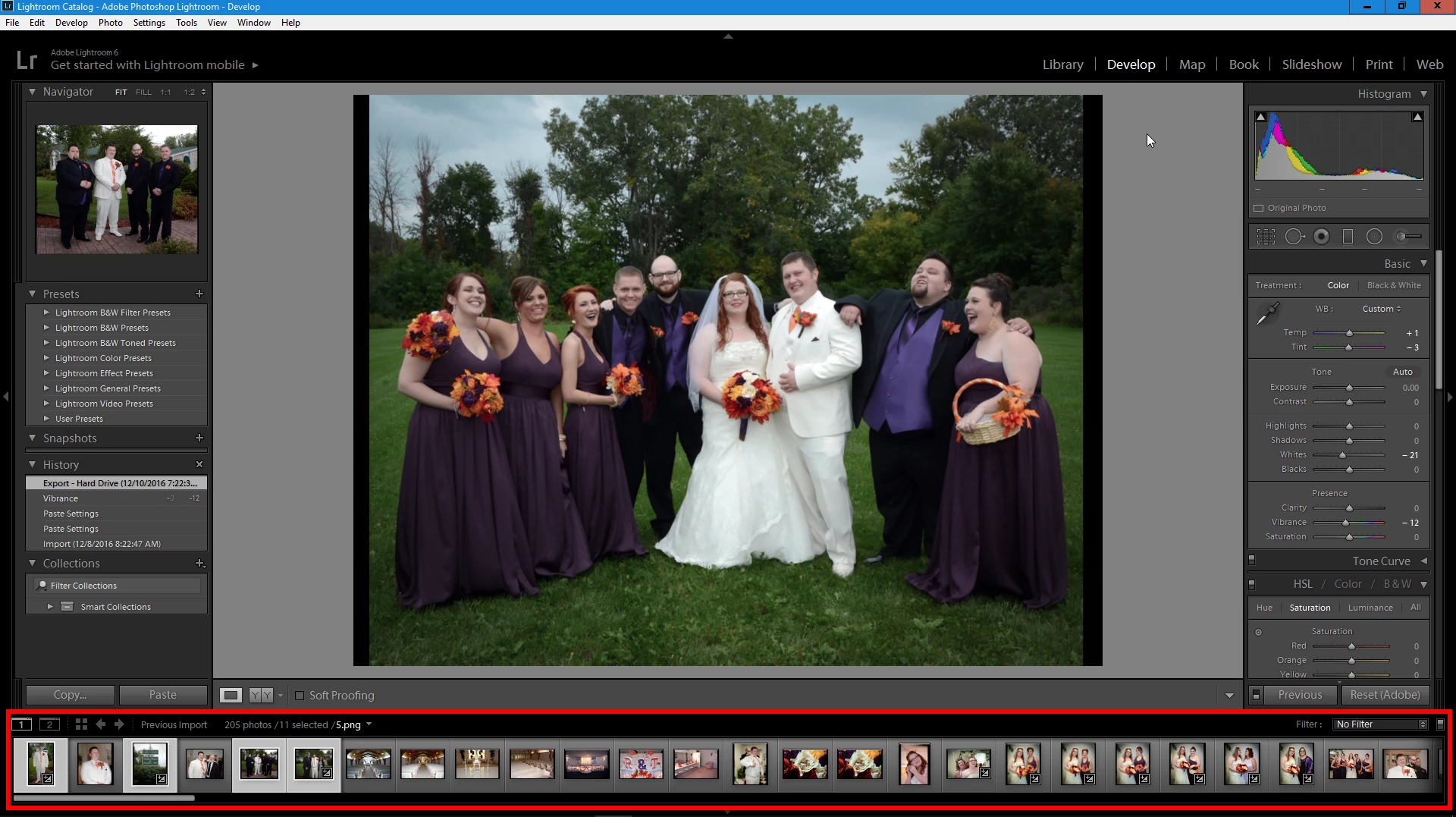
I've developed and exported a lot of these image to Photoshop and completed my edits there.I saved the image in PS. I just want to remove them from tray at the bottom of Lightroom I don't need to see them any longer.Can I just remove them from there somehow? Or do I need to remove them from Lightroom altogether?

Regards,Terry

This topic has been closed for replies.

3 replies

John Blaustein
Inspiring
December 11, 2016

I agree with dj and Just Shoot Me about keeping your images together in LR.

You can create a LR Collection and only include those images that you want to see. You might name the collection JobName-Finals, or something similar.

John

dj_paige
Legend
December 11, 2016

I think you have a misconception about this.

You don't want to remove photos from Lightroom after you have edited them, and you don't want to remove photos from the filmstrip at the bottom once you have edited them. Lightroom is your library of photos, they need to stay in there. You can turn on the "badges" feature in Lightroom which places a small badge on each photo indicating it has been edited ... This sounds like the tool you ought to be using to identify which photos have been edited, and which have not been edited. See Lightroom Grid View - What Thumbnail Cell Icons Mean | How to View

Lightroom offers about 12 bazillion ways to segregate photos by different criteria. Deleting photos is not one of those ways, and should not be considered.

Just Shoot Me
Legend
December 11, 2016

The question I need to ask is why you want to remove them from film strip and or from LR altogether.

The purpose of LR is to have all your images in one place, program, so you can fine them easier.

If you remove images that you have done final edits on from LR how will you know which images have final edits and which do not.

Inspiring
December 11, 2016

I have about 150 or 200 wedding images currently on the film strip.They are in random order,a few outside images, a few church images,some reception, etc. I've edited 45 or so of them and they are scattered across the entire film strip.

These images were actually shot by someone else and they are of poor quality.The only thing good about these images is they are shot poorly consistently.So the edits chosen work well on different groups of photos shot at different locations.

Copy and pasting edits works well.

Having to scan back and forth through already developed images in the film strip to look for similar images would be easier if the developed ones were no longer visible. I don't need to look at them again and they take up a lot of real estate.

I'm not interested in removing them from Lightroom. But I don't want to sort through 100's of developed images just to find the ones that are not.

I hope that's possible.

Just Shoot Me
Legend
December 11, 2016

You need to use the power of LR to manage your images. That being Keywords and or collections and the use of the Filter bar.

You could also use a folder structure that separated individual shoots (weddings and whatever) so not all your images are displayed in either the Grid view or film strip unless you selected All Photographs in the Catalog section on the left when in the Library module.

To display images in a As Shot order set  the Sort: to Capture Time. That way all images will be in order newest to oldest or oldest to newest depending on the A/Z-Z/A setting. If you are not seeing either Sort: or the A/Z thing then you need to turn on the Tool Bar by pressing the t key. If the Tool Bar is visible but the Sort: and A/Z isn't there then click the little triangle on the right to select the option you want to be displayed in the Tool Bar.

You should review some of the extremely good online tutorials and do some Google searches for articles on how LR works and how to work with LR.

http://laurashoe.com/2016/10/27/new-to-lightroom-an-introduction-to-lightroom/?utm_source=MadMimi&utm_medium=email&utm_c…

Lightroom CC tutorials