Participating Frequently
February 19, 2025
Answered

Repeat the same Healing Tool Steps

  • February 19, 2025
  • 2 replies
  • 1307 views

I took a LOT of pictures on my last vacation and there are 2 dust spots (GRRRRR!). Luckily, they show up mostly in the sky. This makes the steps using the healing tool in the "dust spot in the sky" photos repeatable.


Is there any way to "heal" the dust spots in a single photo, copy those actions, and then "paste" them onto a different photo? This will save me many, MANY key strokes. Since I have done no editing to any fotos, I could make this the  first edits, then go back and do any other touch-ups (color, lighting, etc.) afterwards....IF that made a difference.

Correct answer richardplondon

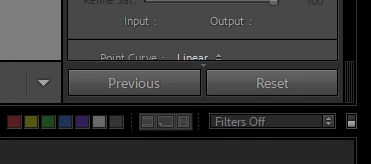
Richard, the  bottom right of the Develop mode is Previous and Reste:
 

The bottom right of the Library mode is Sync and Settings:
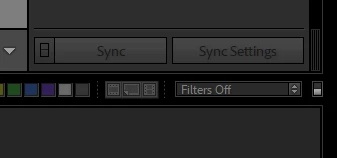
 

However, if you are in Devlop and you select 2 images on the filmstrip, the the 2 dialog boxes change to Sync and Reset.


THIS SOLUTION DOES WORK!!!

So to recap:

1) In Develop, edit the photo you want to heal. Meaning, "heal" it

2) Copy those settings. I suggest checking ONLY "remove" in the settings copy dialog box

3) Staying in Develop, (IMPORTANT! It won't work if you don't do it in this order)

      a) first select the image that you just healed

      b) next select any other image or images you want to apply the Heal to

     c) press the SYNC button on the bottom right of the screen. Make sure that when the dialog  box appears after you push SYNC that only Heal is checked (or only the  items you want to sync).


You're done!!

Thanks!


yes, Sync only appears when you have more than one image selected - because otherwise it will have nothing to do. Sync is a close equivalent for Copy and Paste and uses the exact same working sequence. Sync is a verb.


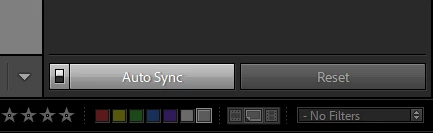
AutoSync is only available to turn on when more than one image is selected - but is a completely different method than Sync and uses a different working sequence. It then stays active - regardless whether one image or many images are selected - until turned off. When only one image is selected it does nothing; but the moment more images are selected, each new edit that you carry out automatically applies in BULK onto all of those immediately. AutoSync being on, or off, are two different working modes.



2 replies

Legend
February 24, 2025

@windsurfer65 


There are multiple ways to do this in LrC. The Copy/Paste method does work, but @Conrad_C left out a vital piece of information that you need. The Sync... method given by @richardplondon also works.


Here are you options:


Copy/Paste in Develop: select one photo that you want to apply one or more spot Heals and apply them. Click the Copy... button and select only the Remove option, then click Copy. Select the other photos you want to Paste the copied settings to (exclude the one you already did). If the left button on the bottom right side is Sync..., click the switch next to it to change it to Auto Sync (missed by Conrad). Now click Paste and your Heal will be applied to all the selected photos.


Sync... in Develop: Select one photo and apply the required Heal(s). Select all the other photos you what Healed, but make sure the one you just did is also selected as the 'most selected' (the current one you see in the Loupe view). Make sure the Sync... button is enabled (the switch is down) and click the Sync... button. Make sure that Remove is checked and then click Synchronize. The Heals from the 'most selected' photo is synchronized to all the other photos in the selection. This is your "THIS  SOLUTION DOES WORK", although copy in Step 2) is not needed.


Sync Settings in Library: this button is enabled (bottom right) when multiple photos are selected in the Library. It does the same as Sync... in Develop, so the 'most selected' photo (the one shown in Library Loupe) must have the settings you want to sync to the others in the selection.


Auto Sync in Develop: Select all the photos you want to Heal. Enable the Auto Sync button (switch is up). Heal the photo 'most selected' and each Heal you do will be applied to the other selected photos as you do them. This option applies what ever you do to the current photo to all the others in the selection, so be careful here.


Conrad_C
Community Expert
Community Expert
February 19, 2025

Sure. Start in the Develop module, with a photo that has the healing spots applied. 

Either click the Copy button at the bottom left corner, or choose the command Settings > Copy Settings.

Both open the Copy Settings dialog box.

Make sure Remove is selected. This is in Lightroom Classic 14, where healing is one of the modes of the Remove tool.

Click OK.

Select any number of other images, and click the Paste button or choose Settings > Paste Settings.


Now when you go to any other image that you pasted this setting to, and select the Remove tool, you will see the pasted spot removals, and you can edit them if needed. 


Participating Frequently
February 22, 2025

Bingo! Thanks for that! It is UN-intuative that it is the "remove" checkbox.

Follow-up question:

Now that I can cut/paste a only a “heal action” is there a way I can apply that “paste” that action to multiple photos at the same time? I tried selecting multiple pictures in the folder that  I’m editing - while in the DEVELOP module - but when I tried to "paste to all” (my term) it doesn’t apply the paste to any of the selected items. Any pointers for this?

Community Expert
February 22, 2025

There is another option. A particular edit action can be directly batch applied onto multiple chosen images, all in one go. This includes when an edit is localised - it should apply 'in the same place' on all the photos, though funny things may happen if some images are portrait and others landscape.


It is (1) a good idea to get familiar with this feature on just a couple of sample images first, also (2) to be very conscious it would be easy to apply lots of unintended edits onto other images that were also highlighted, if one forgot - therefore, it's a good idea to promptly switch this off when not particularly needed.


At bottom of the Develop right side panels are Sync and Reset. There's a little switch next to Sync. Clicking that puts the Develop module into AutoSync mode. This uses a completely different working order and logic than Copy - Paste; or, than Sync (which amounts to the same thing as Copy - Paste IMO).


AutoSync sequence is: activate the mode before making a particular change to active image; this plus all other images currently highlighted receive that specific change (only) instantly,;make your next change; same thing happens instantly, and so on for as long as AutoSync stays active. The only change received by other highlighted images will have been the particular action(s) you did with AutoSync active - all the rest of their processing is left alone. 


Copy-Paste (or, very similar, Sync) sequence is: after making desired changes to one image, replicate some or all of its latest processing onto other images as well.