Miker2426
Inspiring
April 22, 2019
Answered

Resetting Catalog Settings for my Preview Cache change nothing.

  • April 22, 2019
  • 3 replies
  • 3004 views

My preview cache is HUGE, at over 180 GB. I went in and lowered the preview size to 2880 px and set it to automatically discard 1:1 previews to "After One Week." I shut down Lightroom, then opened it back up. My settings are still there, but so is the huge 180 GB cache. I assume it's not going to change the size of all the previews, but I was expecting it to throw out a bunch of older previews. What else do I need to do to reduce the size of the cache? Is there a way to purge it manually?  It's almost HALF my drive size alone!

Thanks in advance for any help.

This topic has been closed for replies.
Correct answer Rob_Cullen

Ah, there it is! Thank you David!

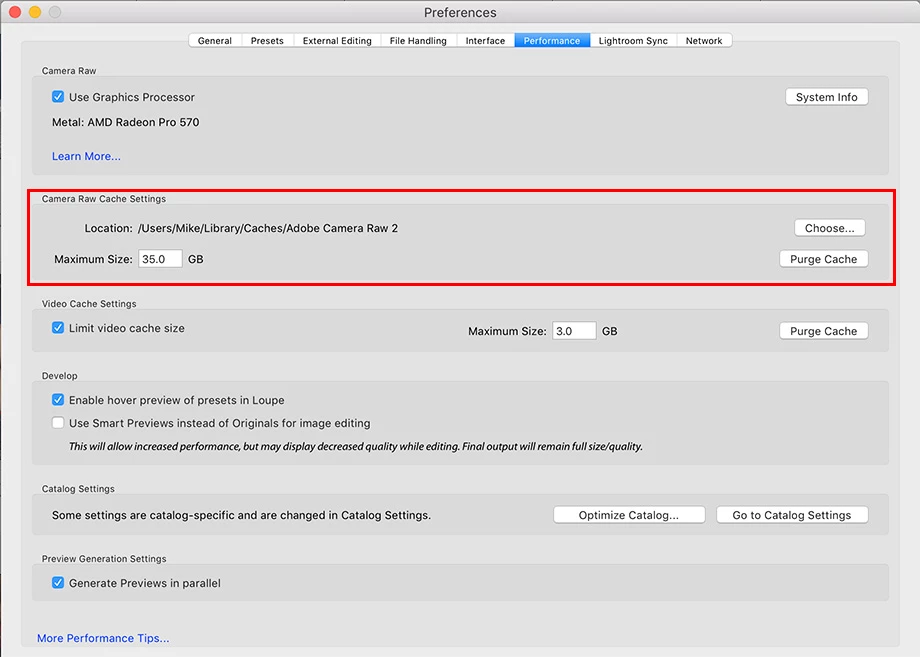
This does bring up another question though. The maximum size of my cache is set to 35 GB, and yet mine is over 180 GB, so obviously I'm missing something. What gives?

Thanks again.


Be aware that the 'Cache' and 'Previews' are two entirely separate entities.

Clearing the Cache will not clear, or modify, the Previews 'folder'.

I believe that we are talking about the Previews Folder/File here. (sometimes referred to as the Previews Cache)

Cache is used as temporary storage by Camera Raw, etc, and can only be set to 'size'.

The Previews 'file' stores all the previews that Lr needs to show your images (1:1, Standard, Minimal, etc).

There are limited Menu options in Lr to delete some previews from the Preview file, or you can take the extreme step of deleting (or preferably -renaming and delete later) the Previews file (xxxx.LRDATA). Lr will then need to re-build previews as it needs them to show your photos, and it does that automatically (and slowly)

Have a read of some "myths" at- https://www.lightroomqueen.com/lightroom-performance-debunking-myths/

Myth#5 and Myth#3.

3 replies

GoldingD
Legend
April 23, 2019

And, note that Bridge might also be using that folder.

GoldingD
Legend
April 23, 2019

And when you look at that folders contents (outside of LR), it just contains .dat files? perhaps an index file?

Sahil.Chawla
Adobe Employee
Adobe Employee
April 22, 2019

Hi Miker,

As you're looking to purge the cache manually, In Lightroom, choose Edit > Preferences > File Handling (Windows) or Lightroom > Preferences > File Handling (Mac OS). Click Purge Cache under the Camera Raw Cache Settings.


Please let us know if it helps.

Regards,
Sahil

Miker2426
Miker2426Author
Inspiring
April 22, 2019

Hi Sahil. I appreciate the rapid response.  

That said, I can't see what you're referring to above. Here's a screen shot of my Lightroom > Preferences > File Handling.

I don't see an option to click Purge Cache.

Thanks again for your time.

GoldingD
Legend
April 22, 2019

go into the performance tab