


Participant
January 25, 2023
Question

Revise flat to be hierarchical keyword structure in Lightroom Classic

  • January 25, 2023
  • 1 reply
  • 167 views

Revise flat to be hierarchical keyword structure in Lightroom Classic


I am using Adobe Photoshop Lightroom Classic 12.1 on a Mac computer with OS Venture 13.1.


I have been using Lightroom since version 1.  My keyword list has been a flat structure, however it has become difficult to use and I have started to create a hierarchical structure.  


The process of creating a hierarchical structure is not working for me.  Here is how I have been revising the structure.  


I created the top most keywords in the structure such as  .PLANT  and a few others.  When in the Keyword List, I click on the keyword “cactus” that does not contain the “ “ and it puts a checkmark in front of cactus thus picking up all 28 images; then I drag that cactus up to the  .PLANT in the Keyword List.  When I look at an image in the Keywording Keyword Tags window it does not show what I had expected   cactus < .PLANT.  I tried to enter the   < .PLANT  right after the word cactus when in the Keywording Keyword Tags window and having a single space before and after the >  however it would not accept it.  When I tried to enter the   cactus < .PLANT within the lower space in the Keyboarding Keyword Tags window and click Return, nothing would be added to the image keywords.  
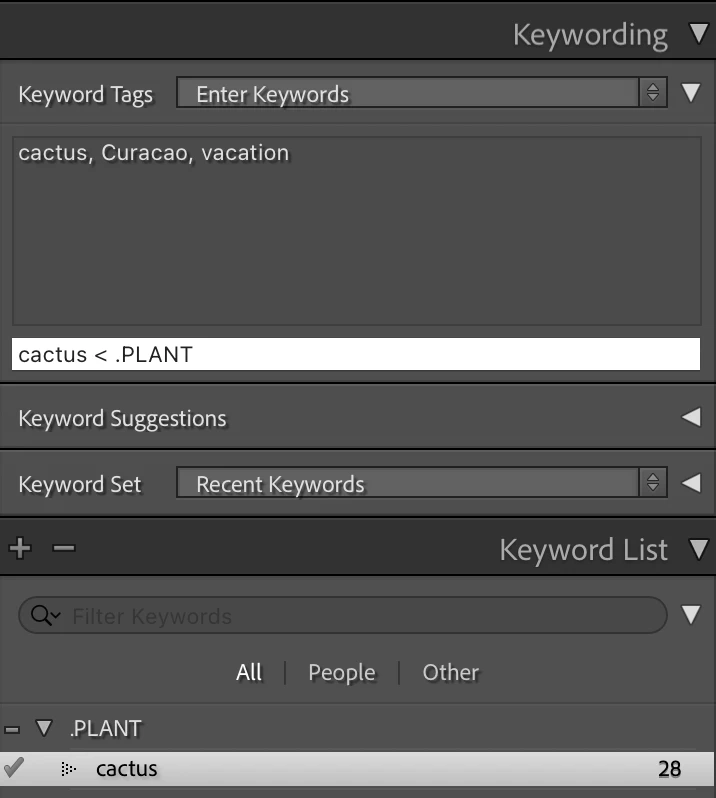


I assume a proper keyword hierarchy structure will have something like:    lowest level keyword < next higher level keyword < highest level keyword.  And there will be < with a space before and after it.


Is there a solution to my problem of revising my flat to hierarchical keyword structure?

This topic has been closed for replies.

1 reply

dj_paige
Legend
January 25, 2023

I don't think there is a problem here. If you type cactus<.PLANT when cactus exists only once in the keyword hierarchy, the .PLANT won't show, it should remain as cactus. You would only see the .PLANT if the keyword cactus exists in multiple places in the hierarcy.


If you really want to see parent keywords, switch the dropdown menu in the Keywording panel to Keywords & Containing Keywords.

Community Expert
January 25, 2023

to expand on this, in the case where there is a parent "plant" and a child "cactus" nested under, applying the "cactus" keyword to an image, involves adding only that explicitly. The "plant" keyword is not being applied at all. It is true that (for the moment) a search of the Catalog on "plant" will select for that image too, just by indirect association (parentage that the Catalog knows about).


If "plant" keyword is set not to export / if "cactus" is set not to export its containing keywords, then an export will duly only include "cactus". Otherwise an export will include both keywords. And that can be previewed by setting Keywording panel to "will export".


But if later the "cactus" keyword gets removed from its nesting inside "plant", that indirect association ceases. However, any direct application of this "plant" keyword (in its own right, separately) would of course remain.


The different display modes of the Keywording panel are worth taking a look at IMO.


In the normal default mode, parent keywords are only shown where needed to disambiguate identical-appearing but independent keywords. So, say there was another identically spelled "cactus" keyword nested inside "hotel" (denoting a business of that name), the LrC keywording panel has to clarify whether it is the plant "cactus" or the hotel "cactus" in question. But only in the case of an exact repeat.

Participant
January 26, 2023

Thank you