Participant
December 18, 2024
Answered

Smart Collection: How to copy pictures?

  • December 18, 2024
  • 5 replies
  • 827 views

I use a smart collection and it shows pictures from several folders and different file types (JPG, HEIC). Now I want to copy all files of a collection to a new folder. So far I found only 'Export', but this takes very long and I will have at the end all in JPG and wouldn't have original files at destination folder. 


How to do this?


OS: Win10, Lightroom Classic 14.1

Thanks!

This topic has been closed for replies.
Correct answer Justin Hoch

Are you trying to collect images from several different folders on your computer for some kind of upload somewhere else? Like, say you're updating your website and you are needing the actual files to upload, and you're trying to organize in Lightroom, but then be able to upload the files themselves from one common folder on your computer instead of tracking down 30 photos from 25 different folders?

If so, the issue you'll run into is that Lightroom doesn't let you have multiple copies of the same image unless you're importing them and allow duplicates to be imported. It won't offer you an option to make a duplicate within the program itself, that I'm aware of, since that's sort of antithetical to it's function as a database, not explicitly a file manager. You can easily do this in Bridge, for example, or Windows Explorer.

But if you're using Lightroom to organize, then two things come to mind.


1) Take that smart collection in Lightroom of all your images from various places, open Library Grid view, select all, and then drag and drop the images to a specific folder in your Folders panel. The problem is that this will move all the actual files to one common folder on your computer, not make a copy, and they won't exist in their different folders anymore. Maybe that's ok for you?


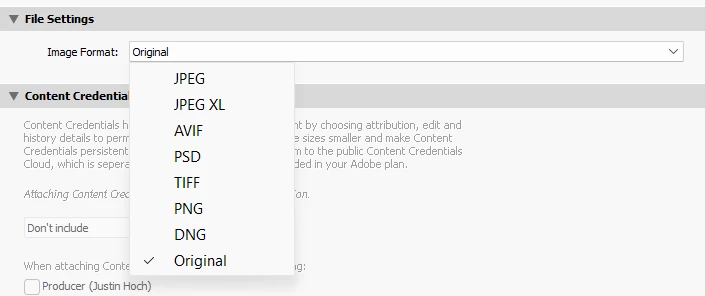
2) The other way would be the Export, as you're saying. You should be able to export them to one common folder using the export dialogue, and that would be your best bet, I think. Using the Original setting for Image Format in the File Settings section will strictly make a copy, with no adjustments you might have made to the files in Lightroom. You might not have made any anyway, if you're only using it to organize. But if you did make edits you want to keep, and you don't want to change the file exptensions, then I would filter by file type in the Grid view first, export all the JPGs, for example, using whatever export settings you'd like, then repeat the process for the HEIC files. That will allow you to keep their original file formats, apply whatever edits you've made, and have updated copies in the new folder. Or you could just export all of them to one common file format - it wouldn't have to be JPG, as you can select various options in the same Image Format dropdown and keep the edits that way, too. 


Barring those, you could go into Bridge or Windows Explorer and manually copy the files you want that way.

5 replies

Participant
December 19, 2024

Hello dj_paige, Per, Johan and Justin,

reason behind my approach is that I want to make backups. But my backup strategy covers, besides a full backup of all files, also additional backups for special photos which will be stored at further/different locations. With smart collections I can easily identify the more important ones... 😉 


What I have oversee so far is the export option 'Original', thanks for making aware. I will try this as next.

JohanElzenga
Community Expert
Community Expert
December 19, 2024

If you want to backup certain images only, then consider using a publishing service. Publish images 'as original', just like exporting them as original. A publishing service is an export where Lightroom Classic keeps track of what it exported, and marks images for republishing if and when you changed something. Of course that does mean changed metadata, not the image itself, but storing metadata with the image in your backup is a bonus in my opinion.


-- Johan W. Elzenga
Justin Hoch
Justin HochCorrect answer
Inspiring
December 19, 2024

Are you trying to collect images from several different folders on your computer for some kind of upload somewhere else? Like, say you're updating your website and you are needing the actual files to upload, and you're trying to organize in Lightroom, but then be able to upload the files themselves from one common folder on your computer instead of tracking down 30 photos from 25 different folders?

If so, the issue you'll run into is that Lightroom doesn't let you have multiple copies of the same image unless you're importing them and allow duplicates to be imported. It won't offer you an option to make a duplicate within the program itself, that I'm aware of, since that's sort of antithetical to it's function as a database, not explicitly a file manager. You can easily do this in Bridge, for example, or Windows Explorer.

But if you're using Lightroom to organize, then two things come to mind.


1) Take that smart collection in Lightroom of all your images from various places, open Library Grid view, select all, and then drag and drop the images to a specific folder in your Folders panel. The problem is that this will move all the actual files to one common folder on your computer, not make a copy, and they won't exist in their different folders anymore. Maybe that's ok for you?


2) The other way would be the Export, as you're saying. You should be able to export them to one common folder using the export dialogue, and that would be your best bet, I think. Using the Original setting for Image Format in the File Settings section will strictly make a copy, with no adjustments you might have made to the files in Lightroom. You might not have made any anyway, if you're only using it to organize. But if you did make edits you want to keep, and you don't want to change the file exptensions, then I would filter by file type in the Grid view first, export all the JPGs, for example, using whatever export settings you'd like, then repeat the process for the HEIC files. That will allow you to keep their original file formats, apply whatever edits you've made, and have updated copies in the new folder. Or you could just export all of them to one common file format - it wouldn't have to be JPG, as you can select various options in the same Image Format dropdown and keep the edits that way, too. 


Barring those, you could go into Bridge or Windows Explorer and manually copy the files you want that way.

JohanElzenga
Community Expert
Community Expert
December 18, 2024

Why would you want to copy them? As other said, you can't copy and you should not try via export. If you want to have a copy because you want a version with different edits (for example a color version and a black & white version), then add them to a new collection and check the box to add virtual copies when you create this collection. A virtual copy is an extra set of metadata belonging to the file, so you can have different edits for the virtual copy without having to make a real physical copy.


-- Johan W. Elzenga
Per Berntsen
Community Expert
Community Expert
December 18, 2024

LrC never touches the original files, but creates previews from them. All the work you do in LrC is done using these previews.

For raw files, the previews are an absolute necessity, since new files has to be rendered from them. A raw file (if you could see it) is very dark and flat, and in grayscale. The same method is used for none-raw files, like jpg or heic.


The edits you do are applied to the previews, and written to the catalog.

When you export, a new file is rendered from the raw file – or the non-raw file – with your edits applied.

The normal procedure is not to export unless you need to use the file outside of LrC

So I agree with @dj_paige that there is no need for a folder, just view the files in the collection, and export if you need to use files outside of LrC.

dj_paige
Legend
December 18, 2024

There is no such thing as copying files within Lightroom Classic (except at Import).


You could export the files as DNG (which is not a COPY) and have them all in one folder. You could export and use File Type=ORIGINAL in the LrC Export dialog box, and this would put the originals in the folder you want, but without edits.


WHy do you want these all in one folder? Isn't a smart collection in LrC just as good as a folder? All the original photos are together in the smart collection with their edits.