danielm49702136
Participating Frequently
August 31, 2026
Question

smart collections filtering by specific keyword in keyword tree

  • August 31, 2026
  • 5 replies
  • 27 views

Dear I would like to use a smart collection that depends on the keyword and I am having many problems:

  • if the keyword has many words for instance “blue birds” and there is also a keyword “birds” if I look for photos with just “birds” it also shows photos of “blue birds”
  • if I work  with keyword trees, for instance I do have “birds” and inside two other keywords “small” and “big”. Some photos do only have “birds” and other do only have “small” or “big”. If I ask the filter to show “birds” it also shows those photos with “small” or “big” keyword and that do not have the “birds”.
  • another problem with the keyword trees: supose that I add another keyword “dogs” and inside it I have “small” and “big” keywords. I did not find the the solution to make the smart collection show photos with the specific  “big” keyword inside “dogs”. I have tried “dogs > big”, “dogs / big” but didn’t work


I have been trying to use a synonim for each keyword with a code without spaces and asking to include the code an exclude the codes of all keyword soons. It is really a mess and if I want to add a new soon keyword, then I do need to upgrade the smart collection definition


Regards,
Daniel

    5 replies

    Califdan2
    Inspiring
    August 31, 2026

    @johnrellis said:  - Use “_” rather than spaces in your keywords. (A fair number of people do that, but I don’t, since my keywords get published with my photos for others to view.)

    Personally, I use “-” instead of “_”.  But when I do so,  I uncheck the “Export this keyword” box and put in the same words with spaces as a synonym and check the box to export the synonym


    Pertaining to using a Metadata filter,  If you are on Windows, there is a limit on the number of entries that it can show in a single list (the limit is acutally a pixel limit but has the same affect).  So, if you have a long list of keywords the pull down may only show the first bunch of them.  Having KW’s in a hierarchy and setting the filter to show them as a hierarcy and then only expanding the branches you need usually is sufficient to get around this.   In my case, when viewing as a flat list, it only gets down to “Forest” before hitting the limit.    

    danielm49702136
    Participating Frequently
    August 31, 2026

    It is very strange tha there are so many problems with lightroom that seem very simple to correct and they are still there for years and years. I wont be able to make a smart collection with simple rules with Ligthroom capabilites. Any filter plugin is excellent and does much more than what I do need. 

    dj_paige
    Legend
    August 31, 2026

    Not exactly what you asked for, but a possible approach is to go to the Keyword List panel, then find “blue birds” and hover your mouse over it until an arrow appears at the right side of the Keyword List Panel on that row, click on the arrow. This will give you all of your photos with the “blue birds” keyword. (Oops looks like ​@johnrellis has beaten me to it)

    Not a smart collection, but these are the photos you want.

    By the way, isn’t bluebird one word? That would solve some of your problems.

    Also, if “blue birds” are a keyword under “birds”, get creative and instead of “Birds” use “Aves”.

    johnrellis
    Legend
    August 31, 2026

    [View this post in your web browser. It contains formatting and images that don't appear in email.]


    Building on Johan’s reply: The lack of exact match for keywords in filters and smart collections is a big design botch that Adobe has never addressed.  Some options:


    - Use “_” rather than spaces in your keywords. (A fair number of people do that, but I don’t, since my keywords get published with my photos for others to view.)

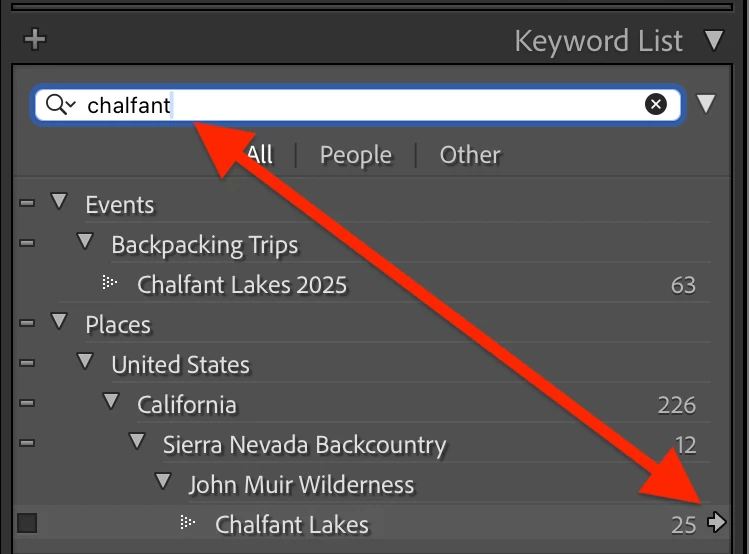
    - You can find all photos with a specific keyword by going to the Keyword List panel, using the Filter Keywords box to quickly find the desired keyword in the list, hovering the mouse over the keyword and then clicking the right-arrow icon that magically appears to the right:


    That opens the Keyword column in Library Filter bar’s Metadata browser with that keyword selected.  


    You can add additional criteria to the Filter bar and then save it all as a filter preset, so you can call it up easily again (like a smart collection).


    - LR’s filters don’t have all of the criteria and boolean operations of smart collections. If you need that extra capability combined with exact match for keywords and other fields, see the Any Filter plugin.

    JohanElzenga
    Community Expert
    Community Expert
    August 31, 2026

    I’m afraid there is not much you can do about this. Lightroom Classic does not work with keyword phrases, so a keyword “blue bird” is handled as if it’s two keywords, ‘blue’ and ‘bird’. That makes it extra difficult if you use the same words (big, small) in more than one hierarchy. And to make it worse, there is a bug where ‘begins with’ and ‘ends with’ does not work correctly in smart collections. Using ‘begins with birds’ and ‘ends with birds’ as criteria would normally make it possible to select images with only ‘birds’ as keyword, and not get ‘blue birds’, but that no longer works.

    -- Johan W. Elzenga