
Known Participant
November 11, 2022
Question

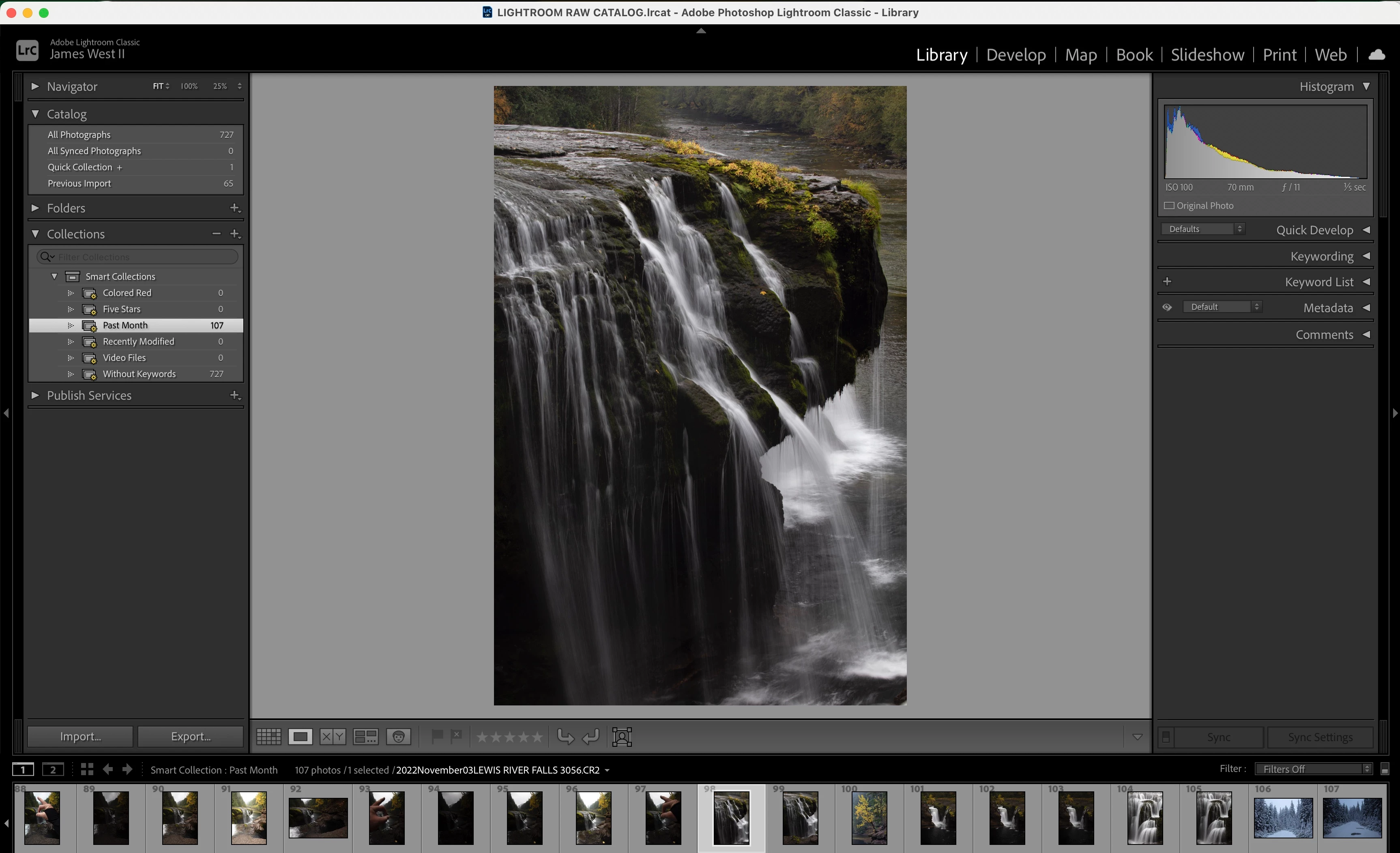
Smart collections ( Last Month)

  • November 11, 2022
  • 1 reply
  • 838 views

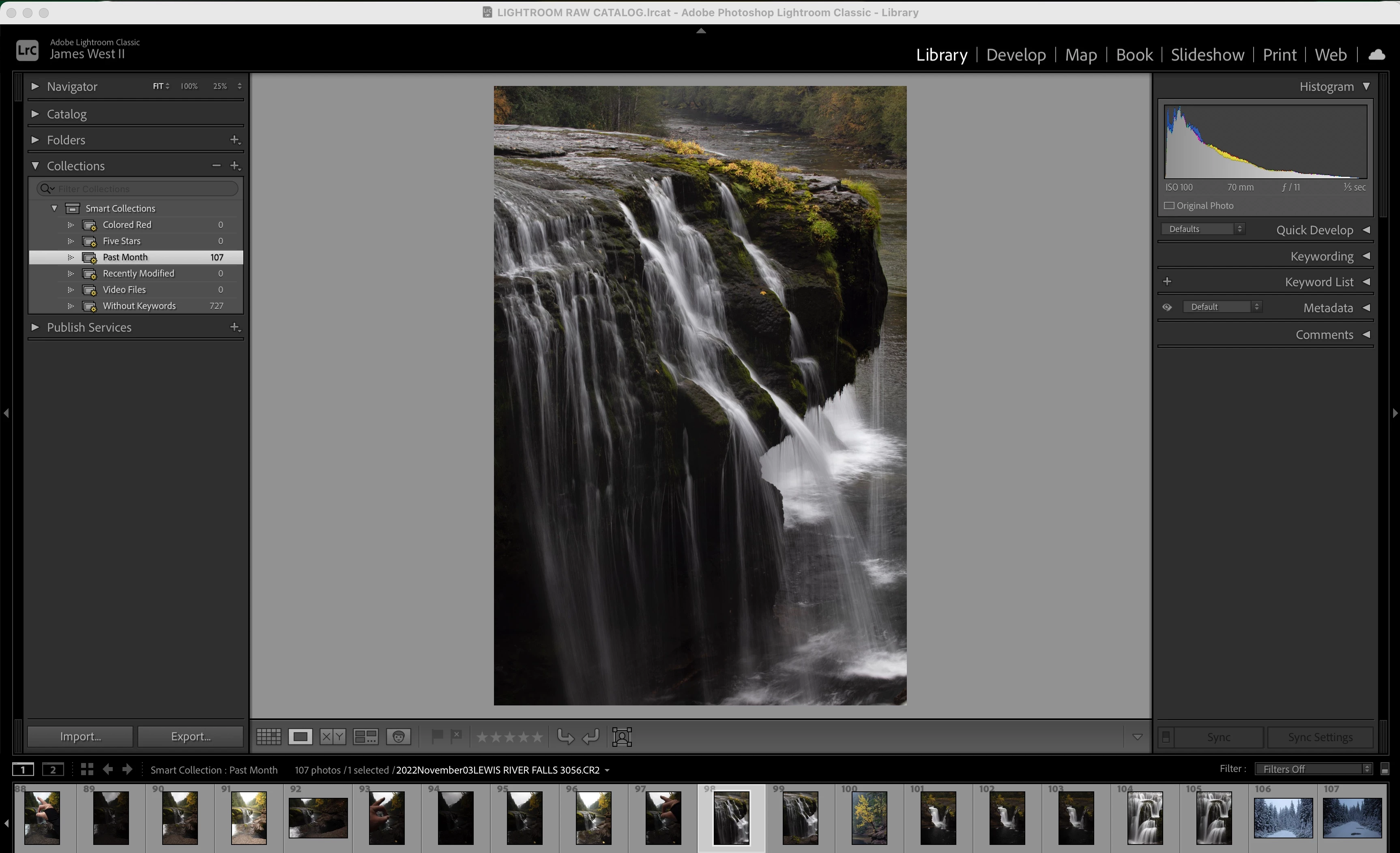
I have a total of 29 imports, and my last two imports are one import of 42 and then one more of 65 images for a total of 107 that for some reason are showing up under past month in collections and I have no idea how they got into collections because every import I have done exactly the same since the beginning and I have never added a keyword or a flag to any images. The total number of images for all imports is 727 which under collections it says there's 727 without keywords.
 

This topic has been closed for replies.

1 reply

Rob_Cullen
Community Expert
Community Expert
November 11, 2022

The 'Past Month' Smart Collection in my systerm looks for photos CAPTURED by the camera in the past month.

[Right-Click] your 'Past Month' to edit and check its parameters.


Photos "get into" a Smart Collection IF the metadata of the photo matches the requirements of the Smart Collection.

Smart Collections are 'dynamic'- they automatically display photos that match the criteria defined in the SC.


"Never added Keywords or Flags"-  So if you have never added Keywords then the SC "without keywords" will find ALL of your photos in the Library


There is only one 'Collection' [Previous Import] that indicates the number of files imported, and it changes with each import process to indicate only the last import.-

And another comment- Collections (any kind) are only lists of photos created for a purpose (Smart, Standard, Book, Print, etc). Your photo files are stored in FOLDERS. Open the Folder Panel to see where your photos are on your Hard-drive.


Regards. My System: Windows-11, Lightroom-Classic 15.1.1, Photoshop 27.3.1, ACR 18.1.1, Lightroom 9.0, Lr-iOS 10.4.0, Bridge 16.0.2 .
Known Participant
November 11, 2022

So nothing strange happened then? It's simply showing what has been imported in the last month? I've never looked down in collections in the last month or so since I did my first import then I see this today and thought I did something wrong. I always see previous import but the collection thing had me confused.


To confirm a question I had yesterday, since I don't use the default catalog that LRC put into my pictures folder on my MacBook but instead use the new one I created onto my External SSD which has all my images and my catalog, can I delete the one on my Mac along with all its folders, etc without causing harm to my actual used catalog on External SSD?


 Thank you.

Rob_Cullen
Community Expert
Community Expert
November 11, 2022

I am using Backblaze right now and I am backing up catalog as well. I am getting another external SSD in a few days so it will be my other backup. Will wait until I get it before doing anything. Regarding your caution, there are 2 imports that are on both the default (unused) catalog and on my external (used) SSD catalog. 


This happened when I first started awhile back and after my first import, I somehow ended up putting the next 2 imports into that catalog on my MacBook. I did not know I did that and could not see them under catalog tab in library module. I received help on here and after a few days I was advised to do the following:


Click on the parent folder 

"Lightroom Raw Images" and right click then click "Synchnorize Folder" you should see the images you can add to your Catalog.


I did this and everything showed up. It was last week that I was looking into the library folder on my Mac and opened up the default (unused) catalog folder and saw those 2 missing imports. This is why they are there and also in my SSD catalog that I use. 

Still no idea how that happened and only to those 2 imports but nevertheless it did. First import went correctly, those 2 imports went wrong and then my next 27 imports have been completely fine and I have not changed one step in all of them. 

So this is what concerns me about erasing the unused catalog that's on Mac but I don't use it so do not see a reason for it to exist. Hopefully I am thinking correctly but this is why I am looking for advice to do the correct thing.


 Really appreciate your help with this.


Your last post suggests to me that you do not have a full understanding of how catalogs work.

A Catalog is a database file. It has an index that references your camera files in your computer. Catalogs do NOT contain your photo files.

You can have more than one catalog that references the same files, just like two address books can have Tom Dick and Harry address entries in both books. And you can have one catalog that indexes Tom and Dick, and another catalog that indexes Dick & Harry. (Note: the same name indexed in two catalogs.)

Not having done much obvious editing, keywording, etc, in your catalogs, I suggest it is quite OK to delete catalogs that you will not be using, keeping the external drive catalog as your 'Master' catalog.


Whoever advised to do the following:.. "Synchnorize Folder", was giving advice that could be inappropriate for the situation.

Folder synchronization can remove data from a catalog if the procedure is not fully understood.

A 'beginner' to LrC is better to not use 'Folder synchronization' but rather stick to the normal 'Import' procedures to index and add photos into a Catalog database.


I suggest you download and read the free eBook from the Lightroom Queen to help your knowledge of Lightroom-Classic

LIGHTROOM QUEEN HOME PAGE for eBooks


Regards. My System: Windows-11, Lightroom-Classic 15.1.1, Photoshop 27.3.1, ACR 18.1.1, Lightroom 9.0, Lr-iOS 10.4.0, Bridge 16.0.2 .