March 18, 2017
Question

Softproof - Lightroom vs. Photoshop

  • March 18, 2017
  • 4 replies
  • 2401 views

Hi,

When I enable softproofing in Lightroom, I get a completely different result than when I am doing the softproof in Photoshop (see below). The profile that I am using for soft proofing is the following: http://www.saal-digital.at/fileadmin/downloads/softproof/SaalDigital_SoftProof_Fuji.zip
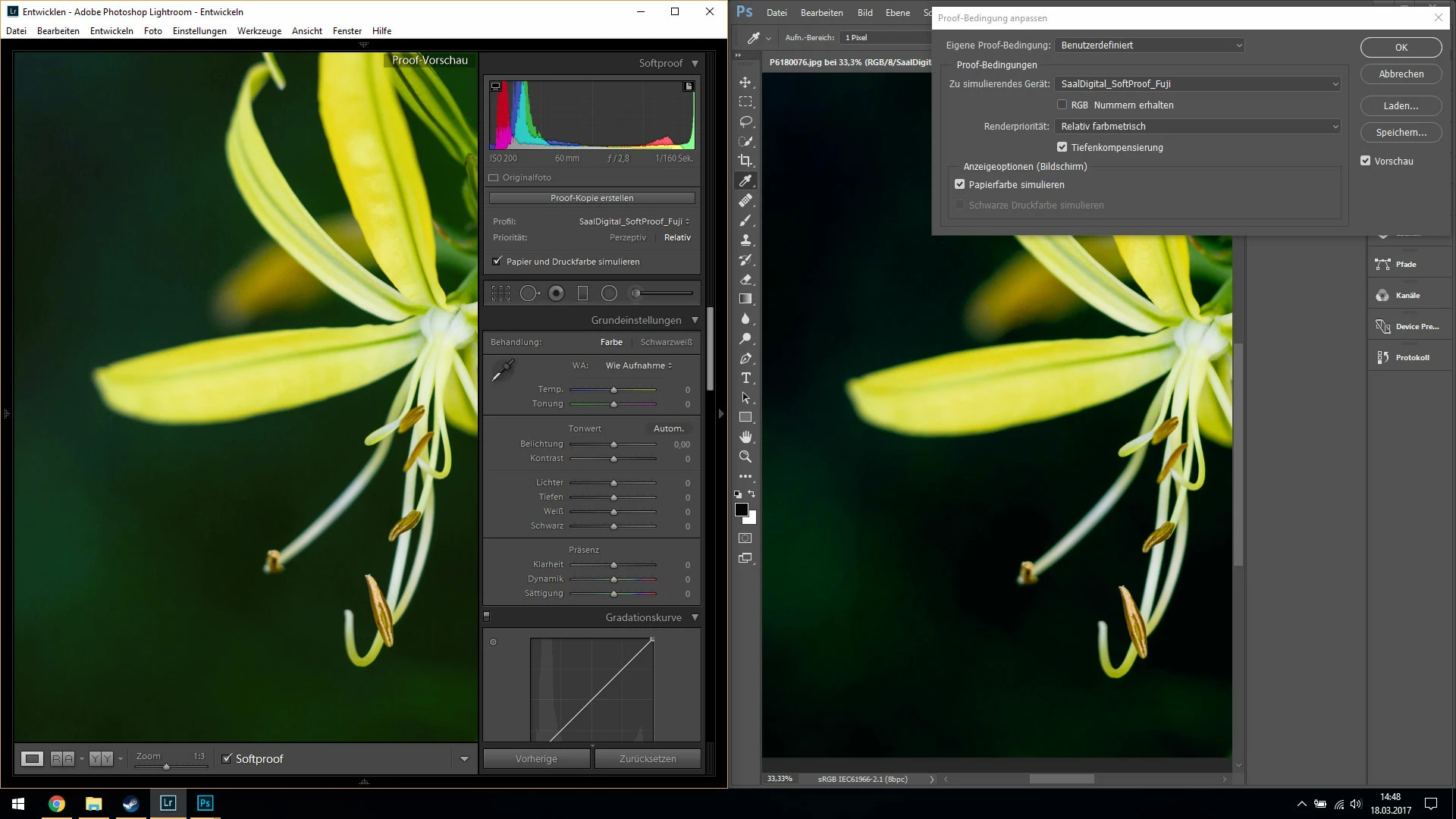
When soft proofing is disabled, the image looks exactly the same in Photoshop and Lightroom.

The hardproof is very close to the Photoshop softproof (i.e., far darker than the Lightroom softproof). I am using Lightroom 2015.9 and Photoshop 2017.0.1 on Windows 10 (CPU: Intel Core i7, GPU: Intel 4000 & Nvidia 650m). Does anyone have an idea what might cause this difference?

Thanks,
Christian

    This topic has been closed for replies.

    4 replies

    D Fosse
    Community Expert
    Community Expert
    March 19, 2017

    Why would you change back point compensation? That really needs to be on at all times.

    My advice is still to redirect your current line of thinking, and start looking at your calibration parameters.

    The main objective of soft proof is to check for gamut clipping. It's not to compensate for paper color or maximum ink density - for the simple reason that this depends on the monitor's actual black and white points. If they are already a good match, any further compensation will just throw everything off.

    D Fosse
    Community Expert
    Community Expert
    March 18, 2017

    What bug is that, Todd?

    I know of the ProPhoto shadow color banding issue (which is why I already have it at Basic) - but this one I haven't heard of. What happens?

    Todd Shaner
    Legend
    March 18, 2017

    See this post: Re: Wrong RGB values when soft proofing

    It discusses both the LR Soft Proof Histogram values issue (fixed in LR 6.4 CC 2015.4) and the PS Soft Proof bug. The latest version of PS still exhibits the issue (Version: 2017.0.1 20161130.r.29).

    D Fosse
    Community Expert
    Community Expert
    March 18, 2017

    OK, thanks, I'll take a look at that. Apparently I missed it.

    Community Expert
    March 18, 2017

    Agree with D Fosse, you really want the "tiefenkompensierung" to be turned off.

    Todd Shaner
    Legend
    March 18, 2017

    There is a known bug with PS Soft Proof. Try setting PS Preferences> Performance> Advanced Settings to Drawing Mode Basic as shown below. You will need to close and then reopen PS for the change to take affect.

    D Fosse
    Community Expert
    Community Expert
    March 18, 2017

    You have "simulate black ink" turned on in Lightroom, but not Photoshop.

    These simulate paper / ink options are really useless and should be kept permanently off. The proper way to deal with paper white and max ink density, is to set your calibration parameters accordingly. This is much more controllable and realistic.

    March 18, 2017

    Thanks for your reply, I get it that it is not a good idea to rely on this simulation feature.

    "Simulate black ink" is grayed out in Photoshop because the profile does not support black ink simulation. So, I would expect that Lightroom does not use black ink simulation neither (how could it, if the profile does not support it). So, I would still expect that both applications show the same results.

    D Fosse
    Community Expert
    Community Expert
    March 18, 2017

    AFAIK simulate is a generic option, it's not in the profile. Don't know why it's grayed out.

    Since it can't be individually adapted, you're just as much in the dark as you are without it. Hence useless.