


Participating Frequently
May 6, 2026
Answered

Sort Criteria in LrC Library module not working correctly

  • May 6, 2026
  • 2 replies
  • 42 views

I use different file formats In my Catalog, my original image files are [original filename] .NEF
(Nikon Electronic Format) and also files created with DxO PureRAW, with extension .dng

The Expected Result:
To Sort my photos in Library module according to File Extension.
(I wanted to see all .NEF files in consecutive order and all .DNG files in consecutive order)
Using the Sort criteria ‘File Extension’, this was the Expected and Actual Result.

BUT a FEW DAYS LATER:

The Actual Result:
A couple of days later, I tried to do the same thing with another folder, same Catalog, and suddenly, it doesn’t work. Images are sorting correctly according to ‘Capture Time’ but attempting to Sort by ‘File Type’ or ‘File Extension’ gives the same result and DOES NOT sort according to ‘File Extension.’

I have tried everything:
Optimise Catalog / Validate DNG Files / Synchronise Folder / Update DNG Previews & Metadata
Nothing works! It’s a bug!

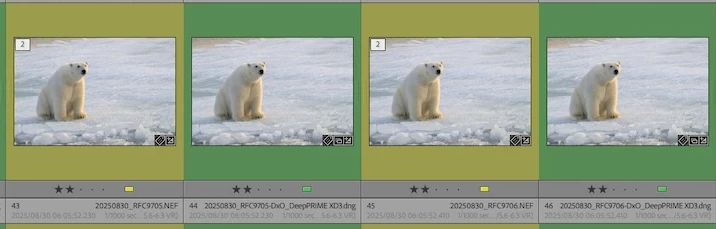
    Correct answer johnrellis

    [View this post in your web browser. It contains formatting and images that don't appear in email.]


    The screenshots show what’s going on -- it understandably confuses a lot of people:


    The photos have been stacked, one NEF and one DNG per stack.(That’s the “2” badge in the upper-left corners of the yellow thumbnails.) The stacks are currently expanded.


    When LR sorts thumbnails in Grid view, it always keeps stacks together, and it sorts by the photos at the tops of the stacks. So in the screenshot above, it’s sorting the stacks by the extension NEF.  


    Then among all the sorted photos with the same extension, it’s sorting by capture time secondarily.


    Some ways to work around this:


    - If you’re trying to isolate just the NEFs or the DNGs, use the Library Filter bar’s Metadata browser, with the File Type column, to select which types (DNG or raw) you want to see.


    - Don’t use stacking. For this use case, the NEFs and DNGs have the same base file name, so sorting Grid view by File Name will put them together.


    - You can get a sorted view of all the files in a folder ignoring stacking with the following trick. Make an empty collection named _Empty. In the Folders panel, select the desired folder.  Then Cmd/Ctrl click on _Empty in the Collections panel.  When more than one source is selected, LR shows all the photos in the sources, without stacking.  So the photos will sort individually without regards to the stack they are in.

    2 replies

    johnrellis
    johnrellisCorrect answer
    Legend
    May 6, 2026

    [View this post in your web browser. It contains formatting and images that don't appear in email.]


    The screenshots show what’s going on -- it understandably confuses a lot of people:


    The photos have been stacked, one NEF and one DNG per stack.(That’s the “2” badge in the upper-left corners of the yellow thumbnails.) The stacks are currently expanded.


    When LR sorts thumbnails in Grid view, it always keeps stacks together, and it sorts by the photos at the tops of the stacks. So in the screenshot above, it’s sorting the stacks by the extension NEF.  


    Then among all the sorted photos with the same extension, it’s sorting by capture time secondarily.


    Some ways to work around this:


    - If you’re trying to isolate just the NEFs or the DNGs, use the Library Filter bar’s Metadata browser, with the File Type column, to select which types (DNG or raw) you want to see.


    - Don’t use stacking. For this use case, the NEFs and DNGs have the same base file name, so sorting Grid view by File Name will put them together.


    - You can get a sorted view of all the files in a folder ignoring stacking with the following trick. Make an empty collection named _Empty. In the Folders panel, select the desired folder.  Then Cmd/Ctrl click on _Empty in the Collections panel.  When more than one source is selected, LR shows all the photos in the sources, without stacking.  So the photos will sort individually without regards to the stack they are in.

    raoulcosAuthor
    Participating Frequently
    May 7, 2026

    Ha! Genius!
    So, LrC automatically creates a stack of the images after processing in ‘Plug-in Extras’ > DxO PureRaw, which I was aware of, but I wasn’t aware that Stacking would cause such confusion with the Sort function. In this case, I’ll just Unstack them - Stacking isn’t necessary because I can always go back to ‘Sort > Capture Time’ and the NEF’s & DNG’s will then appear in their correct chronological order. 
    I also tried your trick - it does exactly what you say it will - that’s pretty nifty!
    I’m relieved that this isn’t a bug! 
    Thank you 


    johnrellis
    Legend
    May 6, 2026

    [View this post in your web browser. It contains formatting and images that don't appear in email.]


    Please attach a full-resolution screenshot (not a phone pic) of the entire LR window showing the problem. That might give clues to what’s going wrong and/or how to reproduce the problem (Adobe generally doesn’t pay attention to bug reports they can’t easily reproduce).


    To prepare for the screenshot:


    1. Go to Grid view and make the thumbnails small.


    2. Do the menu command View > View Options and configure one of the labels of Compact Cell Extras or Expanded Cell Extras to be “File Name” (not extension), so we can see the full file name, not just the extension, displayed on each thumbnail.


    3. Scroll Grid view until it shows thumbnails that didn’t sort properly.


    raoulcosAuthor
    Participating Frequently
    May 6, 2026

    Thanks. Here are the screenshots. I labelled the two different file formats with yellow & green respectively but as you can see from the screenshots, LrC applies the same Sort order, whether sorted by Capture Time or File Extension.