
Participant
June 8, 2022
Question

Storage Help

  • June 8, 2022
  • 2 replies
  • 336 views

Hello,


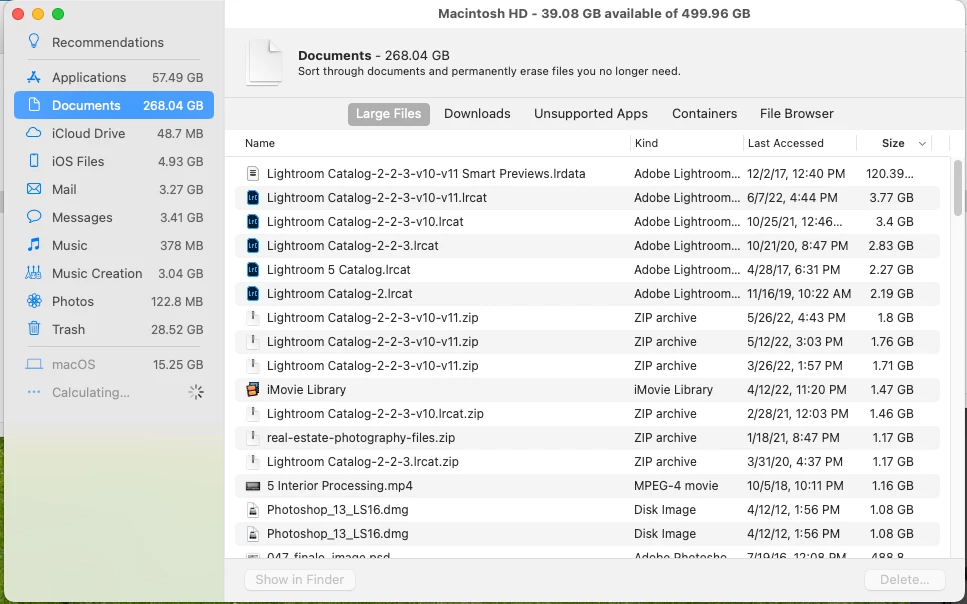
I am a regular Lightroom user but I am far from expert on how the software works. I have manged to nearly fill up the storage space on my hard drive and it seems the major culprits for space usage are related to Lightroom. I am affraid to delete or move anything because I do not want to disrupt anything. Below is a screen shot of some of what I have stored o my hard drive that is lightroom related. Any suggestion as to what I can delete or migrate safely. Thanks very much.
This topic has been closed for replies.

2 replies

Victoria Bampton LR Queen
Community Expert
Community Expert
June 12, 2022

Thread moved from Lightroom ecosystem to Lightroom Classic.

Victoria - The Lightroom Queen
Rob_Cullen
Community Expert
Community Expert
June 8, 2022

There is a lot to comment on from your screen-clip!

1) "v11" would indicate you are subscribing to Lightroom-Classic. (Not Lightroom the Cloud version)

2) Your Trash is 28.52GB- Maybe time you emptied trash!

3) You are using Smart Previews 120.39...GB?  Why? There are only a couple of reasons to create Smart Previews (that take a lot of space). Ordinary 'standard' previews will do very nicely if your original photo files are always available and accessible to Lr-Classic.

4) I do not see your 'Standard' previews file in your screen-clip- I presume it is not shown further down the files.

5) Any files that include "-v11" are the latest upgrades to your Catalog, so if you are using LrC v11.3.1 now, you must keep these files.

6) Files I have marked with a red cross in the clip below are old or redundant and not needed with the current catalog that is called-{Lightroom Catalog -2-2-3-10-v11.LRCAT } And about time you considered renaming the catalog when the next Catalog upgrade comes around.

7) ZIP files are Backups of the Catalog- You must keep, but change the location of your backup when you next do a catalog backup (by clicking on [Choose] in the backup dialog). Catalog backups must be on another physical drive so they do not get trashed if the drive with the working catalog fails.

😎 You have a couple of Photoshop.dmg files- why?  All installs are done through the Adobe Creative Cloud Desktop App. Do you really need files from 2012?


Regards. My System: Windows-11, Lightroom-Classic 15.1.1, Photoshop 27.3.1, ACR 18.1.1, Lightroom 9.0, Lr-iOS 10.4.0, Bridge 16.0.2 .
Participant
June 9, 2022

Hi, 

Thank you so much for taking the time to help me, which clearly, I need. To answer your "why" questions, it's because I don't know what I am doing. When I first started using Lightroom around 2015, I think I watched a starter video that told me to use Smart Previews, so I set Lightroom to that and now with a catalog of 182,000 photos, I have Smart Previews for every one. I don't think there is a Standard Preview folder because I only make Smart Previews. I think I was so anxious to just start editing and so hopeless at learning software, I never really learned how Lightroom works. I just needed to edit photos and that's all I have done now for 7+ years. I need to invest the time to learn more about the software, obviously. So, am I just stuck having to lug around this massive file for all my Smart Previews? And thanks for pointing out what I can delete and what I need to save. I truly appreciate you taking the time to answer my question. Cheers.

Rob_Cullen
Community Expert
Community Expert
June 9, 2022

Every working Catalog will have a folder/file that is the standard Previews. The Catalog cannot work without it! In your system it should be called-

{Lightroom Catalog -2-2-3-10-v11 Previews.LRDATA }..

If it doesn't exist (because you deleted it) it will always automatically be re-built as you view images in the Catalog.


The Smart Previews file {Lightroom Catalog -2-2-3-10-v11 Smart Previews.LRDATA } can be deleted entirely if not needed (using Finder or in the LrC menus).

Lr-Classic will continue to work with the standard previews {Lightroom Catalog -2-2-3-10-v11 Previews.LRDATA } that includes the various sizes of previews (thumbnails, zoomed images, created 1:1 previews, etc)


Here are reasons why you might (or NOT want) to use Smart Previews-

SMART PREVIEWS- WHY?

SMART PREVIEWS ULTIMATE GUIDE

So if you image files are also on the same hard-drive: You do NOT need Smart Previews.

Good Info here also-

https://www.lightroomqueen.com/lightroom-performance-previews-caches/

Regards. My System: Windows-11, Lightroom-Classic 15.1.1, Photoshop 27.3.1, ACR 18.1.1, Lightroom 9.0, Lr-iOS 10.4.0, Bridge 16.0.2 .