
Known Participant
November 25, 2022
Question

Strange LRC folder view

  • November 25, 2022
  • 1 reply
  • 364 views

Hi,

I'm hoping someone has seen this issue and has a suggestion...


This is a problem that cropped up a while back (not sure exactly how long ago) and I'm just now getting around to investigating.  LRC 12.0.1 on Windows 10.  All photos are imported (ADD to LIBRARY) and left in original location on hard drive.


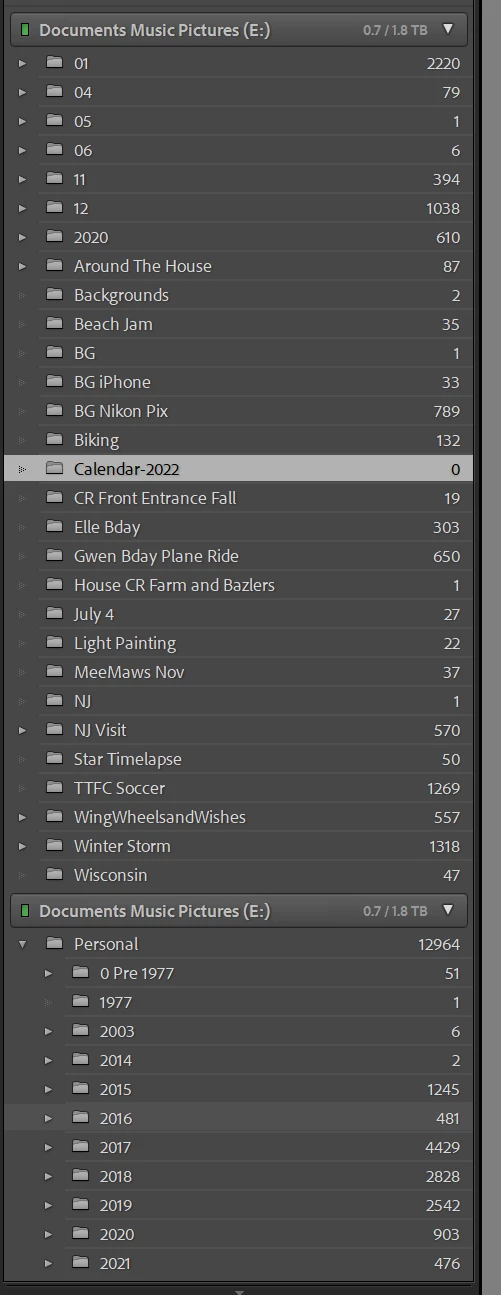
The issue is a strange left hand navigation for library folders.  Specifically, I see 2 sections for the same hard drive (image attached).  One navigation shows highest level parent/root folder (which happens to be the YEAR taken as that is how I organize my photos on hard drive).  The 2nd navigation shows the same hard drive but does not roll up to the root folder.  Some of the subfolders are subfolders that belong UNDER the root folder shown in the other navigation.  At some point in the past, all library navigation showed the root folder for all pictures and I just navigated down the folder tree to the subfolder(s)  I wanted.  With this change, I have to roll over the subfolders to see what root folder (YEAR) they are in.


Additional info - none the subfolders showing in the lower navigation show up in the upper navigation (the one with the root folder).  I have also tried selecting "show parent folder" with no luck getting up to the root folder.


Any suggestions if this is a LRC change or maybe something I've done different without knowing and (most important) a way to get back to a single folder navigation with the root folder being shown?


Thanks!
 

This topic has been closed for replies.

1 reply

Known Participant
November 26, 2022

@dj_paige  Thanks for the pointer to the article about displaying the same hard drive twice.  However, there are 2 issues with that solution:

1 - When I created a parent folder matching the first instance  of the hard drive on a separate drive and then "update folder location" to that folder - I get the below error: 


2 - As was listed in my original posting screenshot - the 2nd instance of the hard drive has multiple "top level folder" entries that are the same name (because they are, in fact, sub folders under differently named parent folders).  Hence, I cannot create similarly named folders as instructed in the referenced article.

I appreciate the quick response and, if you have any other suggestions, I would be appreciative if you can pass them on.


Known Participant
November 26, 2022

UPDATE  after doing more research, I decided to try "update library location" for each subfolder showing up under the duplicate instance of the hard drive.  Bottom line, I managed to move all the subfolders in the folder view.  There were a few errors regarding duplicate subfolders but I don't think I lost anything of importance and I'm back to a single instance of the hard drive in the folder view.


Any thoughts or input on how this happened and how to avoid it are appreciated.  This was a grueling process and I'm not 100% sure I didn't lose anything (but I do have lots of backups in case I figure out something went missing).