
Inspiring
January 2, 2023
Question

Subfolders Missing In Library

  • January 2, 2023
  • 4 replies
  • 2969 views

Hi

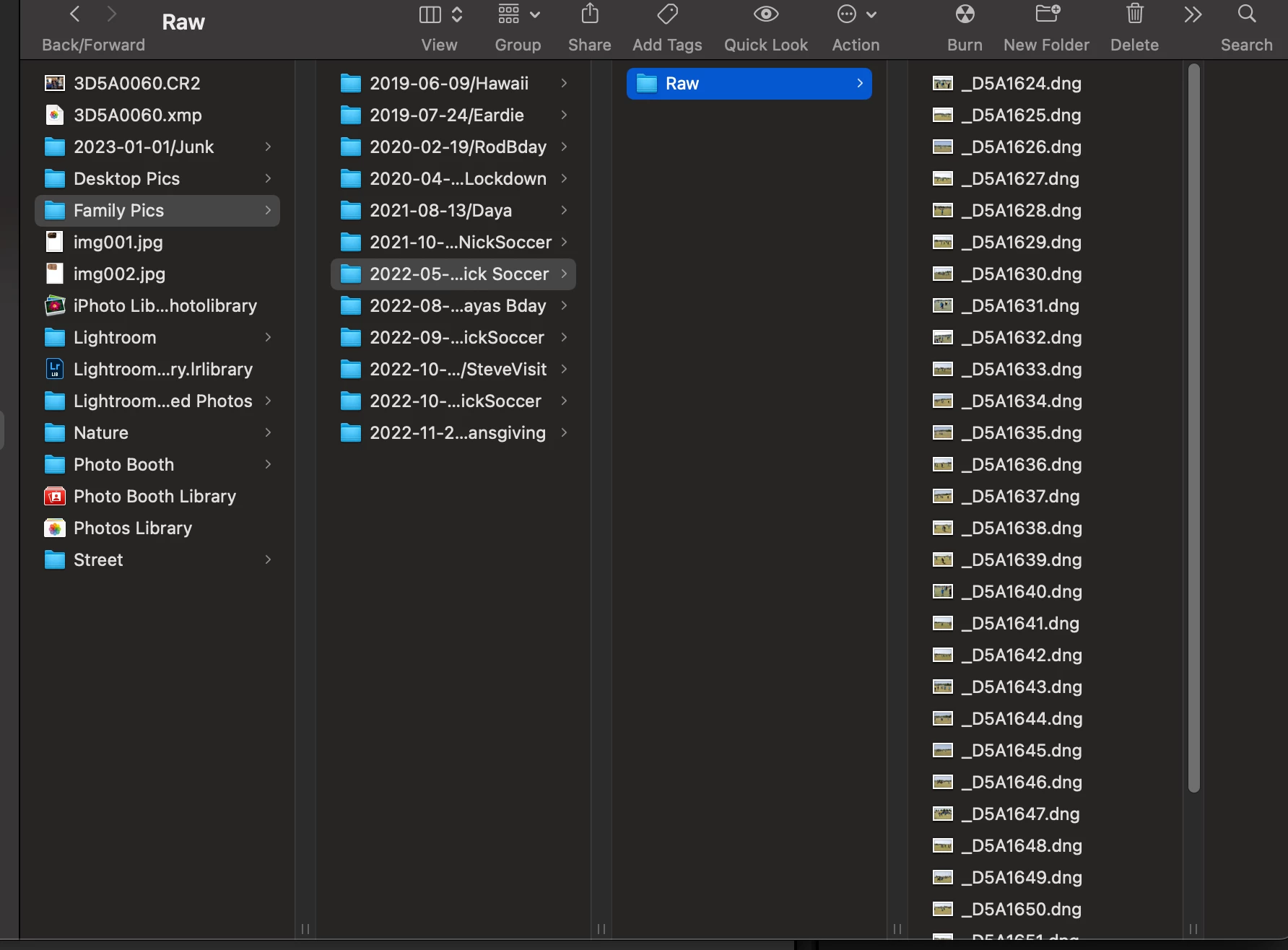
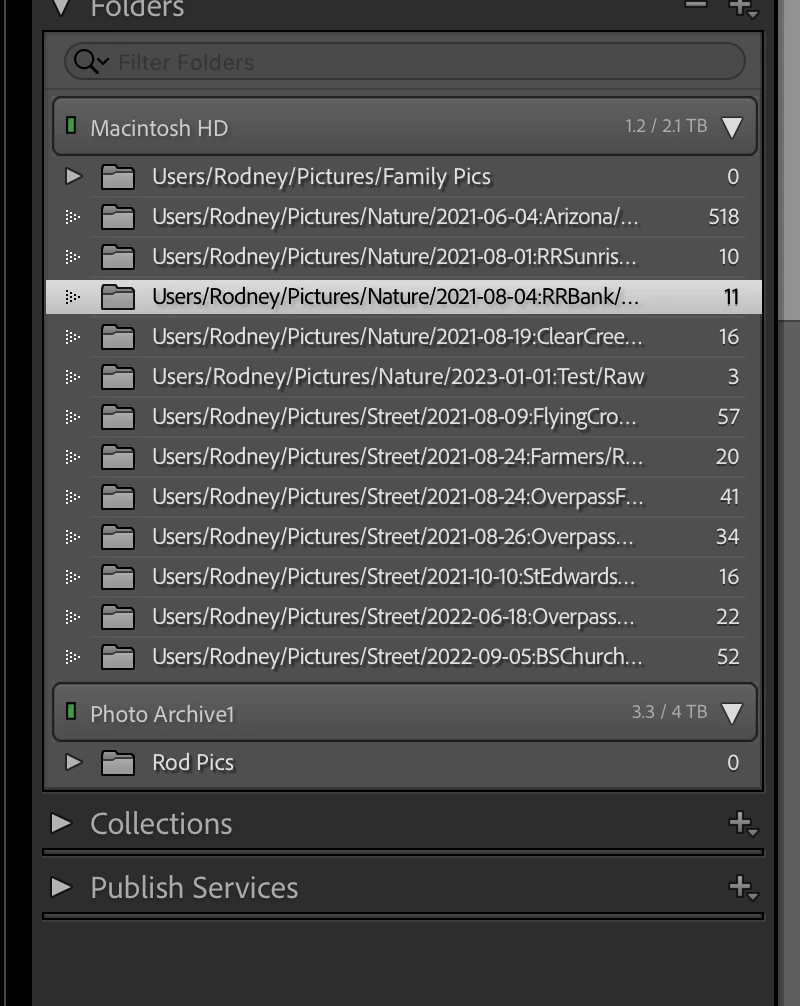
Can someone tell me why subfolders aren't visible in my Library when I imported the photos to a subfolder? The subfolders are there in the Finder but in Lightroom Classic Library the folder triangles have the dots and no subfolders appear. Only the photos. I have unchecked "show photos in subfolders", but they still don't appear. 


Thank
This topic has been closed for replies.

4 replies

Community Expert
January 2, 2023

some comments, in case they are helpful (of course you must do as you see fit!)


You have some top level folders to organise "Street", "Nature" etc however these are not visible as a hierarchy. They could be made visible by right-clicking on one of the folders and choosing Show Parent. Then you would not need to list the entire folder path for each photo, repeating the "Users/Rodney/Pictures" part over and over. Thus the folder name of each one would be fully readable. This adds the option to click on, and to expand / collapse, these different sections of the overall list.


You have a "Raw" folder. It is simply not necessary to micromanage files and their file types within LrClassic, in the same way that a more traditional file based method may have tended to involve. For LrC this is just an imported image and whether that happens to be Raw, or camera JPG, or a HDR or Pano merged DNG, or an external edited PSD / TIFF - or merely a virtual copy made from one of these - is all secondary. Any of these derived filetypes will save into the same folder as the original image unless you go out of your way otherwise. And those would not be Raw files - hence this folder designation would soon become misleading, besides being IMO counterproductive in the first place.


A separation of imported images vs exports - now that IS a good idea and IS functionally beneficial. You can do this with a subfolder within each image folder, defined in your export settings, that distinguishes those. Personally I prefer not to intermix exports and source images within a common hierarchy, also I avoid using the User files / Pictures for my source images - preferring them to be saved somewhere user neutral - but that is all for another discussion.


What I am getting at, is an end result where you see top level organisational folders Family Pics / Nature / Street, and nested under each one you see your dated folders, and you click on each one and see the photos.


As you accumulate more and more folders you may find it helpful to have e.g. year folders that can also be collapsed and expanded. I have gone entirely date based and any subject type classification is done virtually in metadata - what you are doing is a little less flexible since a given photo, or a given batch of photos perhaps, has to belong entirely within one type OR the other.


LrC can make year folders for you at import, also can make the day-dated folders for you. Perhaps, using a different import preset for "Nature" etc, to nest that auto filing under the "Nature" heading particularly. Result is a starting folder called just "2023-01-02" arising automatically from the date of the imported photos, to which you can then add your own descriptive suffix, working within the Catalog's folders panel.

Inspiring
January 16, 2023

Richard,

Thank you for your suggestions. I'll be putting these into practice. Is it possible to remove the Raw subfolder without causing problems with Lightroom? Thanks

Community Expert
January 16, 2023

Yes: once you have moved the images out of a subfolder, and LrC knows you have done so and now shows it as empty - you can simply Remove that from the Folders panel.

dj_paige
Legend
January 2, 2023

Lightroom Classic is not a file browser like WIndows Explorer or Mac Finder. It does not have to show the same thing that file browsers show.


What has most likely happened is that you have accidentally imported the photos into LrC using COPY instead of ADD, and so LrC thinks the photos are in some other folder. You need to find these photos in Lightroom Classic. Follow all four of these steps in order:


1. In the Lightroom Classic Library Module, on the left, under Catalog, click on All Photographs
2. Turn off all filters (Ctrl-L once or twice)
3. Turn off all stacking (Photo->Stacking->Expand All Stacks)
4. Search for at least one of these photos by file name using the Lightroom Classic Filter Bar

Rob_Cullen
Community Expert
Community Expert
January 2, 2023

And what do you see in the {Family Pics} folder?

Expand the subfolders with the disclosure triangle-

You LrC folder screen-clip is showing some other folder selected!  (....../Nature/2021-08-04.......)


Regards. My System: Windows-11, Lightroom-Classic 15.1.1, Photoshop 27.3.1, ACR 18.1.1, Lightroom 9.0, Lr-iOS 10.4.0, Bridge 16.0.2 .
Inspiring
January 16, 2023

Rob

Sorry its been so long. Here is a screen shot.

Inspiring
January 2, 2023

In the library module, Library menu, ensure that the "Show photos in subfolders" option is selected. If that option is NOT selected then the subfolders will not be displayed.

Inspiring
January 2, 2023

Thank you Jim. I've done what you suggested and nothing changed.