

Roi+B
Participant
June 10, 2026
Answered

Suddenly unable to apply presets, and unable to log out

  • June 10, 2026
  • 2 replies
  • 19 views

So since 2 days ago, every time I try to apply a preset I get this pop-up saying “Some AI models are downloading. Please try again later.” that stays stuck at 0% and doesn't move.

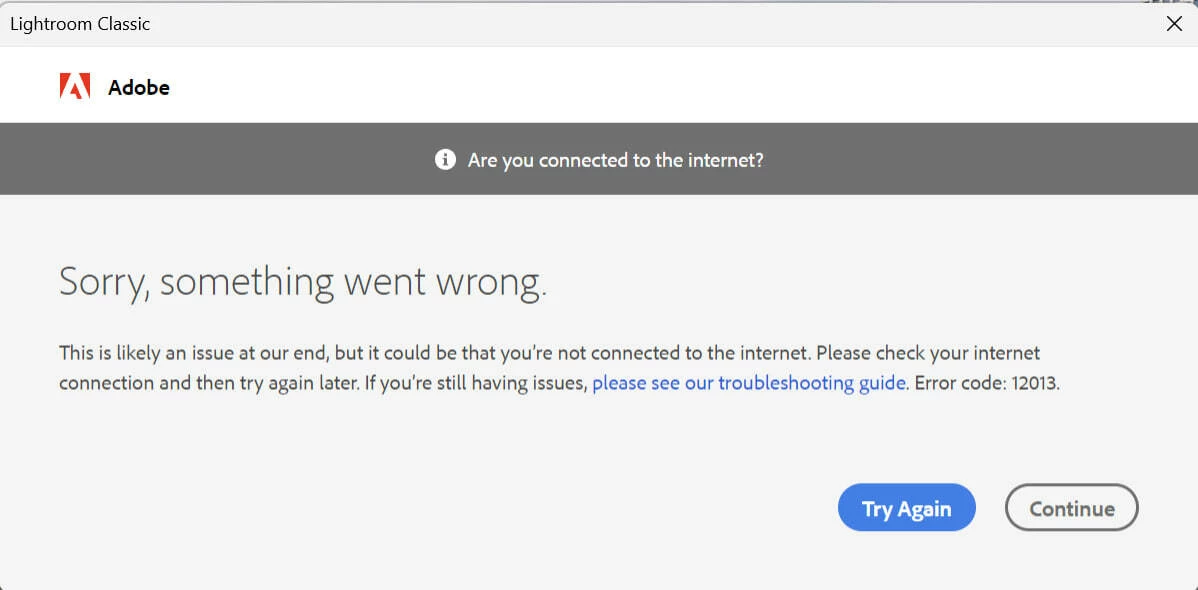
I saw one of the possible fixes may be to log out and back in, but when trying to log out I also get an error, the one in the attached picture.

I've tried restarting my computer and router, changing firewall/antivirus settings, running as administrator, reinstalling LrC, and none work.

It seems like all of a sudden LrC can’t recognize that I am connected to the internet.


Does anyone have any other potential fixes? Thank you.
 

    Correct answer Srishti Bali

    Hi ​@Roi+B ,


    I'm sorry to hear you're experiencing this issue. It appears to be related to a connection problem. Could you please try the following steps:

    1. Check whether the issue occurs on a different network connection, such as a mobile hotspot.

    2. Close Lightroom and any other Adobe applications that are currently running.

    3. Sign out of the Creative Cloud desktop app.

    4. Sign back in to the Creative Cloud desktop app.

    5. Launch Lightroom directly from the Creative Cloud app.


    Please let us know if this helps resolve the issue. If the problem persists, we recommend uninstalling and reinstalling Lightroom. Before uninstalling, please back up your Lightroom catalog data, including the following files:

    • xyz.lrcat

    • xyz Helper.lrdata

    • xyz Previews.lrdata

    • xyz.lrcat-data

    Default catalog locations:

    macOS
    /Users/[user name]/Pictures/Lightroom/

    Windows
    C:\Users\[user name]\Pictures\Lightroom\


    After reinstalling Lightroom from Creative Cloud, please let us know the results, and we'll be happy to continue assisting you.

    2 replies

    Roi+B
    Roi+BAuthor
    Participant
    June 11, 2026

    Hey, so the steps you’ve provided didn’t work. However it seems that completely removing Lightroom, Creative Cloud and all of their files and making a fully clean reinstall fixed it.

    Thank you for your suggestions :)

    Srishti Bali
    Community Manager
    Srishti BaliCommunity ManagerCorrect answer
    Community Manager
    June 10, 2026

    Hi ​@Roi+B ,


    I'm sorry to hear you're experiencing this issue. It appears to be related to a connection problem. Could you please try the following steps:

    1. Check whether the issue occurs on a different network connection, such as a mobile hotspot.

    2. Close Lightroom and any other Adobe applications that are currently running.

    3. Sign out of the Creative Cloud desktop app.

    4. Sign back in to the Creative Cloud desktop app.

    5. Launch Lightroom directly from the Creative Cloud app.


    Please let us know if this helps resolve the issue. If the problem persists, we recommend uninstalling and reinstalling Lightroom. Before uninstalling, please back up your Lightroom catalog data, including the following files:

    • xyz.lrcat

    • xyz Helper.lrdata

    • xyz Previews.lrdata

    • xyz.lrcat-data

    Default catalog locations:

    macOS
    /Users/[user name]/Pictures/Lightroom/

    Windows
    C:\Users\[user name]\Pictures\Lightroom\


    After reinstalling Lightroom from Creative Cloud, please let us know the results, and we'll be happy to continue assisting you.

    Thanks, Srishti Bali | Community & Engagement Strategist, Digital Imaging | Adobe