



Participant
June 17, 2025
Answered

Symbol meaning for Lightroom Classic

  • June 17, 2025
  • 1 reply
  • 217 views

What do these symbols mean and how to eliminate them. They are in the upper right hand corner of the format holding an image.

Correct answer johnrellis

[This post contains formatting and embedded images that don't appear in email. View the post in your Web browser.]


Hovering the mouse over the icons reveals their meaning:

 

That indicates you've built a smart preview for the photo (Library > Previews > Build Smart Previews) and LR doesn't have access to the original, so it's using the smart preview.  See here for how to deal with such missing photos:

https://www.lightroomqueen.com/lightroom-photos-missing-fix/
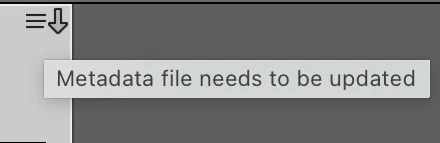
 

That indicates the metadata for the photo stored in the catalog is newer than what's stored on disk. Options:


- Ignore it.

- Do Metadata > Save Metadata To File.

- Set the option Catalog Settings > Metadata > Automatically Write Changes To XMP.

- Uncheck the option View > View Options > Grid View > Cell Icons > Unsaved Metadata.

1 reply

johnrellis
johnrellisCorrect answer
Legend
June 17, 2025

[This post contains formatting and embedded images that don't appear in email. View the post in your Web browser.]


Hovering the mouse over the icons reveals their meaning:


That indicates you've built a smart preview for the photo (Library > Previews > Build Smart Previews) and LR doesn't have access to the original, so it's using the smart preview.  See here for how to deal with such missing photos:

https://www.lightroomqueen.com/lightroom-photos-missing-fix/


That indicates the metadata for the photo stored in the catalog is newer than what's stored on disk. Options:


- Ignore it.

- Do Metadata > Save Metadata To File.

- Set the option Catalog Settings > Metadata > Automatically Write Changes To XMP.

- Uncheck the option View > View Options > Grid View > Cell Icons > Unsaved Metadata.