Known Participant
December 15, 2019
Pregunta

"The File Could Not Be Found"

  • December 15, 2019
  • 7 respuestas
  • 784 visualizaciones

OK. I've read through similar message inquiries here and the answer to this particular issue is not raised.


The day before yesterday, I logged in to LR & BRIDGE. There were updates for both since it has been a while I have had time to work on any of my images. Having had no issues updating in the past, I simply decided to do the updates as described, and everything was as one would have expected, i.e., I spent some time reacquainting myself with the images that I had been working on. 


Please NOTE: I changed nothing ... I moved nothing ... I edited nothing ... ALL THAT I DID was accept the updates to BRIDGE and LR CLASSIC and allow them to be installed. EVERYTHNING else remained as it was the last time that I used any of the software about 4 months ago.


Now ahead to last evening ... I again opened BRIDGE and it did show all of the images in question and they all appeared to be just fine. I then opened LR CLASSIC. I opened the LIBRARY folder and again ... there were the images that I wanted to begin sifting through ... 


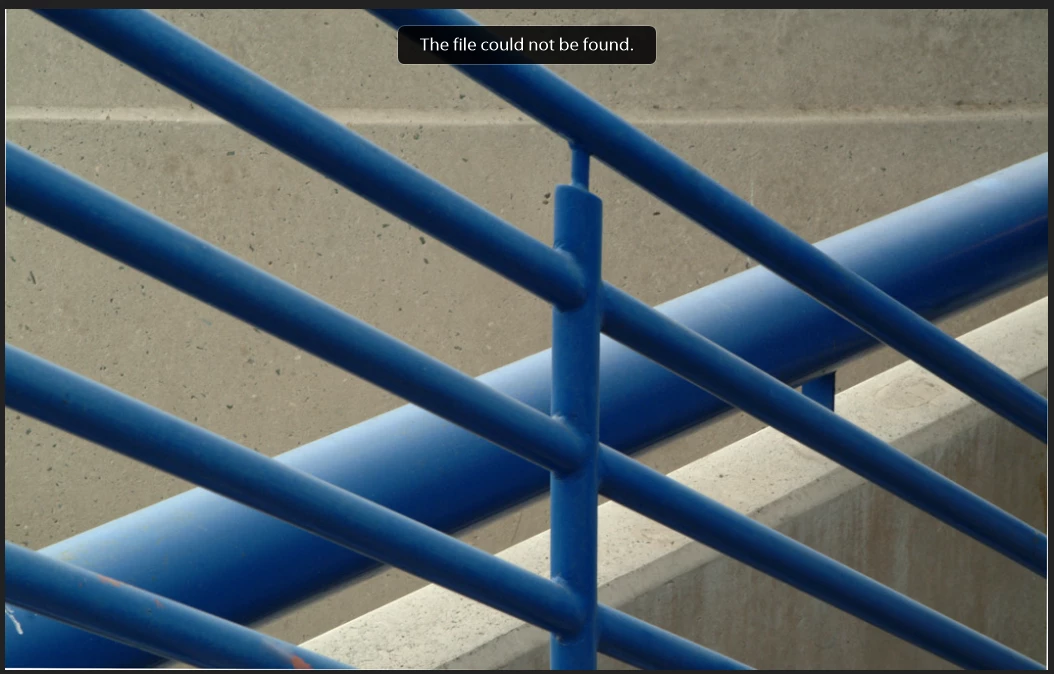
... however, when I switched to the DEVELOP folder, gasp, I received an ERROR message that informed me the of the following ... "The File Could Not Be Found".  It does seem that the images are somewhere, however I am not able to open any of them to work any edits on any of them because of the error.


I have not done anything so far because I am fearful that all my many many hours of work on these images may be lost if I did.


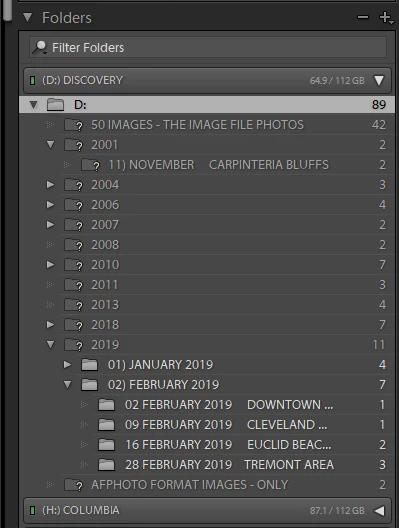
I am including 2 screen shots: One of the error message "The File Could Not Be Found", and another that illustrates the drive that the images are - and HAVE BEEN - located since the beginning. Again I must restate ... I have not moved - altered - changed or replaced any hard drives, nor have I made any other changes to my system in any way. EVERYTHING is exactly the way it was BEFORE I allowed the updates to BRIDGE and LIGHTROOM CLASSIC.


What is interesting is this ... When I open ADOBE CREATIVE CLOUD ... the menu there shows that I now have two versions of BRIDGE (ver. 10.0.1 & ver. 9.1) and LR CLASSIC which does not have a version munber displayed with it. CAMERA RAW also updated and seems to work fine ... although at this point I am a bit skeptical about all of this.


Firstly, and in addition to the "The File Could Not Be Found" issue, is it OK for me to delete and or remove the older version of BRIDGE if it is not necessarty to keep onboard?


Secondly ... I now also have two versions of PS (ver. 20.0.8 & 21.0.2) While so far I have not used PS for anything since between LR CLASSIC and CAMERA RAW I am able to acheive all the image editing needs that I have had up to this point. May I remove the older version of PS and leave the newest in place without causing any additional issues?


Please see the attached images that show the error message and the drive where the images "should" be sitting. BTW ... the missing images on the drive they should be located on ( I believe they are still there, somewhere) they all have a "?" mark next to each folder.


All advice on this issue will be greatly appreciated.
 

Este tema ha sido cerrado para respuestas.

7 respuestas

JP Hess
Inspiring
December 18, 2019

Having two versions o Bridge and Photoshop isn't going to accomplish anything unless you have some reason for having them. In fact, it could cause confusion because the older version requires older versions of Camera Raw.


I'm still curious about how you are using Bridge with Lightroom. Looking at your images in Bridge is not going to enable you to examine the work you have performed using Lightroom because Bridge isn't going to read the Lightroom catalog. Bridge is a companion for Photoshop.

GoldingD
Legend
December 15, 2019

A few points, might explain why we were a bit confused perhaps argumentative, and at least one of you mysteries explained.


First the latter. Bridge would have been automatically updated when Photoshop was updated.


As for the concern of why you were addressing Bridge and Adobe Camera RAW while bringing up a Lightroom Classic issue.


Simply, it drives some of us to no end when people use Bridge for data asset management, then use Lightroom Classic for post processing. We so no need for the supurflous Bridge, Too complex, unnessecary, just accomplish the data access management (DAM) in Lightroom classic


And some cannot get thru their mind that the seperate Adobe Camera RAW (ACR) application/plugin has nothing to do around Lightroom Classic as the code in ACR is internal to Lightroom Classic, in fact Lightroom Classic is ecentally ACR in steroids.


So we make assumptions.


Glad things are working.


MGBJAYAutor
Known Participant
December 15, 2019

... To davidg / Jim Hess / r_lw338;


... Soooo, as I mentioned in my original post / nothing physically changed on my computer. Nothing.


The single difference was the UPDATE(S) that were pushed out by ADOBE that I have not used since APRIL 2019, that I accepted and installed or updated ... whichever is the more correct phraseology. After doing so was when I discovered the issue of not being to see any of the images on the drive they were actually physically residing on. In fact - AFTER the update(s) LR pointed to another physical drive which was curious because the images were NEVER on that drive ... which is why LR said that "The File Could Not Be Found".


What I ended up doing was re-importing the images from the correct physical drive back into LR ... and lo and behold ... there they were all sorted and containing all of the edit data and meta data information stored as it should have been since the last time I used the software. Apparently the update caused the issue, though fortunately ... it resolved with little more than a slight disruption in the process.


As they say ... "Alls well ... "


Regarding the rest of the questions that I asked back at the beginning ... with regard to the 2 copies of PS and the 2 copies of BRIDGE: "Should" I just remove the older versions of each of them and be done with it? I have not done so because I was (am) unsure whether or not the doing so would further screw up my now properly working versions LR & BRIDGE.


AS for the CAMERA RAW ... It installed with the other two at the time of my original purchase of CREATIVE CLOUD back in December of last year. Didn't know there was an issuie with that Jim Hess. I just assumed it was supposed to be there, since it always has been. However, with LR onboard ... having CAMERA RAW does seem a bit redundant.


To each of you that replied, Thank you and ... if I can return the favour, I'll be happy to try.


p.s. I've included an image of the CC configuration I currently have running, as illustrated by the ADOBE CC menu ... or whatever it is called. It is what shows up onscreen when I click on the CC icon on my desktop.


Cheers & Merry Christmas: Jay S.

JP Hess
Inspiring
December 15, 2019

Has the identity of the external hard drive changed? In other words, has the name of the hard drive changed, or has the drive letter designation changed?

r lw33846831
Participating Frequently
December 18, 2019

Nothing changed from one day to the next except for upgrading to LR 9.1. I solved the problem by going back to LR 8.4 and an old catalog (8.4 couldn't use the catalog from 9 because it was too new) and re-importing images that I had added since that time. Now CC is telling me I have an update available, but I can't see any sense in installing 9.1 when it doesn't work.


To add insult to injury, I can't find what level the new update actually is to tell if maybe the issues with 9 and 9.1 have been fixed.

r lw33846831
Participating Frequently
December 15, 2019

I have the same problem. I updated Lightroom this week and went to work on some files that I had used just before the update. Everything on my external drive shows up in thumbnails and in Library, but when I move to the develop module, I get the same message, "The file could not be found." 


I can, however, open, modify and save the very same files in Photoshop, so it isn't a computer or hard drive problem, but rather some adjustment needs to be made in LR. I wonder if it's a bug that was introduced with the latest (version 9.1) 'upgrade?' 


I've tried to 'find the folder,' creeate a new catalog and even go back to an old catalog, thinking that if it works, I can simply re-import the images that I've added since. Nothing helps.

JP Hess
Inspiring
December 15, 2019
Forget about Lightroom. Forget about Bridge. If you open the File Explorer can you find your images? What drive are they on? What is the real path to the images where they are located now?
And I'm curious as to why you are using Bridge and Camera Raw in conjunction with Lightroom.
GoldingD
Legend
December 15, 2019