Participating Frequently
February 1, 2020
Question

Transferred library to new computer. Photos are in library, but folders are not

  • February 1, 2020
  • 7 replies
  • 709 views

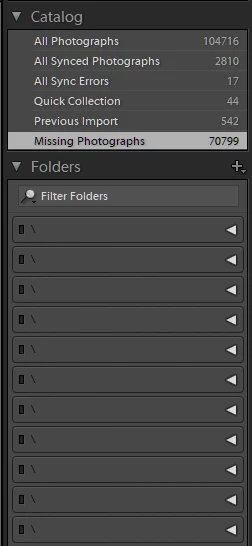
I've done a lot of searching for this problem, and I find a lot of people with the converse problem: Folders are in the library, but the photos are missing. This is NOT the problem that I have. The photos are there (even if the original files are "missing"). But the folders are totally absent from the library. I can click on all photos, click on an individual photo, and relink it, but even if I choose the option to find nearby photos, none are re-linked except the specific one I select. And I cannot click on the folder in the library to re-link it because the folder is nowhere to be found in the library. I don't really care that the folders are absent, but without them, I can't relink my 100,000 photos.
This topic has been closed for replies.

7 replies

GoldingD
Legend
February 9, 2020

What is your OS? Version?


mikepmAuthor
Participating Frequently
February 9, 2020

Thank you for the recommendations and insight. I checked and the folder filter is set to "All." My current OS is Windows 10 Home, and the previous was MacOS High Sierra. I'll try the preferences reset and follow up if it works (or if it doesn't).

GoldingD
Legend
February 9, 2020

Second up, I would think of this as Buggy behavor, and perhaps a preferences file reset is called for.


Following is my boilker plate for reset preferences file


Sounds like a canadate for resetting the preference file. Resetting the preference file is Adobe speak for deleating the preference file and then letting Lightroom Classic to recreate it.
 
The preference file can get corrupted, resulting in odd behavior. Some people have a knee jerk reaction in thinking they need to uninstall then reinstall Lightroom Classic, maybe that could be called for, but it would be better to first reset the preference file.
 
Be aware that resetting the preference file will result in Lightroom Classic creating a new catalog instead if opening your previously opened catalog (normally) so make sure you know where your catalog is. 
 
Be aware the resetting the preference file will revert some settings in Preferences to defaults. So be aware of what you have changed, so that you can put those back the way you want them.
 
some links:
 
https://lightroomers.com/replacing-the-lightroom-preference-file/745/
 
https://www.youtube.com/watch?v=bARt-hoCc2Q
 
https://helpx.adobe.com/lightroom-classic/help/setting-preferences-lightroom.html
 
https://helpx.adobe.com/lightroom-classic/kb/recover-catalog-images-resetting-lightroom.html


GoldingD
Legend
February 9, 2020

First up, in your screenshot, the Filter Folders box seems abnormaly promonant. Mine is more subdued. DO you have a folder filter appied? IF you clcik on that Magnifying glass, are you filtering on a particular folder? As opposed to all?


Mind you, the empty folders below should then minimize.


mikepmAuthor
Participating Frequently
February 9, 2020

Is my problem unique? Anyone have any new ideas? 

Just Shoot Me
Legend
February 9, 2020

There are NO images in the LR Catalog file. Your images are stored someplace on the hard drive of that other computer.

You need to Copy them over to the new computer.

kentdesign
Community Expert
Community Expert
February 2, 2020

You said your original files were missing it. You mean there are?'s on the thumbnails that you see? Or are there no thumbnail images ?

mikepmAuthor
Participating Frequently
February 2, 2020

I included the thumbnails with the catalog, so the thumbnails are there. I can re-link individual images, but only individual images one at a time. This is the problem.

Just Shoot Me
Legend
February 2, 2020

First there is no Library that you can transfer. There is the LR Classic Catalog file. But that is just a database file and your images are Not in the catalog.


Have you copied over all your images from where they are/were stored on the old computer (I suspect you are setting up a new or newer computer)?

You have to do that and it seems that you had many internal or external drive connected to your previous computer. If they are external drive then all of them need to connected to your new computer.


What you are seeing in the Library Module Grid view are Previews of the real images and Not the Real images.

mikepmAuthor
Participating Frequently
February 2, 2020

Yes, I tranferred both the catalog file and all of the original images. Some were immediately relinked. In a few cases, I was able to use the find missing folder feature to relink the folders. For the rest, the problem is as I described.

dj_paige
Legend
February 1, 2020

In the Library Module, right-click on a photo in the grid and select "Go to Folder in Library". This should select the folder where Lightroom thinks the photos is located.

mikepmAuthor
Participating Frequently
February 2, 2020

Thanks. Unfortunately, this is the problem. When I "Go to folder in Library," it does not take me to the folder, at least not in a way that I can see or access the folder.