
Averil2
Known Participant
January 21, 2023
Question

Transferring from one catalogue to the next

  • January 21, 2023
  • 1 reply
  • 641 views

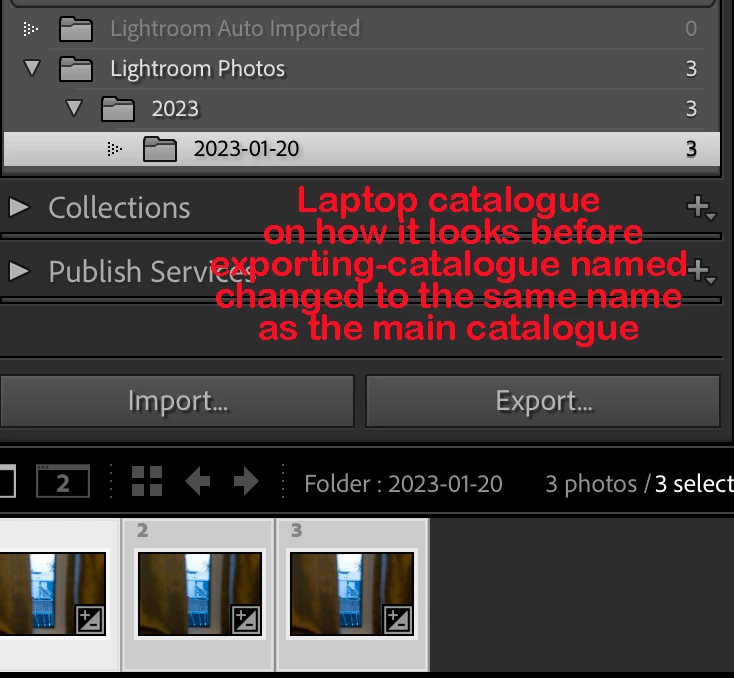
I used to be able to import images into the catalogue on my laptop, process them then I export the folder as a catalogue. I would take that catalogue and import it into my main catalogue. It would automatically get put into the catalogue sorted by date etc. Now when I do it it gets put into the catalogue but it is named by the catalogue name from the first catalogue (the one on my laptop) then the year and then the day. I tried changing the catalogue name to the same name as the one in my main catalogue. Still it is happening.


Does anyone know if this is because of a recent update? Is there a way to get around this so it cooperates the way it did before. See pictures attached
This topic has been closed for replies.

1 reply

Rob_Cullen
Community Expert
Community Expert
January 21, 2023

I am trying to make sense of your question-

"...it gets put into the catalogue but it is named by the catalogue name from the first catalogue..."

Are you referring to Catalogs or Folders?

Can you explain your workflow, and does it follow something like this-

1) Select Folder of images in Laptop catalog.

2) [Export this folder as a Catalog] (Call it {Temp.LRCAT}

3) Open Master Catalog in Mac Desktop

4) [Import from another Catalog] - selecting the {Temp.LRCAT} to import.

It would be normal to then have to move folders or files to have them conform to the folder heirarchy in the desktop Mac.  (Files will not automatically copy to dated folders.)


Regards. My System: Windows-11, Lightroom-Classic 15.1.1, Photoshop 27.3.1, ACR 18.1.1, Lightroom 9.0, Lr-iOS 10.4.0, Bridge 16.0.2 .
Averil2
Averil2Author
Known Participant
January 21, 2023
  1. Sorry I tried to make it understandable but it is hard to explain it. I will try to explain it and reference the pictures:

I have the pictures in the folder in the first catalogue (laptop and not main catalogue) See first picture. It is sorted by the name of the catalogue (Lightroom Photos) then it is put in subfolder 2023 and then the next subfolder 2023-01-20. I would then select the 2023-01-20 subfolder and all the pictures in it and 'export as a catalogue' naming it say temp catalogue.

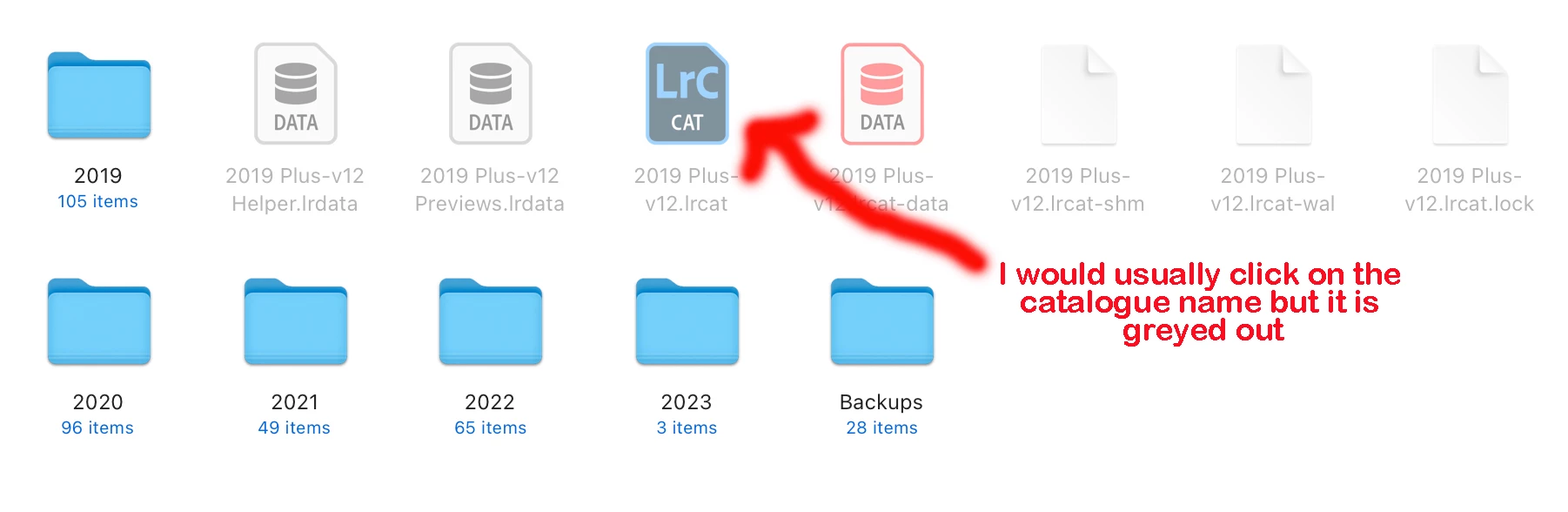
2. Next i would go into the main catalogue then click on 'import from another catalogue' which is the temp catalogue. I direct it to be put into the Main catalogue. Click it and let it do it's thing.

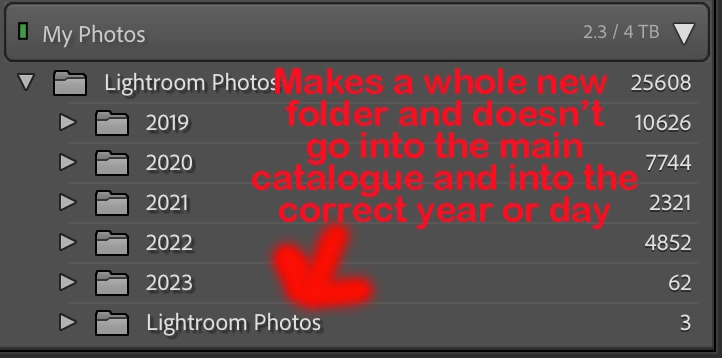
3. When finished it would normally have the 2023-01-20 put into the main catalogue and listed with all the other folders. But as you see in the 3rd picture it doesn't. It list the Catalogue name (in this case it happens to be the same name as the main catalogue name because I changed the name thinking maybe it wasn't doing it correctly was because the catalogue names were different. This was a wrong assumption) also the sub folder name 2023 and then 2023-01-20.

Previously I did this routine and the folder name according to date would get listed in chronological order in the main catalogue so in this case it would put it under the 2023 folder. It would have a whole new folder called Lightroom Photos (Picture 3)

I have been doing this for years my routine. But since the last update I have had troubles. I would then have to go into the 2nd Lightroom Picture folder and slide the 2023-01-20 up to where the subfolder 2023 is. It is okay if it is only one folder I have to slide up but yesterday I had many. (I was too busy to put the pictures from Dec 2022 and Jan 2023 to the main folder until yesterday.

I am hoping that is more understandable and you can help in some way. Thank you in advance.

If you can't understand maybe I can do a video.


Cmp=Macbook Pro Apple M2 Max Sequoia 15.2 Lightroom Classic 14.1.1
Rob_Cullen
Community Expert
Community Expert
January 22, 2023

First let's clear up and understand that {Lightroom Photos} is a FOLDER (although it might have a name similar to your Catalog {Lightroom Photos.LRCAT}.


Now when you [Export as a Catalog]- the temporary transfer catalog (Give it a unique name! like "Temp") has with it the photo files in a complete Folder heirarchy, and that will be in this format-

You can check this by opening the {Temp.LRCAT} catalog that will show the images in that heirarchy.


Next when you open your Master Catalog on the desktop and [Import from another catalog], the merge would be trying to mix the Temporary folder{Lightroom Photos} with the Master folder {Lightroom Photos} which it will not do (neither will it overwrite). So the imported catalog brings with it another separate heirarchy of {Lightroom Photos} folders, as you see it-

YOU then have to drag & Drop photos, and folders, in the Master catalog Folder panel to have the imported photos in the location where you want.

So expand the added Master {Lightroom Photos} folder and Drag& Drop its sub-folders to an appropriate location that suits you.

Later you can [Remove] the now empty {Lightroom Photos} FOLDER that was from the {Temp.LRCAT} catalog.

ie. As in STAGE#4 in this article by the Lightroom Queen.

https://www.lightroomqueen.com/merging-catalogs-overview/

Hope that all makes sense!


Regards. My System: Windows-11, Lightroom-Classic 15.1.1, Photoshop 27.3.1, ACR 18.1.1, Lightroom 9.0, Lr-iOS 10.4.0, Bridge 16.0.2 .