
Participant
August 17, 2024
Answered

Treatment option missing from Basic Panel

  • August 17, 2024
  • 2 replies
  • 672 views

I do not see the option to set a B&W or Color treatment in the Basic Panel. I am using version 13.4 release on MacOS Sonoma. Any clues on how I can get it back? 


[Moved from ‘Bugs’ to ‘Discussions’ by moderator, according to forum rules. A ‘bug’ is not just another word for any problem with software!]
This topic has been closed for replies.
Correct answer GoldingD

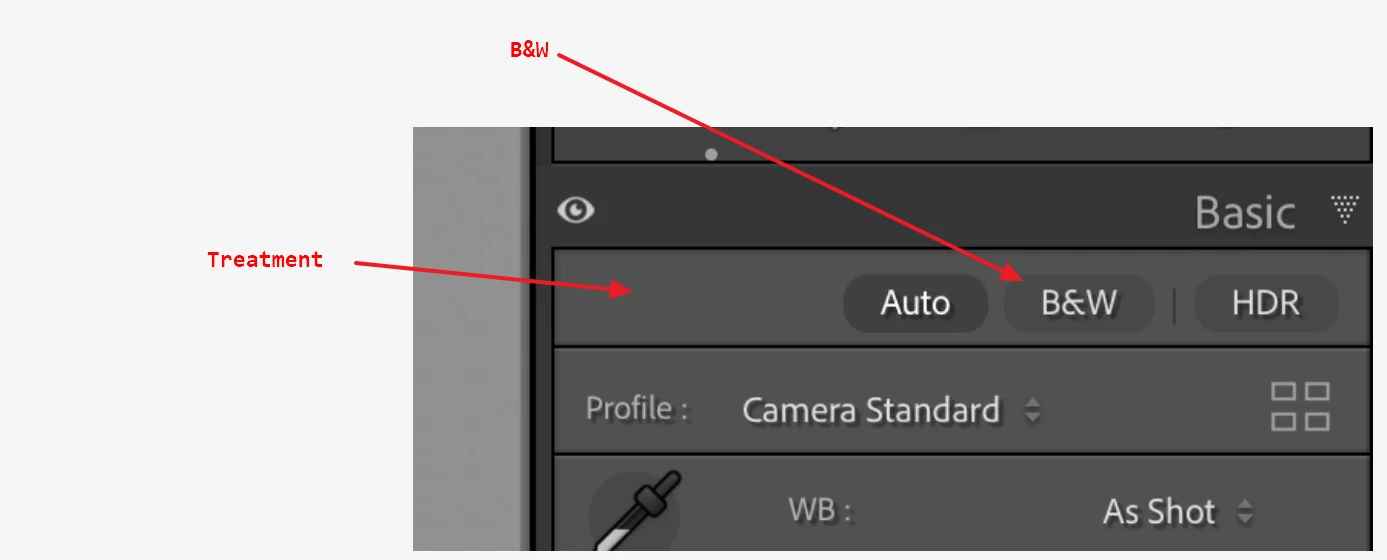
At first I did not understand. And I created the following image from your screenshot (Annotated)


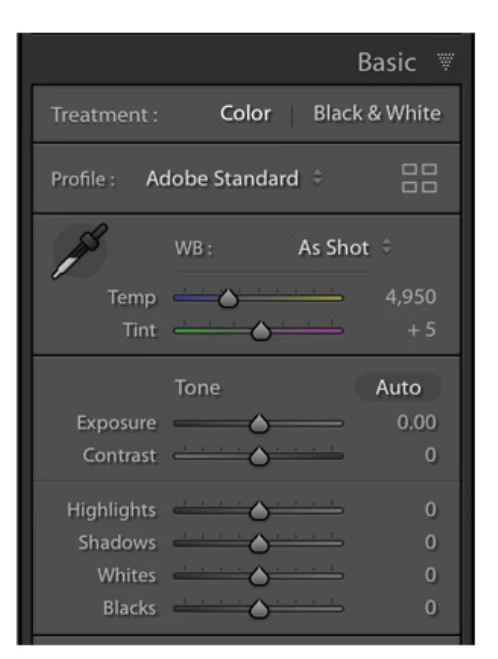
Then I remembered, the following way it used to look (I had to use Goolle to show an old version)


Ok, that got changed some time back. Their is not big concern. While you do not see Color, that is just the default. If you click on B&W and decide you want to go back to Color, just  on B&W again.click


This change occured back at v13.0


https://helpx.adobe.com/lightroom-classic/help/whats-new/2024.html


2 replies

GoldingD
Legend
August 18, 2024


if I want to go back I need to reselect the grid of profiles and then select my camera, 


'Huh?

Are you conflating Treatment, with Profile?

Perhaps I should not create this reply via an iPad, as opposed to my PC where I could t;est that out, i.e. what occurs to the profile selected when treatment is changed back and forth.


At any rate, consider creating a virtual copy, select B&W Treatment for that copy. Then you have both. No cost for a virtual copy.


P.S. many members may not actually use the B&W Treatment when they desire to create a B&W version. Instead they (I) use DxO NIK SilverEfex (or similar). way way more capable for B&W than LrC.


Community Expert
August 18, 2024

As further input: LrC does not ever work in true monochrome anyway (even a B&W treatment may receive tinting / grading, and regardless of that, will still produce a RGB encoded JPG when you export - not a monochrome encoded JPG).  So using a monochrome Profile, or selecting B&W processing, or applying a desaturating adjustment, are effectively the same. The only differnce being that images for which B&W mode has been explicitly chosen, are the more easily distinguished since LrC makes this available as a searchable image attribute. 


My own habit is to apply a preset which sets 0 saturation for all colour ranges (Color Mix panel), since this method leaves all of the interface the same as when working on a full colour treatment. Going to B&W explicitly will suppress some of the colour specific controls (that one may still want to vary, in pursuit of exactly the mono conversion one wants). I replicate the same function the B&W panel would otherwise supply, via the Luminance controls within the normal Color Mix panel.

GoldingD
GoldingDCorrect answer
Legend
August 17, 2024

At first I did not understand. And I created the following image from your screenshot (Annotated)


Then I remembered, the following way it used to look (I had to use Goolle to show an old version)


Ok, that got changed some time back. Their is not big concern. While you do not see Color, that is just the default. If you click on B&W and decide you want to go back to Color, just  on B&W again.click


This change occured back at v13.0


https://helpx.adobe.com/lightroom-classic/help/whats-new/2024.html


Participant
August 18, 2024

Thanks for the reply! It does seem to be a clunky way of doing things. I saw the old method in a YouTube video, and you could just select color or B&W and switch between the two. With the B&W button if I want to go back I need to reselect the grid of profiles and then select my camera, which is not as convenient. But thanks for the quick reply! 

GoldingD
Legend
August 18, 2024
quote

Thanks for the reply! It does seem to be a clunky way of doing things. I saw the old method in a YouTube video, and you could just select color or B&W and switch between the two. With the B&W button if I want to go back I need to reselect the grid of profiles and then select my camera, which is not as convenient. But thanks for the quick reply! 


By @Christian Crayton


Either I misunderstand that, or I do not see that on my rig. A short video in the link below. In the video, I have an images selected, in Develop Module, I change the treatment to B&W, I notice the Profile changes. I change the treatment back to color (click on the B&W button) and I notice the profile reverts bask to what is was before. No need to go hunting in Profiles.


https://www.dropbox.com/scl/fi/pqd48cne5w1yctby6nrtr/2024-08-18-10-00-00.mp4?rlkey=i8foohasl8kw5p5594jzz0f4y&st=1dhaqf9n&dl=0