



KE_DP
Inspiring
March 9, 2025
Answered

Turn OFF the new crop ratio previews

  • March 9, 2025
  • 2 replies
  • 504 views

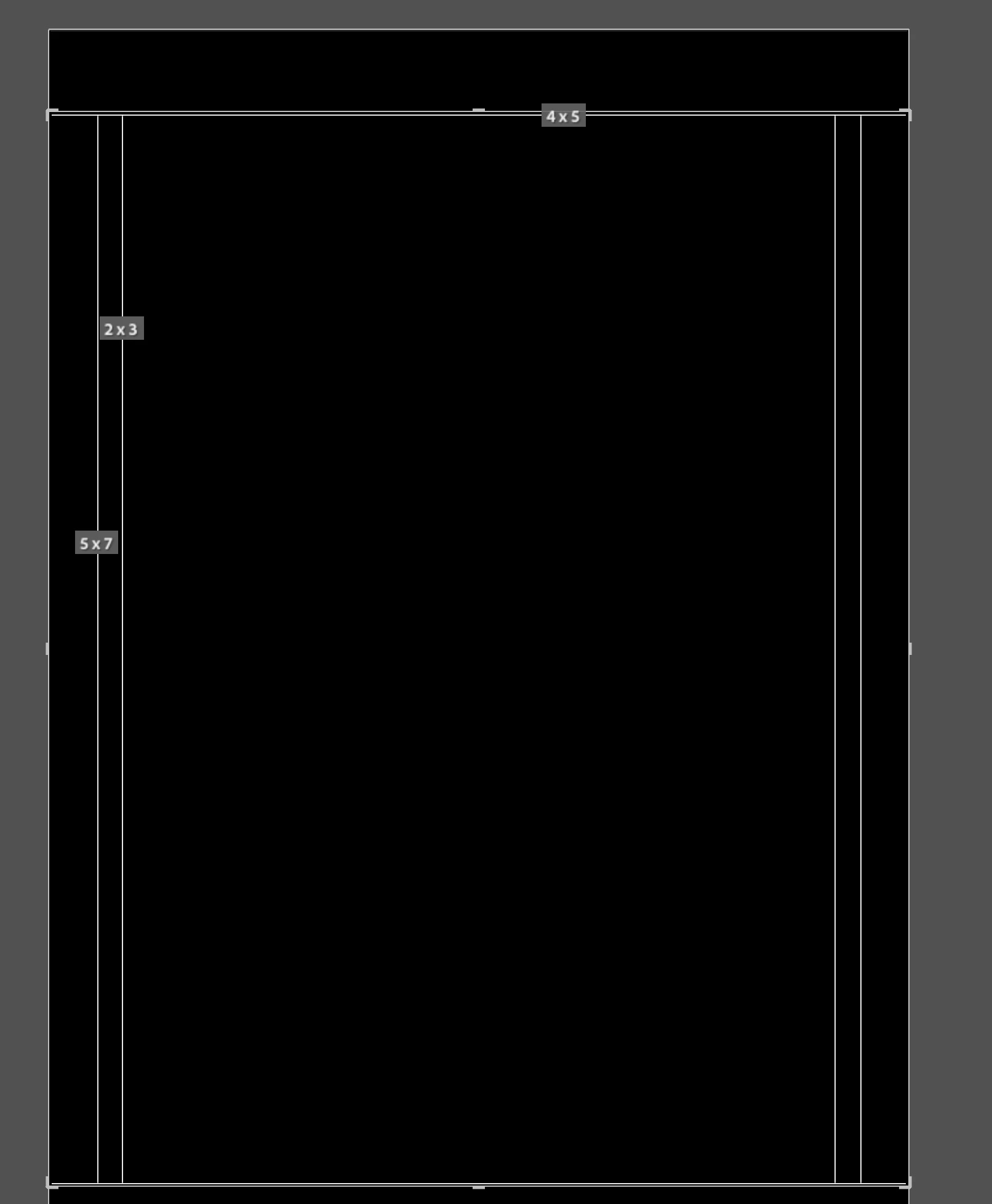
A new "feature" happened in a recent auto-update - any time I try to crop an image it now shows all kind of different aspect ratios.


It's really obtrusive.  I know what aspect ratio I need and don't need to see this.  How do I make it stop?
 

Correct answer Rob_Cullen

Keyboard  [ H ]  to hide

Keyboard [ O ] to cycle through the 9 overlay guides.


2 replies

Rob_Cullen
Community Expert
Rob_CullenCommunity ExpertCorrect answer
Community Expert
March 9, 2025

Keyboard  [ H ]  to hide

Keyboard [ O ] to cycle through the 9 overlay guides.


Regards. My System: Windows-11, Lightroom-Classic 15.1.1, Photoshop 27.3.1, ACR 18.1.1, Lightroom 9.0, Lr-iOS 10.4.0, Bridge 16.0.2 .
KE_DP
KE_DPAuthor
Inspiring
March 9, 2025

Thanks - this answer was perfect!

Conrad_C
Community Expert
Community Expert
March 9, 2025
quote

A new "feature" happened in a recent auto-update…It's really obtrusive.  I know what aspect ratio I need and don't need to see this.  How do I make it stop?

By @KE_DP


OK, there are multiple mis-interpretations and overreactions going on in that question. It’s not new, and it’s fast and easy to change.


The Aspect Ratios guides have been there for a long time, one of the many Crop Guide Overlay choices that have been in Lightroom Classic for years.


If you don’t like the current Crop Guide Overlay, there are multiple quick ways to change it. You can choose a different one from the Tools > Crop Guide Overlay submenu, as shown in the picture below. 


And the picture shows us a major clue as to how this might have gone wrong, even if you don’t remember ever opening that submenu. The single-key shortcut for Cycle Grid Overlay is the O key (circled in red in the picture), so if at some point you pressed the O key while the Crop tool was active (such as an accidental key press), this would cause the Crop Guide Overlay to cycle to the next one. So the other traditional way to get out of this is to keep pressing the O key until you like the overlay you see.


Edit: Rob_Cullen’s post reminded me that maybe you didn’t want to see any overlay at all. In that case, you can press the H single-key shortcut he mentioned, which is a shortcut for the command Tools > Tool Overlay > Never Show. You can also control that in the Tool Overlay menu that you can see in the toolbar at the bottom left corner of the picture. If you can’t see that toolbar, then you want to make the toolbar visible (View > Show Toolbar, or its single-key shortcut T).

KE_DP
KE_DPAuthor
Inspiring
March 9, 2025

Thanks - true, it could have been accidentally switched.  But it seemed to only start after a new version was installed (after update).  Either way the shortcut(s) were the quick fix for overlay free viewing so it's solved!