
Participant
July 14, 2026
Question

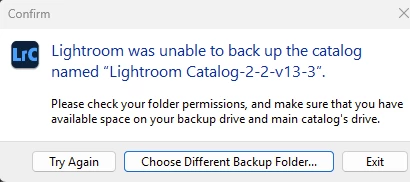
unable to back up my catalogue on exit and Ai edits not updating
  • July 14, 2026
  • 3 replies
  • 49 views
tried different folders, always same result. Lots of space available on the drive.
A technician did manage to resolve it 18 months ago but the fix only lasted a week.
I think its something to do with Google drive as it used to try and back up to it.

I also continually get this:
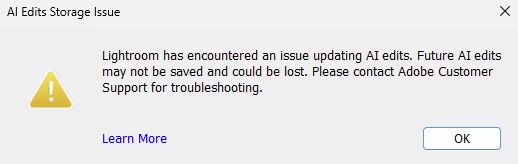
When I export photos any AI based edits I’ve made frequently do not export so I have to do them again in the hope it works. Thak you for any help


    This topic has been closed for replies.

    3 replies

    JohanElzenga
    Community Expert
    Community Expert
    July 15, 2026

    These are actually two different problems. Not being able to backup is caused by catalog corruption. The following procedure worked for everybody so far: Create a brand new catalog (‘File - New Catalog’) and choose 'File - Import from Another Catalog'. Select your old catalog to import. In the import dialog choose to import all photos, but do not move them. This will create an exact copy of your old catalog, but usually without the corruption. The only thing that won't come across is any publishing services you may have. You will have to recreate those. If you synced your catalog then you will have to enable sync for the new catalog. There are some reports that this could cause a problem. Here’s how to solve that: https://www.danhartfordphoto.com/blog/2025/1/lr026-fixing-sync-problems-caused-by-switching-the-sync-catalog


    The AI save problem is different. It does involve a corruption as well, but from the lrcat-data cache, not the catalog file (though the cause of the corruption could be the same, such as storing the catalog in a synced folder). 

    Lightroom Classic stores AI masks and other AI data in 'Catalogname.lrcat-data'. Sometimes this file (Mac)/folder (Windows) gets corrupted, or the permissions are getting set wrongly, so Lightroom Classic cannot write to it. That explains what you are seeing. Take the following steps:

    1: Review this document: https://helpx.adobe.com/lightroom-classic/kb/ai-edits-storage-error.html to make sure you are not affected by the items listed there. 
    2: Contact Adobe Support as they have an lrcat-data recovery tool that can fix your corrupt file. Contact Adobe Customer Care at https://helpx.adobe.com/contact/what-contact-options.html. Scroll to the bottom and click on the “Start Now” live chat link in the lower right of this page. Typing “Agent” into the chat text field will bypass the initial chatbot.

    -- Johan W. Elzenga
    Participant
    July 15, 2026

    I have the same issues as Mark F.  Recently uninstalled LRC and Photoshop, then reinstalled both and have checked permissions to external drives and still cannot backup and have AI edits not saving.

    Mark FAuthor
    Participant
    July 15, 2026

    It's very frustrating Ian. I have shot weddings on consecutive weekends.  Due to the summer we're having it caused very strong contrast so I used AI editing a lot only to find the exports didn't have the AI edits. 

    With so many photos I worry about a corrupted catalogue so keep backing it up manually.

    JohanElzenga
    Community Expert
    Community Expert
    July 14, 2026

    Do not use a synced folder such as Google Drive to store the catalog.

    -- Johan W. Elzenga
    Mark FAuthor
    Participant
    July 15, 2026

    I don't Johan, the catalogue setting are to back up to a standard drive. However when new, for some reason lightroom put the catalogue in drive, I changed it but wonder if it has anything to do with the problems.

    JohanElzenga
    Community Expert
    Community Expert
    July 15, 2026

    The catalog could indeed have become corrupted as a result of it. Not to the point that it doesn’t open at all, but to the point that it created said problems.

    -- Johan W. Elzenga