Keefs66
Participant
January 4, 2020
Question

Unable to import presets to LR Classic 9.1

  • January 4, 2020
  • 4 replies
  • 1364 views

I bought a new laptop today, as the screen on my old one simply had too many dead pixels to be useable. I have managed to download LR Classic and Photoshop successfully, move my LR catalog across to the new machine, and all is well with the images and being able to select, develop and export them.  However I have , despite following all advice, not been able to move my presets across.  Please see belkow for snapshot of my system. 
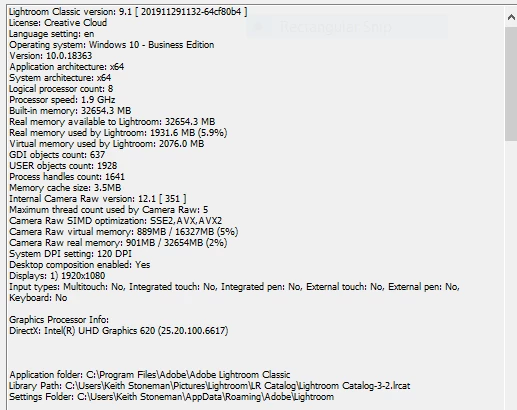
 

So far I have tried copying the old lrtemplate extension files to the correct "user" folder within develop presets, both manually and by using the import button on the sidebar.  I have also been unable to import newer XPM files using the same methods in the appropriate, different, presets folder.  I currently have all my old presets which worked successfully on my old laptop,  saved in a folder on my desktop as I am fed up with trying to copy and paste them across using a USB.   LR classic was up to date and worked perfectly on my old laptop, but I cannot get these presets to show up on the presets panel on the left, no matter how I try to import them.  I have followed all available advice on Adobe website, as well as numerous other online forums and advice, none of which have made any difference.  I am probably doing something very basic very wrong, but I am stuck and would appreciate any guidance. (All these presets are purchased/free downloads and all worked yesterday on my old machine). Thank you.

This topic has been closed for replies.

4 replies

GoldingD
Legend
January 5, 2020


The only minor issue is the old LRtemplate files have refused to import in their resptive folders and are now just one list under user presets (rather than being in  "portraits" , "landscapes" folders).


Adobe just loves to relocate things. Think that relocation occured v7.3.  It was done to centralize presets to share amongst applications.


That incidentally is in the links, the video comes to mind.


and in the link https://helpx.adobe.com/lightroom-classic/kb/preference-file-and-other-file-locations---lightroom-6.html


  • (XMP) Beginning with Lightroom Classic CC v7.3, the existing presets in the.lrtemplate format are automatically converted to a new XMP preset format. After conversion, the new XMP presets are saved at: ~/Library/Application Support/Adobe/CameraRaw/Settings


GoldingD
Legend
January 5, 2020

Why do I forget this, over and over?

Ok, another possibility

Corrupt Preferences file

The preference file can get corrupted, resulting in "Buggy Behavior" Resetting the preference file is a possible solution. Resetting a preference file is Adobe speak for deleting it, and then letting Lightroom Classic, recreate it. Be warned that some or many defaults in your preference file may revert to defaults. Be aware that Lightroom will forget where your last catalog was, what the previous catalog was, and will create a new catalog, so know where your catalog is before doing this, jot down your various preference settings before doing this.


Links:


https://lightroomers.com/replacing-the-lightroom-preference-file/745/


https://www.youtube.com/watch?v=bARt-hoCc2Q


https://helpx.adobe.com/lightroom-classic/kb/recover-catalog-images-resetting-lightroom.html


https://helpx.adobe.com/lightroom-classic/kb/preference-file-and-other-file-locations---lightroom-6.html

opps that link for v6


Keefs66
Keefs66Author
Participant
January 5, 2020

Thanks for the guidance David.  I have started from scratch and followed instructions carefully.  Presets are now installed, the XMP files I purchased have installed totally fine today.  The only minor issue is the old LRtemplate files have refused to import in their resptive folders and are now just one list under user presets (rather than being in  "portraits" , "landscapes" folders). But I can  cope with that, I probably needed an axcuse for a clear out anyway. 


A good nights sleep helped me get my head around this I think.   Thanks again for taking time to help, it is appreciated. The Jared Platt video was particularly helpful and clear. 

GoldingD
Legend
January 4, 2020

Also, in Preferences, Presets tab, enable Show Partually Compatable Develop Presets(for JPEG photos)


Keefs66
Keefs66Author
Participant
January 4, 2020

Thanks David.  I had the partial box ticked, and have looked at the manage option and they aren't there.   I'll check out the video properly tomorrow when I have recharged my own battery somewhat.   Thank you again. 

GoldingD
Legend
January 4, 2020

And have clicked on that + symbol in the presets panel, selected manage, and turned on (checked) all those you want to be available?


A few versions back, probably 7.2 Adobe changed that. Mostly so users that have gone ballistic with presets could cut back on them as to not slow LRC doe=wn (mind you that takes hundreds perhaps a thousand presets before it is an issue)


https://www.lightroomqueen.com/missing-default-presets-75/


https://www.lightroompresets.com/blogs/pretty-presets-blog/11723609-tips-for-organizing-your-presets


https://blogs.adobe.com/jkost/2018/06/updates-to-lightroom-classic-%C2%AD-profile-preset-management-color-labels-and-auto-stack-options.html


Bonus link, more info


https://www.youtube.com/watch?v=mYx899_tNP8