
LoganDavidson
Participant
October 13, 2023
Question

Unable To Upgrade Catalog

  • October 13, 2023
  • 5 replies
  • 2663 views

Been trying to upgrade my Lightroom to the latest update (3.0 release).
When I try to open my main catalog, I get notified that it needs to be upgraded. When I try to upgrade it, I get this:
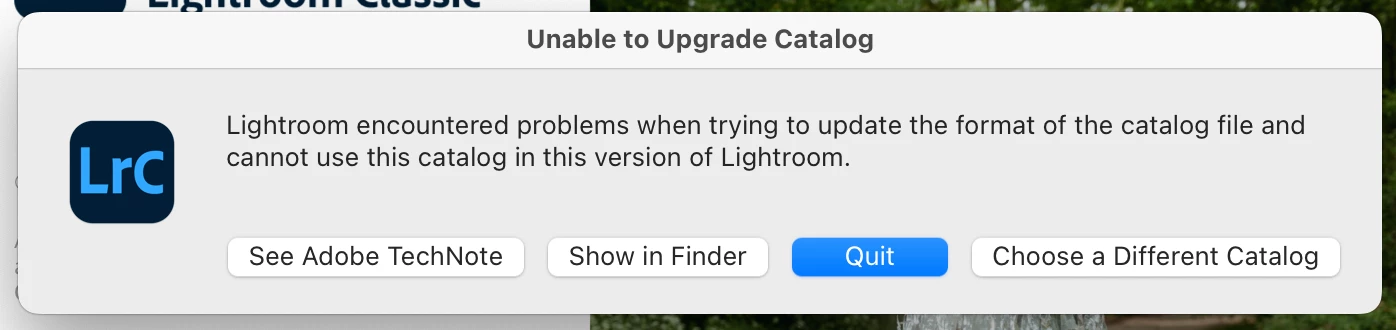
So now I have to go to my job tomorrow without any access to my gallery. Big Oof! 
Does anyone have any ideas? 

This topic has been closed for replies.

5 replies

TomIron
Participating Frequently
November 3, 2023

Adobe's support solved my problem. I had the catalog on an exteral USB-C drive. After copying the lrcat-file (mine was almost 5 GB) to the internal drive the upgrade went fine and I could move the new version back to the USB-drive and rename the old preview catalogs so that they match the new catalog-file. Now all is running fine.

Participating Frequently
February 10, 2024

Hi everyone, 


I have the same issue andt also get above error when upgrading my 12.5 version to the new 13.1 version. 


I have tried various approaches: 

- Moved catalog to another location on the laptop hard drive

- Used a catalog restored from a backup 

- deleting the "sync.lrdata" file

- create a new catalog with 13.1. and import from the 12.5 catalog


...all resulting in the same error. 


Thanks for any further suggestions in advance. 

D Fosse
Community Expert
Community Expert
February 10, 2024

What I would do is what richardplondon suggested further up:


Uninstall v 13 and reinstall v 12.


Then make a new catalog in v12 and "import from another catalog". This should hopefully exclude any corrupt data and give a fresh start.


Then reinstall v 13 and try to upgrade this new catalog.

eyedearphoto
Participating Frequently
October 17, 2023

i am having the same issue. have tried it on mac os Sonoma and with m1 mac mini and also on windows 11. it always fails. what information is needed to solve this issue


Sean McCormack
Community Expert
Community Expert
October 27, 2023

What version of Lightroom Classic is the catalog being updated from. If it's 12 and you're getting that message, then there's corruption in your catalog.  

Roll back to Lightroom Classic 12 from the 3 dots in Creative Cloud. In the Catalog panel go to All Photographs , try using File> Export as Catalog. For this test you don't need anything ticked. Run it. Update to 13. Double click the Exported catalog and see if that updates. 

Sean McCormack. Author of 'Essential Development 3'. Magazine Writer. Former Official Fuji X-Photographer.
TomIron
Participating Frequently
October 13, 2023

A follow-up question since I have the same problem. Does the upgrade demand enough free space for the catalog AND the previews to be copied (and temporary take up twice the size)? If so - then I have a big issue...

Sean McCormack
Community Expert
Community Expert
October 13, 2023

No, it upgrades the preview cache from the catalog you're updating. 

Sean McCormack. Author of 'Essential Development 3'. Magazine Writer. Former Official Fuji X-Photographer.
AxelMatt
Community Expert
Community Expert
October 13, 2023

It seems there's a fault in your recent catalog.

Try to restore the catalog from your latest backup und then check again.


If you need urgently access to your catalag for your job, I commend to rollback to version 12.5.

Try to update Lightroom if you have more time to react on problems during the update process.


My System: Intel i7-8700K - 64GB RAM - NVidia Geforce RTX 3060 - Windows 11 Pro 25H2 -- LR-Classic 15 - Photoshop 27 - Nik Collection 8 - PureRAW 5 - Topaz Photo
Community Expert
October 13, 2023

The immediate options I see are:

- stay on current version for the moment;

- experiment with a Catalog backup (you'll need to take this out of its compressed archive to do so0; 

- make a fresh empty Catalog using the NEW version and then try whether Import from Another Catalog works for your current Catalog. IIRC that involves upconverting on the fly so may work no better.

- my suggestion - make a fresh empty Catalog using the OLD version, then "Import from Another Catalog" to merge all your current Catalog info into that known-good Catalog database (I believe anything discovered unusable during this process will be quietly omitted but the remainder will at leastbecome usable). Then see whether this fresh Catalog will up-convert successfully to the NEW version. 


Import from Another Catalog is not at all like reimporting those photos as files: this way all of the wider Catalog information such as past editing History steps, Collections and Smart Collections, Virtual Copies and Proofing Copies etc is preserved too. But IIRC not Publish setups, unused keywords, that kind of thing.


Another consideration: if you are currently syncing to cloud that will carry on working only for a single Catalog at a time, and of that stated name. 

TomIron
Participating Frequently
October 27, 2023

Same issue. Have tried the options above with no success.

The catalog works in LR 12, but it is not possible to import it into a new empty catalog, either in v12 nor v13.

Have run a check integrity test without any warnings. Even used SQLite with the same resultat.

Any more suggestions?

Community Expert
October 27, 2023

How about: select all the images in current Catalog, Export as Catalog, try if that works.


If no good, try a part export-as-catalog of just some of the images to narrow down on the problem. There's a checkbox option to include selected images only.


I suggest un-check 'include negative files' (strange terminology!) because that would generate new copies of the original imported files. Unnecessary IMO.


Export as Catalog as I understand it, leaves out from the resulting database, anything that was not a valid entry in the source. So you should, in theory, be left with only usable images properly indexed. Each one retaining its Catalog based virtual organisation, editing history and such.