Participant
December 15, 2022
Answered

Unexpected appearance of images

  • December 15, 2022
  • 3 replies
  • 581 views

When I import any file from any source on the program, I see the images like there's a high contrast filter on them so I'm totally unable to edit. I tried to export the fils without editing them and the exported file doesn't have this random contrasted filter...help! I have no idea how to resolve this bug 😕😕

This topic has been closed for replies.
Correct answer Per Berntsen

You seem to be using the Photos app to view the exported image. It is color managed, and should display identically to Lightroom.

My guess is that this is either caused by a buggy GPU driver, or a defective monitor profile.

First try to disable the GPU in Edit > Preferences > Performance. (uncheck Use graphics processor)

If this fixes the issue,  update your graphics driver to the latest version, then try to enable the GPU again.


If updating the graphics driver doesn't help, try setting the monitor profile to sRGB.

If this fixes the issue, it is recommended that you calibrate your monitor with a hardware calibrator.

This will also create and install a custom monitor profile, which will be more accurate than sRGB.


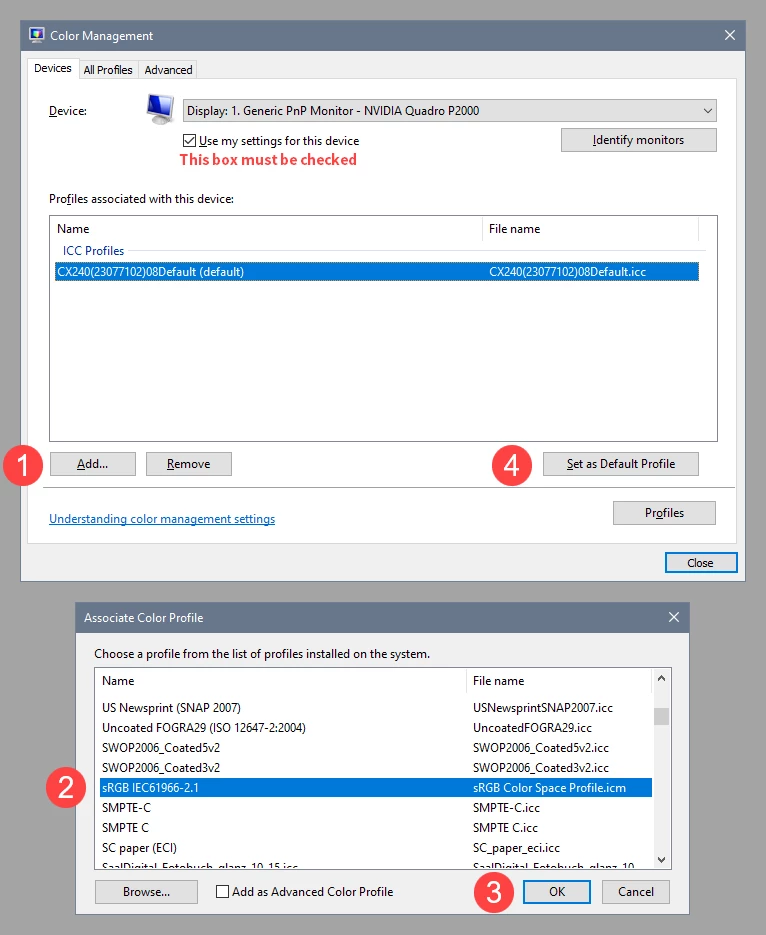
With Lightroom closed, press the Windows key + R, type colorcpl in the box and press Enter.

Add the sRGB profile, then set it as default.
 

3 replies

Participant
December 15, 2022

YES! I set the sRGB profile and it worked! Thank you so much

TheDigitalDog
Inspiring
December 15, 2022

Glad to hear it is working, but read what Per also stated; this is only a rough 'fix' and more of a diagnostic step. Using sRGB isn't a fix because it doesn't really reflect the conditions of your display. Now differing color-managed applications match, but they all match incorrectly compared to a profile that profiles (fingerprints) your display behavior. 

Author “Color Management for Photographers" & "Photoshop CC Color Management/pluralsight"
Per Berntsen
Community Expert
Per BerntsenCommunity ExpertCorrect answer
Community Expert
December 15, 2022

You seem to be using the Photos app to view the exported image. It is color managed, and should display identically to Lightroom.

My guess is that this is either caused by a buggy GPU driver, or a defective monitor profile.

First try to disable the GPU in Edit > Preferences > Performance. (uncheck Use graphics processor)

If this fixes the issue,  update your graphics driver to the latest version, then try to enable the GPU again.


If updating the graphics driver doesn't help, try setting the monitor profile to sRGB.

If this fixes the issue, it is recommended that you calibrate your monitor with a hardware calibrator.

This will also create and install a custom monitor profile, which will be more accurate than sRGB.


With Lightroom closed, press the Windows key + R, type colorcpl in the box and press Enter.

Add the sRGB profile, then set it as default.

 

TheDigitalDog
Inspiring
December 15, 2022

Not a Windows guy but curious: if the display profile is corrupted which is certainly possible, and both LR and the Windows Photo viewer are both color managed and using it, wouldn't they match?

Author “Color Management for Photographers" & "Photoshop CC Color Management/pluralsight"
Per Berntsen
Community Expert
Community Expert
December 15, 2022

I've seen several examples of this happening with two color managed applications on Windows, with LrC and Photopshop, and also with LrC and Photos.

The technical aspects of color management are well beyond my expertise, but LrC is apparently picky about the monitor profile, and may not approve of a profile that other applications have no problems with, resulting in wrong colors.

TheDigitalDog
Inspiring
December 15, 2022

You view them outside of LR where? 

Do they have an embedded color profile? 

Can you upload one to something like Dropbox so others can view them in multiple color managed applications and see what's going on?

Author “Color Management for Photographers" & "Photoshop CC Color Management/pluralsight"
Participant
December 15, 2022

this photo I took as an example has a preset on that look nothing like the photo you see in the program, but it also happens with unedited ones in the exact same way so I don't think it's a preset problem. On the left side I opened the same photo with windows photo app.

Here you have a Drive link to one of the unedited files that give me this problem  https://drive.google.com/file/d/1CLqo9l1BpIni4UWWJofs_M0lnM1Q8PB2/view?usp=share_link