
Inspiring
November 22, 2021
Question

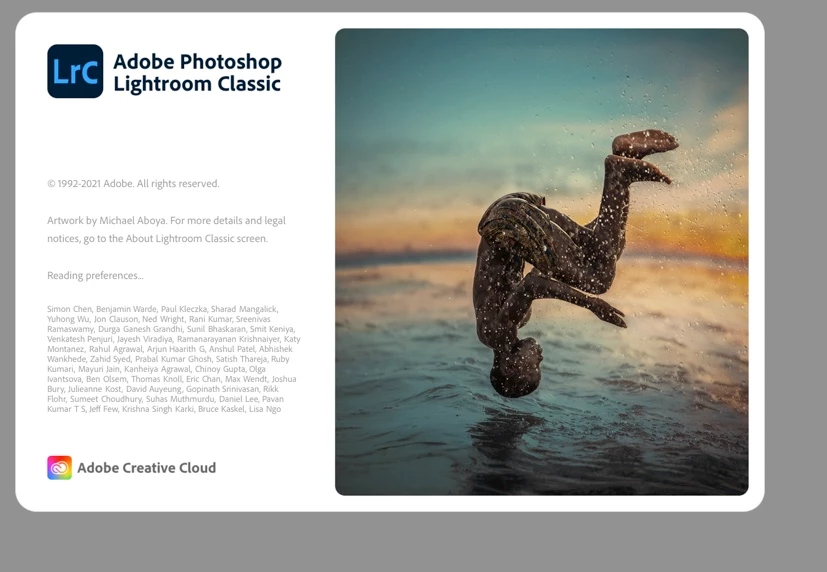
Unnerving startup image

  • November 22, 2021
  • 3 replies
  • 2355 views

Hi - I have a bad reaction every time I use Lightroom because of the new opening image. I find it to be reminiscent of the 9/11 Falling Man. When I see it, my heart races and the image is disturbing to me. Does anyone else have this reaction? 
This topic has been closed for replies.

3 replies

Participant
June 26, 2024

Rob_Cullen
Community Expert
Community Expert
November 22, 2021

If you want a Splash Screen- Customize your Lightroom  Splash Screen to your own image!

Credit to original author- Michael Hoffman

A  little-known feature in Lightroom-(Classic)  is that we have the ability to customize the splash screen – the initial graphics that show up when the program starts. The default splash screen for Lightroom–Classic is one that you’ve grown accustomed to, and it follows the Creative Cloud design style:

However, we’re not locked in to this screen. We have the ability to change it, and there is a simple two-step process to making this change:

  1. Create an image file with a size of 900 x 600 pixels;
  2. Store the image file in the correct folder.

Step 1 – Create an image file

This is easily enough accomplished with Photoshop. Start out by creating a new document by choosing File > New, and set the dimensions to 900 x 600. Or Export an image from Lr-Classic to conform to pixel dimensions!

You can use JPG or PNG – make sure to use PNG if you intend to have transparency. The image won’t by fully transparent, but will be transparent on a partially transparent gray backdrop, as we’ll see.

Step 2 – Store the image in the correct folder

In order to find the correct folder, we can use Lightroom-Classic to help us out. Start by opening preferences (Windows: Edit > Preferences, Mac: Lightroom > Preferences) and then go to the Presets tab. On the Presets tab, click the button to [Show all other Lightroom Presets] …:

Important Note: If you have “Store Presets with this catalog” checked, turn it off temporarily!

Open the {Lightroom}  folder, and you’ll see all the various Lightroom presets folders. Look for one called “Splash Screen,” and if it doesn’t exist, you can create it yourself:

Now, open the Splash Screen folder, and copy your new splash screen image into that folder as shown:

One final important note – If you changed the setting for “Store Presets with this Catalog,” don’t forget to change it back!

Now that everything is in place, you’re ready to roll. Close and re-start Lightroom, and you’ll see your new splash screen in place of Lightroom’s default.

You can be as creative as you want.


Regards. My System: Windows-11, Lightroom-Classic 15.1.1, Photoshop 27.3.1, ACR 18.1.1, Lightroom 9.0, Lr-iOS 10.4.0, Bridge 16.0.2 .
jillklAuthor
Inspiring
November 23, 2021

Rob - thank you!  I might give that a try.

Jill

Community Expert
November 22, 2021

I hadn't even seen that image - since I have had this "splash screen" disabled for some years and over many versions. If you would like to do so too, that is an option you can un-check near the top of the General tab, in Lr Classic Settings.

jillklAuthor
Inspiring
November 23, 2021

Richard - thank you so much!  I've officially 'un-checked'.

Much appreciated.

Jill