Participating Frequently
March 8, 2021
Answered

Updated LRC and all my LUTs disappeared. "All items were already imported" yet nothing

  • March 8, 2021
  • 7 replies
  • 4335 views

Hi adobe community and thank you for the help in advance. As the title says I am missing my LUTs that were all there prior to updating to the newest lightroom classic update the other day.


I have placed the LUT folders in C:\Users\username\AppData\Roaming\Adobe\CameraRaw\Settings as others have said to do and still nothing. Every time I try to add them on camera raw or lightroom I get the same damn message yet the LUTs are nowhere to be found.


Any help would be greatly appreciated as this is driving me insane. Thanks!
This topic has been closed for replies.
Correct answer johnrellis

[This post contains formatting and embedded images that don't appear in email. View the post in your Web browser.]


To build on WobertC's reply:


Landscape1.xmp is a creative profile containing a LUT, referencing the built-in raw profile Adobe Standard.   Thus, it will only appear in the Profile Browser when you're editing a raw file, not a JPEG, TIFF, or PSD.  


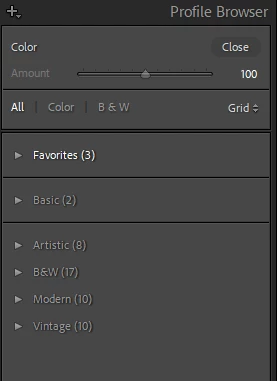
Your screenshot shows that you were editing a non-raw (JPEG, TIFF, PSD) rather than a raw:


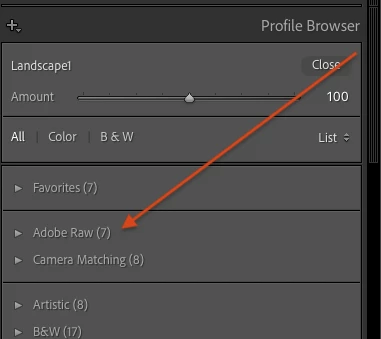
When you're editing a raw, you will see the additional groups Adobe Raw and (sometimes) Camera Matching:


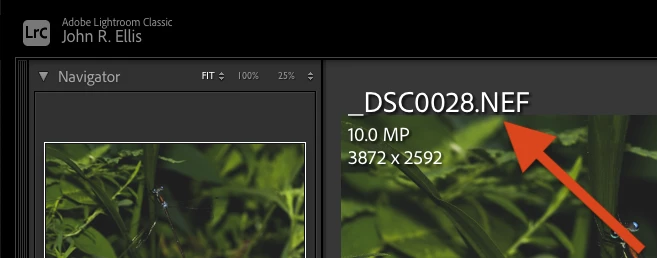
To triple-check which kind of file you're editing in Develop, type "i" on or more times until you see the file name in the info overlay in the upper-right left corner:


It's not uncommon to think you're editing a raw when in fact it's a JPEG or other type of non-raw. 


[Use the blue reply button under the first post to ensure replies sort properly.]

7 replies

johnrellis
Genius
March 8, 2021

[This post contains formatting and embedded images that don't appear in email. View the post in your Web browser.]


Glad you got it resolved.


"Turns out my dslr had somehow switched image quality back to JPEG from NEF and I didn't notice when ingesting it."


This is not uncommon -- plenty of reports on the forums of such mistaken identity.  The default settings of LR don't display the file extension or file type, and the quality of DSLR JPEGs is so good these days that it often isn't obvious. 


I set my Library grid view settings (View > View Options) to include the file name:


[Use the blue reply button under the first post to ensure replies sort properly.]


johnrellis
johnrellisCorrect answer
Genius
March 8, 2021

[This post contains formatting and embedded images that don't appear in email. View the post in your Web browser.]


To build on WobertC's reply:


Landscape1.xmp is a creative profile containing a LUT, referencing the built-in raw profile Adobe Standard.   Thus, it will only appear in the Profile Browser when you're editing a raw file, not a JPEG, TIFF, or PSD.  


Your screenshot shows that you were editing a non-raw (JPEG, TIFF, PSD) rather than a raw:


When you're editing a raw, you will see the additional groups Adobe Raw and (sometimes) Camera Matching:


To triple-check which kind of file you're editing in Develop, type "i" on or more times until you see the file name in the info overlay in the upper-right left corner:


It's not uncommon to think you're editing a raw when in fact it's a JPEG or other type of non-raw. 


[Use the blue reply button under the first post to ensure replies sort properly.]

Participating Frequently
March 8, 2021

Holy cow I feel so dumb for not seeing this.  Turns out my dslr had somehow switched image quality back to JPEG from NEF and I didn't notice when ingesting it.  You'd think a former data wrangler would know better ¯\_(ツ)_/¯

THANK YOU SO MUCH JOHN!  

Rob_Cullen
Community Expert
Community Expert
March 8, 2021

Following this thread, I tried the XMP posted by @Bryan Out West (will delete it later).

1) Downloaded from Dropbox to my Windows-10 Downloads 'folder',

2) LrC Develop module > Presets > Import Presets

And there it is! in the Profile Chooser panel-

No problems installing and it works. Image viewed is a DNG from a Nikon NEF File. My Presets are NOT stored with the Catalog.

I always appreciate the expert advice from @johnrellis who understands the complexity of Presets and Profiles that Adobe introduced in v7.2 (was it?).


Regards. My System: Windows-11, Lightroom-Classic 15.0, Photoshop 27.0, ACR 18.0, Lightroom 9.0, Lr-iOS 10.4.0, Bridge 16.0 .
Participating Frequently
March 8, 2021

Thank you for pitching in.  I followed the same process but I get this message "Unable to import presets, all items were already imported."

Im also using nef files from a nikon dslr and on the newest version of LRC.

Participating Frequently
March 8, 2021

Manually deleted all previous xmp LUTS and tried again.  This time I didn't get the message so I assumed it worked but they won't show up under profiles or presets.  I tried managing both and it simply doesn't come up

johnrellis
Genius
March 8, 2021

"I'm wondering if it could be because my Lightroom Settings\Settings is in an odd location (inside one of my lrcat folders from a project) for some reason.  Where is this normally supposed to be located?"


This happens when you have the option Preferences > Presets > Store Presets With This Catalog set -- then Develop presets , creative profiles, and other kinds of LR presets are stored in the "Lightroom Settings" subfolder of the current catalog folder.  


Unless you have a very specific reason for setting this option and understand what it does, you shouldn't have it set -- it just creates confusion.


Also, to avoid confusion it's best not to futz with the preset folders directly when importing presets and profiles but rather use the LR command File > Import Develop Profiles and Presets.


[Use the blue reply button under the first post to ensure replies sort properly.]

Participating Frequently
March 8, 2021

Thank you so much for your thoughtful responses.  Unfortunately, I have followed everything and still no luck. 


Everything was there until I updated and at this point, I'm so frustrated that I am wondering if I need to completely uninstall everything and start again.

Here is one of the LUTs as requested.
https://www.dropbox.com/s/amzj1vz31coahhy/Landscape1.xmp?dl=0

johnrellis
Genius
March 8, 2021

That message, "All items were already imported", indicates you tried to import .xmp files but they were already imported into LR.  An .xmp file could be either a Develop preset (which appears in the Presets panel) or a creative profile (which appears in the Profile Browser and may optionally contain a LUT inside it).  (LR cannot import LUTs directly.) There are a couple of possibilities why you're not seeing the imported files:


1. In the Presets panel, click the "+" menu button in the upper-right corner and select Manage Presets. Check each group (folder) and click Save.  Then in the panel, expand each group by clicking the triangle to the left of the group and carefully examine the listed presets.


2. In the Basic panel, click the drop-down menu to the right of Profile: and select Browse. Right click one of the groups (e.g. Favorites or Basic) and do Reset Hidden Profiles.  Then expand each group by clicking the triangle to the left of the group and carefully examine the listed profiles.


3. It may be that the .xmp files you're importing are presets or creative profiles tied to a particular camera and will only appear when you edit a raw file from that specific camera.  If you think that's the case, edit a raw from that specific camera and look in the presets and creative profiles.


If that still doesn't help, upload one of the .xmp files to Dropbox or similar and post the sharing link here.


[Use the blue reply button under the first post to ensure replies sort properly.]

@MNiessenPhoto
Legend
March 8, 2021

Hi,

There has been a change recently (not quite sure exactly which version, though) and now the user presets are saved in the Lightroom Settings\Settings folder, instead of Lightroom Settings\Develop Presets.

I had the same issue and simply moved my custom presets folders to the new location then restarted Lightroom, and they were visible.

Hope that helps,

Michael

Photo-editing (Ps/Lr/LrC) and photography workshops & one-on-one training (off- and online)
Participating Frequently
March 8, 2021

Thank you for your response.  I did this but still nothing.  I'm wondering if it could be because my Lightroom Settings\Settings is in an odd location (inside one of my lrcat folders from a project) for some reason.  Where is this normally supposed to be located?

@MNiessenPhoto
Legend
March 8, 2021

You can find the location in the Lightroom preferences:


Michael

_____________

Michael Niessen - Photographer, photo-editor, educator

Portfolio · Tutorials (Lightroom Classic, Photoshop,...) · Instagram

Photo-editing (Ps/Lr/LrC) and photography workshops & one-on-one training (off- and online)
Ian Lyons
Community Expert
Community Expert
March 8, 2021

I believe the LUTs should be installed in the folder named 'Tables' rather than 'Settings'. If you don't see a folder named 'Tables', then just create it and copy your LUTs into same.

Participating Frequently
March 8, 2021

Tried this but no luck.  Do I need to do more than just drop the xmp files in there?