
Use Clipboard to copy metadata (camera, Lens, ...) to use anywhere f.e. in smart Collection?
Hello all,
I just switched (or try to do...) from Apple Photos to LrC.
I was able to export my Apple-lib to LrC, but all smart folders/collections need to be re-created.
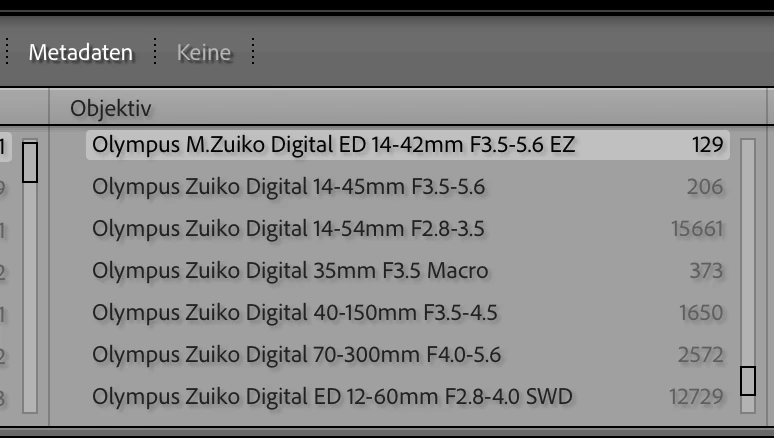
LrC provides the possibility, but it requires f.e. to type in the exact description of the camera or lens, which is sometimes tricky. (In Apple, the corresponding DropDown-list is pre-filled with possible values). In LrC Metadata-browser, all possible entries also exist..
Question to all of you: how to copy the string shown in the metadata-field?
Metadata-browser:
Metadata for single picture:
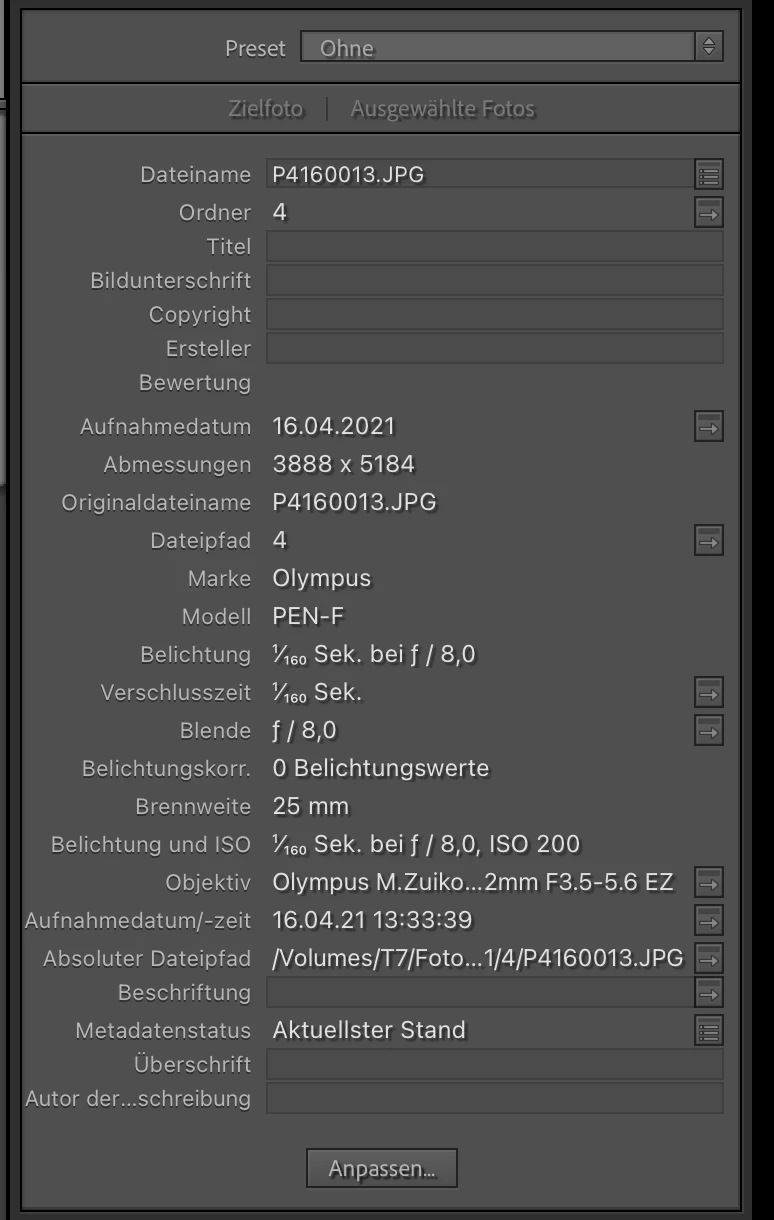
I just want to copy-paste the show information (Camera, lens, whatever) to the clipboard and re-user it in another field, f.e. definition of the smart collection.
Different in LrC from most other Mac Applications, I cannot select/copy the shown text for whatever reason.
Am I just too stupid or is there in reality no way to do that?
If no way for clipboard, is there any way to pre-fill the possible entries in the smart Collections (Kamrea, Lens, focal length, ...)?
 AdChoices