

Validation of DNG files - changes after each Validation
Hi one and all.
Apologies for the long post, I am hoping for ideas, and if not I am hoping my issue may save or at least help someone else.
*The issue:
I’ve suffered from a bad case of bit rot, seems I tried to copy too many files to an external drive at the same time - possibly or, I have a hardware issue that I cannot seem to pin down.
-
* The reason for the updates and changes:
We are travelling around Australia in our Caravan for the next few years, on and off and I wanted a Non Spinning Drive to work on my main database of photos, adding new ones as we go.
The current database has over 545K of images and is Approx. 16Tb
With a vast number of files that really need to be culled, rapid fore photos of Aircraft and Race / Rally Cars. Makes for many more images in my early years than I really needed!
I figured, whilst relaxing in my retirement I could travel, clean these out and look through my collection, whilst adding keywords and other data.
(There is also a lot of images that are taken at the local Arboretum, over many years of its ever changing landscape.
I volunteer there as an aerial and ground based photographer, documenting the changes over the years.)
The hard drive for it and its images, has been left in my will, with the rights to the Arboretum, my way of giving back.
-
*The equipment:
A Lacie 2 Big with two 18Tb spinning disk hard drives in it, to be a sort of back up when we stay still for more than a few days, and an Acasis 4 Bay 40Gbps M.2 NVMe RAID SSD Enclosure Compatible with Thunderbolt 4/3, my X: drive. With 4 Lexar M.2 8Tb SSD’s. This backs up via Goodsync to top 18tb drive T: in the Lacie 2Big bay, then in a month or so I will backup to the lower drive U: and so on, swapping over as we go.
With, hopefully all the images to be backed up to the OWC Thunderbay 8 Raided drives at my home office when we eventually get home.
The Acasis X: drive is essentially my working “Fast” external drive that I do all my initial work with, then Goodsync takes over later, to spread the files over a few different drives for safe keeping.
Home System in use:
Microsoft Windows 11 Pro
Version 10.0.26200 Build 26200
Gigabyte Technology Co., Ltd. Z590 AORUS XTREME x64-based PC
Processor 11th Gen Intel(R) Core(TM) i9-11900 @ 2.50GHz, 2496 Mhz, 8 Core(s), 16 Logical Processor(s)
BIOS Version/Date American Megatrends International, LLC. F14, 19/12/2023
SMBIOS Version 3.3
Embedded Controller Version 255.255 BIOS Mode UEFI
Platform Role Desktop
Windows Directory C:\WINDOWS
System Directory C:\WINDOWS\system32
Boot Device \Device\HarddiskVolume4
Installed Physical Memory (RAM) 128 GB Total Physical Memory 128 GB Available Physical Memory 89.4 GB
Total Virtual Memory 187 GB Available Virtual Memory 138 GB
Page File Space 59.0 GB
Kernel DMA Protection Off
Virtualisation-based security Not enabled
App Control for Business policy Enforced
App Control for Business user mode policy Off
Automatic Device Encryption Support Elevation Required to View
Hyper-V - VM Monitor Mode Extensions Yes
Hyper-V - Second Level Address Translation Extensions Yes
Hyper-V - Virtualisation Enabled in Firmware Yes
Hyper-V - Data Execution Protection Yes
Process was as follows:
1. Bought 4 shiny new 8Tb M.2 Lexar SSD drives. (Lucky enough, well before prices went stupid.)
2. Added them to the new Acasis 4 Bay 40Gbps M.2 NVMe RAID SSD Enclosure Compatible with Thunderbolt 4/3. setup with OWC Softraid in Raid 5 This gives me Approx. 22.3Tb of a raid 5, M.2 SSD working external drive.
3. Transferred - copied, drag and dropped the entire collection to the X: drive, fast forward a few days ...
4. Admission: My Fault!
At this point I was using Unison for my backup / sync software, and I have been using it for years, however, this one time……
It froze, and I had not realised it, for whatever reason I rebooted the machine and saw all the folders where they should be and was happy….. insert suspenseful music…..
4. Fired up LrC and pointed the main database at the new X drive.
Began working on new files and updating others etc etc, a month later, I found my first tell of a bigger issue, see the attached image.
5. Panic ! Crap what have I done? I setup ready to find the issue, in that I started up the DNG validation part of LrC
and worked my way through all the years of photos. OMG Invalid DNG files and Not Validated files. All over the place.
I did track down that I had files broken due to Unsion not finalising correctly - the dreaded Unison Temp file.
These were not ALL the files that had gone bad, so this has shaken my system and software up a little, also has me learning new phrases, good and many bad :O) , however I am learning.
At this point I was now finding out that there are some very interesting points here.
See table below. Not My Table, this was Googled, it is however accurate, at least from my experience.
| Invalid / Not Validated | Invalid DNG Files | Not Validated DNG Files |
|---|---|---|
| Status | Corrupted/Damaged | Unknown Health |
| Data Integrity | The current checksum does not match the original hash | No original hash/checksum exists to compare against |
| Cause | Drive failure, copy error, or improper conversion | Created by old LR versions, cameras, or missing header |
| Fix | Replace with backups | Can be "re-validated" (converted again) |
And this has been my life now for the last month, with approx. 4000 - 5000 Invalid images plus, scattered across the collection.

The main issues I am now finding:
1. Validating DNG files does NOT find a corrupt / bit rot etc - JPG, TIF or PSD file ! - BUGGER !!! (More on that in a minute.)
2. When I have run the Validation, found in the Windows Version of LrC, Library Tab, down two thirds of the way to Validate DNG files. It spits out a report that tells you how many Invalid DNG file you have and how many Not Validated DNG files you have.
Very helpful, and for my reasons I use the DNG file format, not saving the Raw CR3 files etc,
I have no arguments with anyone for or against what others choose to do, I simply didn’t want the XMP files and di want to save some space, so for me it works. My research shows you cannot use the Validate DNG on any of the proprietary RAW files, thus the Name Validate DNG. It has been designed exclusively for the DNG format because it relies on a specific checksum hash generated only when a file is converted to or saved as a DNG.
See screen grab below:
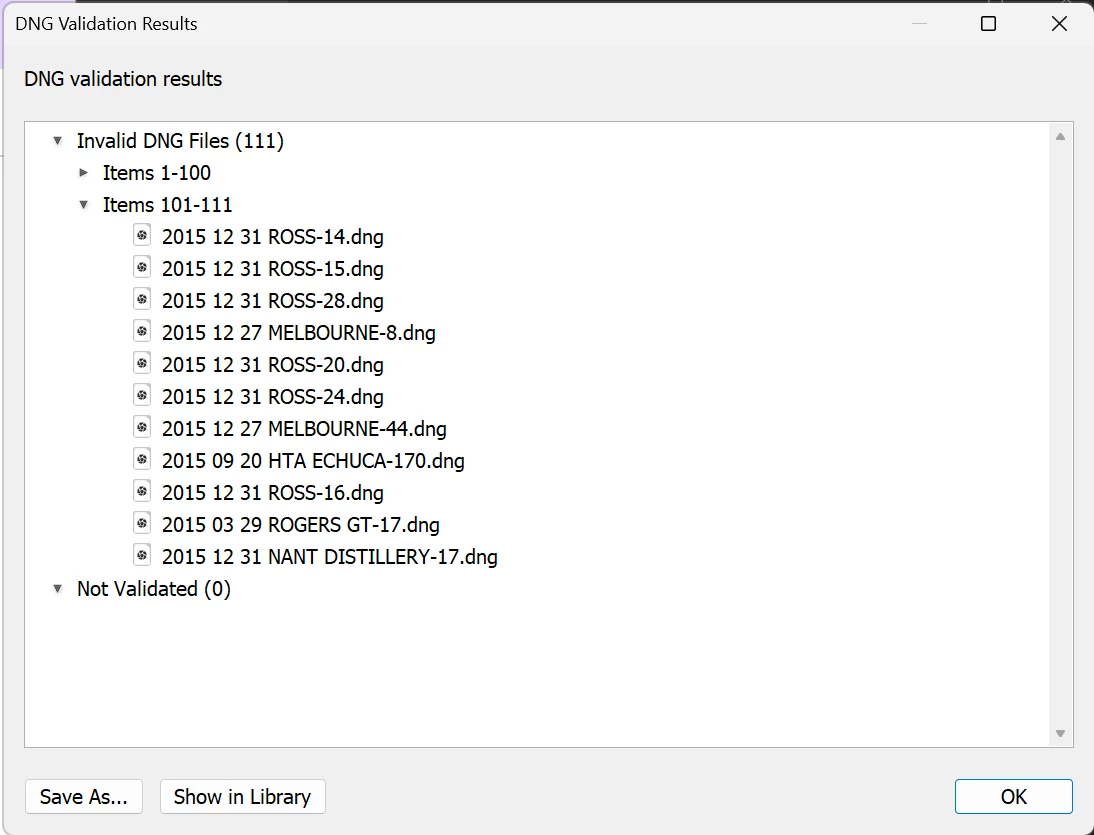
I have found that selecting the Not Validated DNG files in a folder then selecting the Metadata tab and choosing to UPDATE DNG Previews & Metadata can clear the Not Validated DNG files report and as the Table shows, Can be "re-validated".
This can also be activated with aright click in Windows on a selected group of images.
That seems perfectly fine, until …… you think, I wonder, now that I have Validated the last few years, (Folders) what would happen if I ran it again on the same folder??
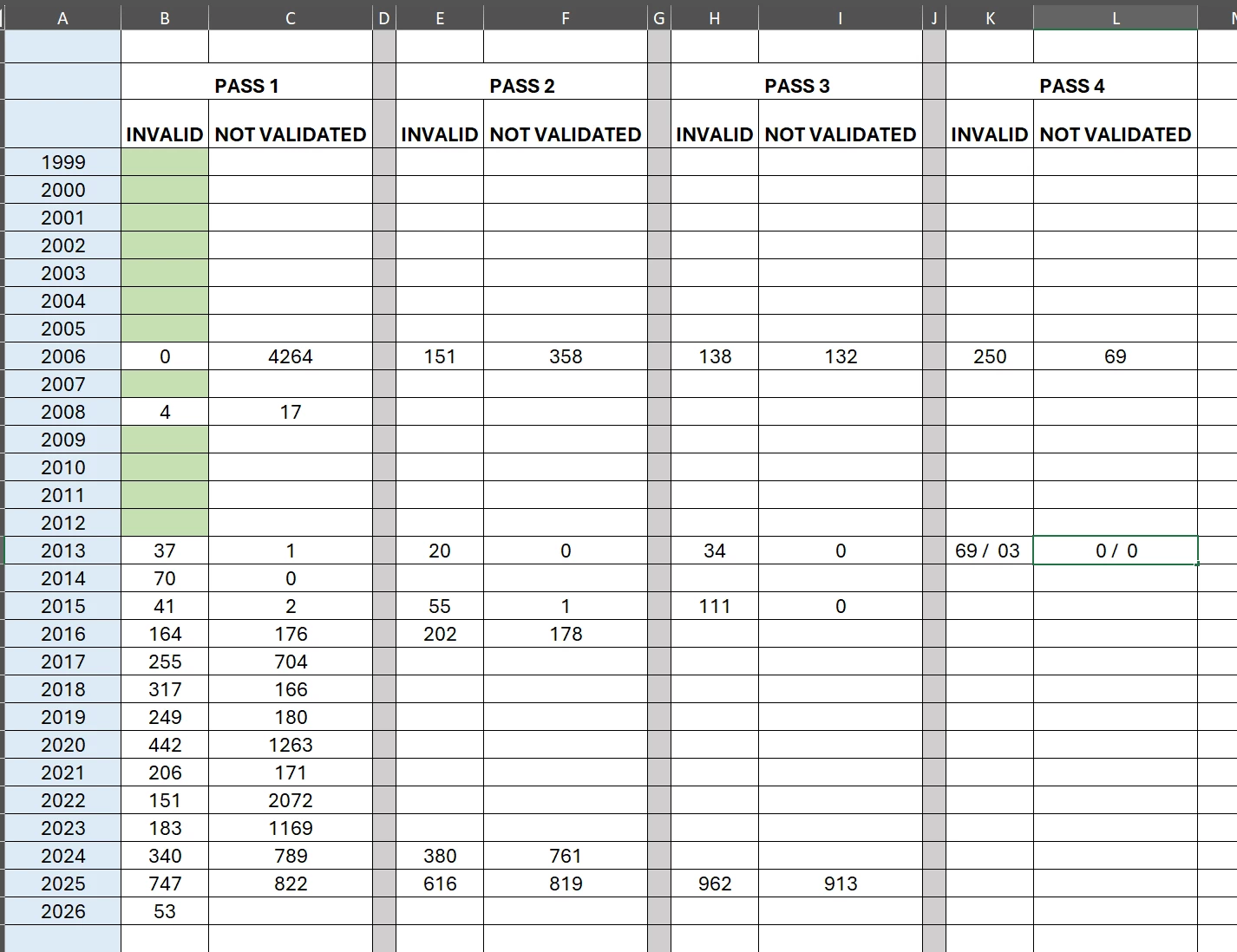
OMG - See the new Re-Run data excel sheet I have now, below. Yes it does seem to find “NEW” bad files after a rerun.
You can see the CONFUSION and STRESS this Validation thing can cause ?
QUESTIONS: And you know there will be more ….
WHY does it find more “Bad” Invalid files on another run? After I delete the bad ones or replace them with another version?
I don’t actually know, HOWEVER - what I can tell you is that is not the same files that were replaced by backups showing as Invalid on the second pass, they are in the same folder, and other folders, but not the same files as the first run etc.
Could this be that the Raid 5 SSD setup is faulty? I know this is a small percentage of the files over all, but is is incredibly disconcerting, when you now don’t trust the Program, LrC and the validation, the Hardware and the software….. ARRRGHH!!
Is the Acasis Box at fault?
How did they get this bad? was it the transfer, being so large, that it failed in some areas and now even after dragging backup versions of the images into replace them it still fails but on different files!!
-
JPG and other files -
As you can see in the excel sheet I have folders that have not suffered the dreaded rerun issue of 2026!
But ! - AS I discovered later, they did have issues with JPEG’s etc
I have since cleared the earlier years and I am testing methods to find these faster than just viewing them one by one.
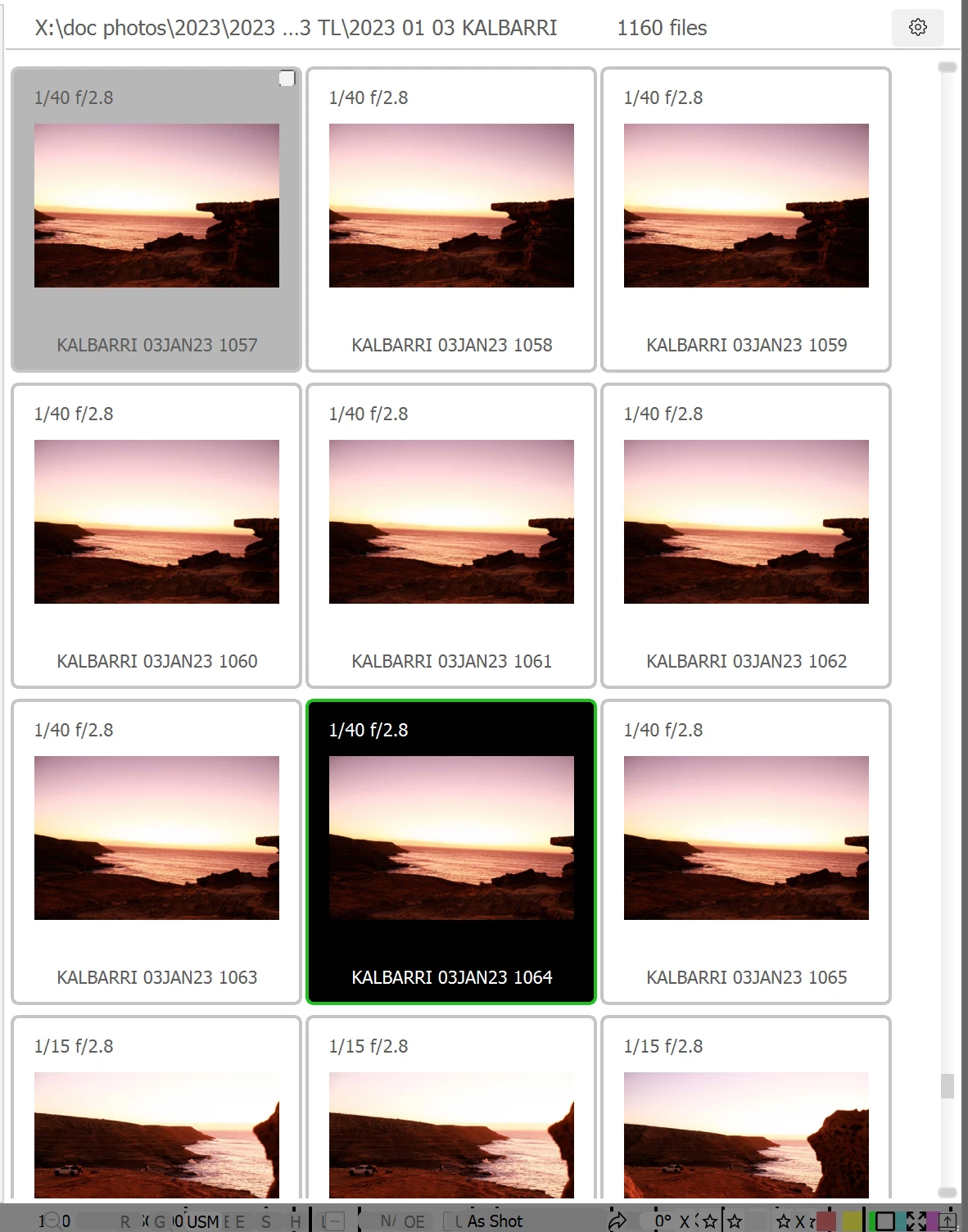
For Raw files I have used Fast Raw Viewer x64 as one screening method after I ran the DNG Validation, it is as stated FAST and allows for a great running check. See below, it shows a “Decoding Error”
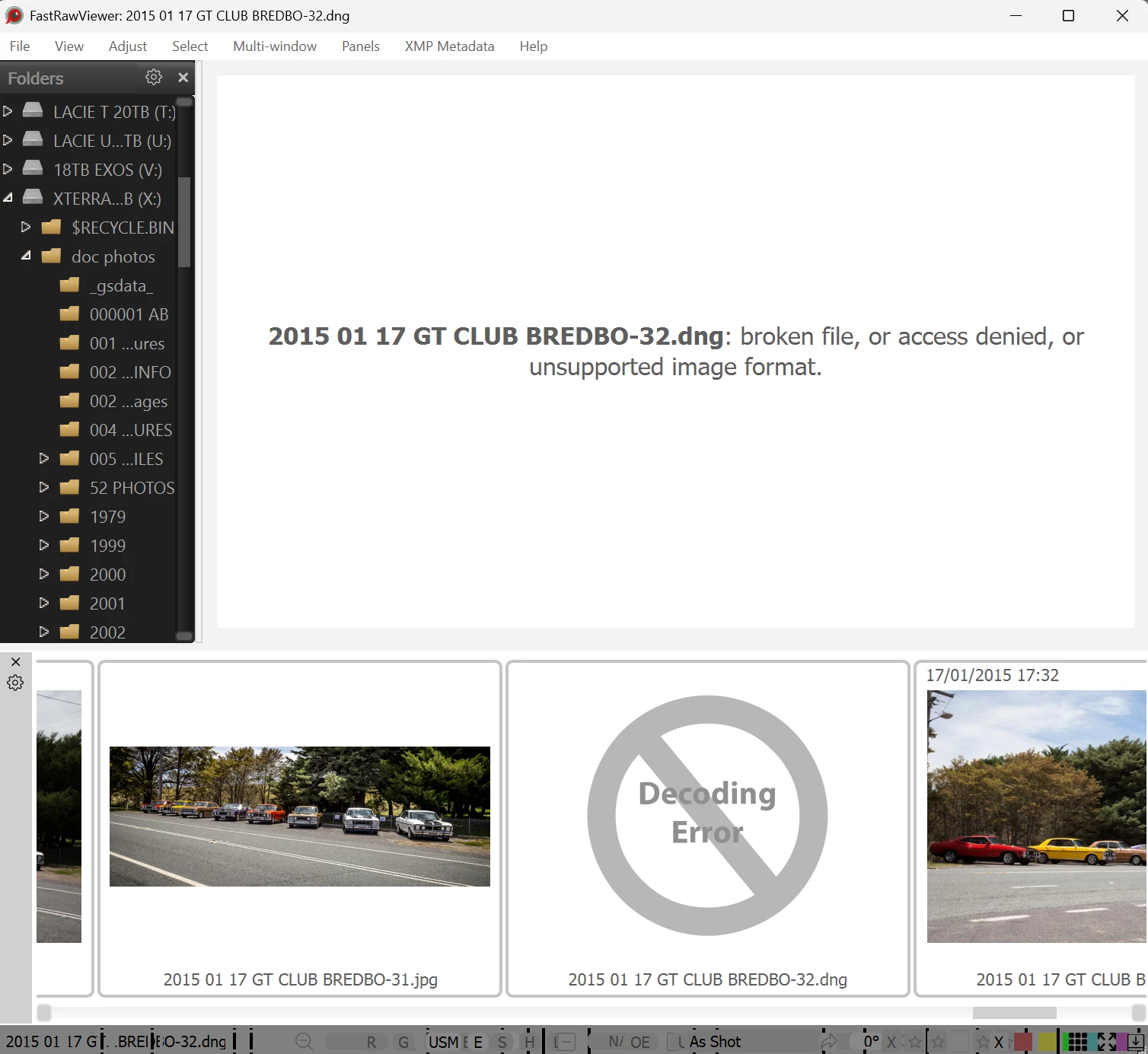
So whilst this helps, it is by no means a faster or better way to see the JPEG issue.
And sometimes you get to see a JPEG failure as well: Its that big Grey box bottom middle.
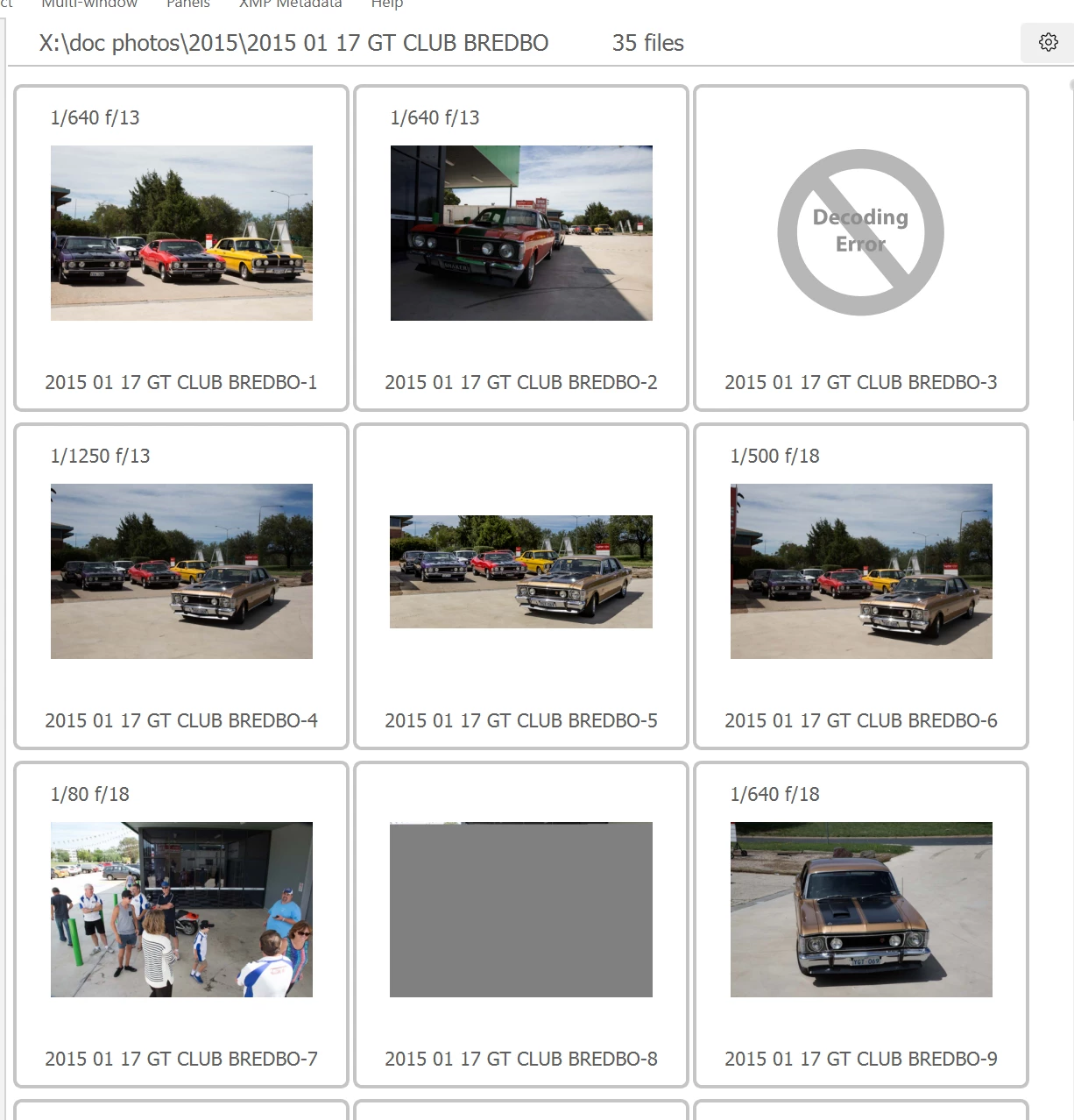
So Fast Raw Viewer is great, for many other reasons, but it also teaches us to be AWARE - not all quick looks anywhere are 100% spot on.
See below and image in Fast Raw Viewer in the Folders View - it is boxed in Green.
A zoom in shows the following:
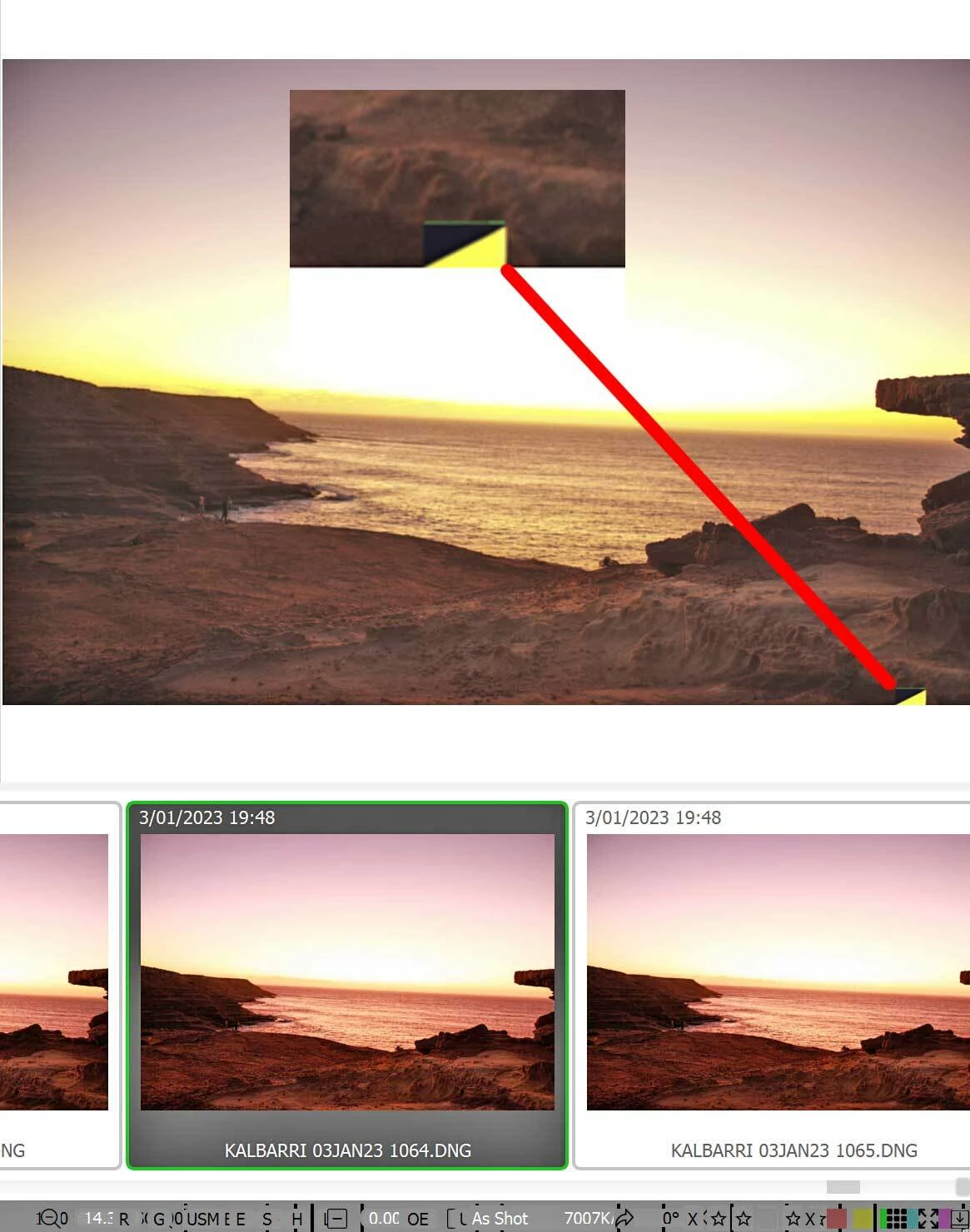
In the LrC Library I have shown the file 1064 in Green Highlight and another DNG fail in Red Highlight. Seen Below. Remember this is now in Lightroom.
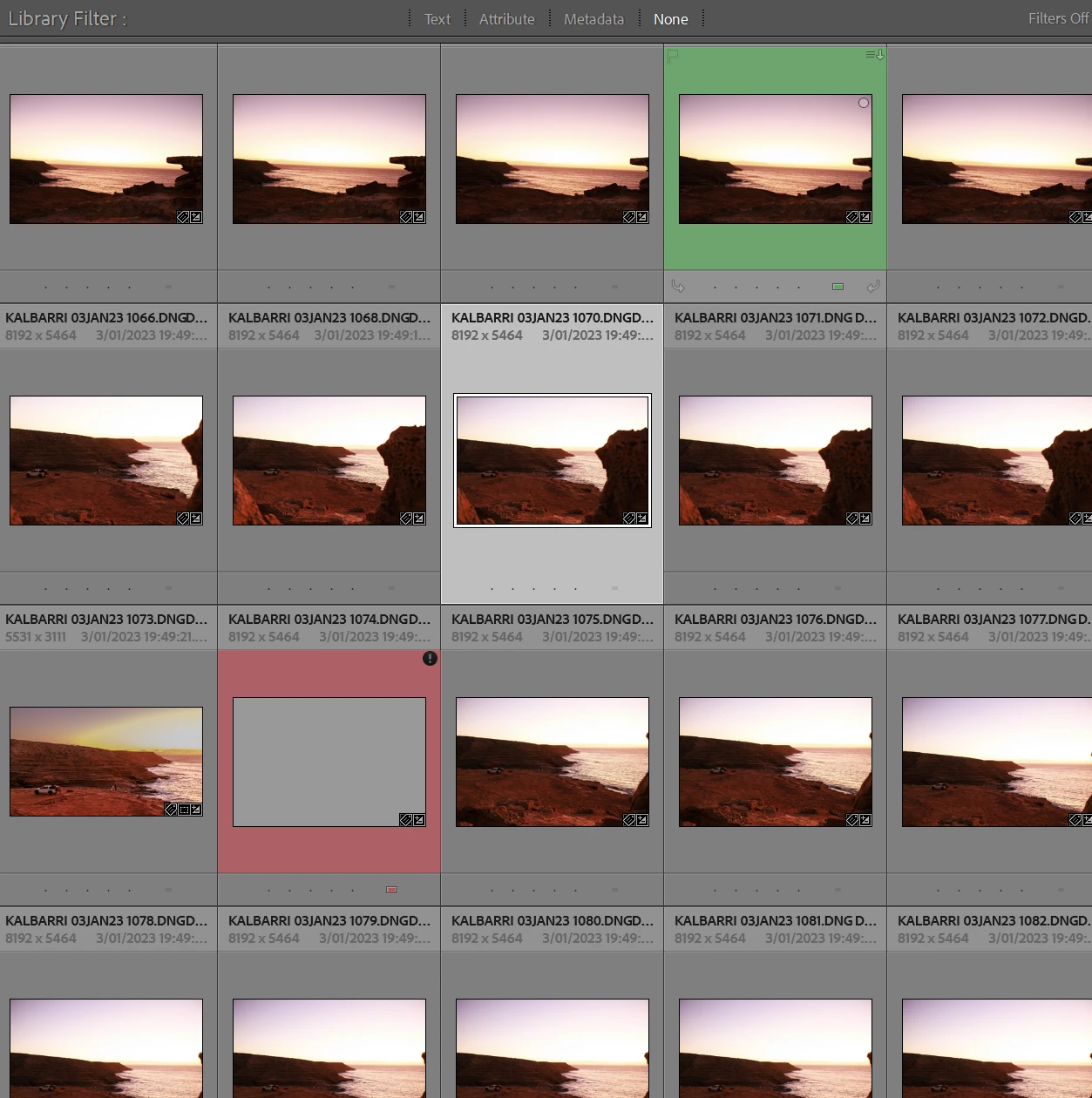
The Green file in the Library looks OK whilst the Red file is obviously all greyed out and is a fail on Validation.
HOWEVER - NOTE: the Green file does not show the small black Circle with the Exclamation mark as the Red file does. That Black circle is Adobes way of telling you - Its Cactus!
It has encountered a problem reading the photo and you cant make adjustments.
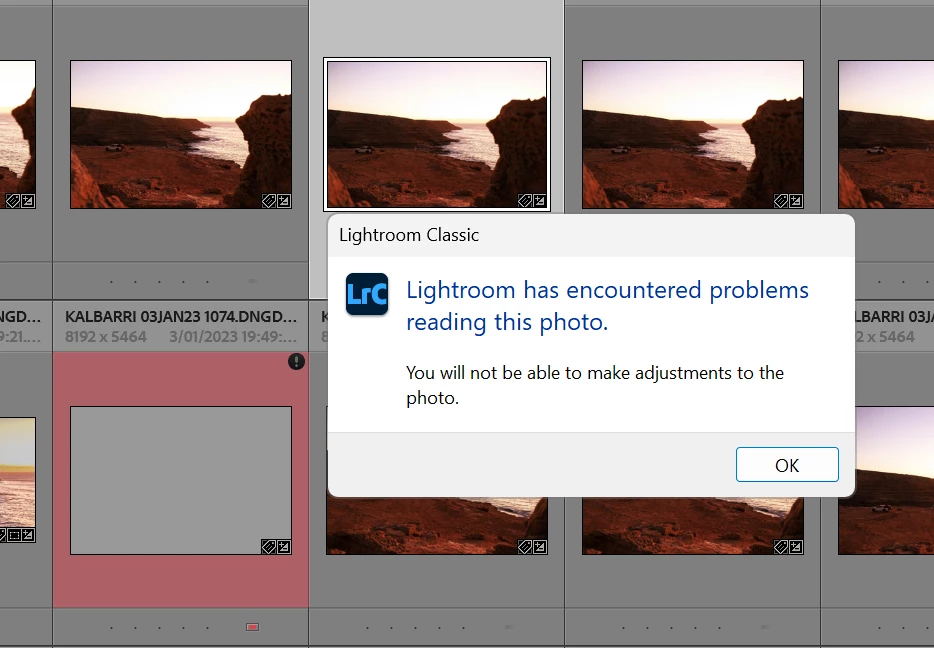
This is great, but what about the other image ?- I have shown you the Bit rot, it’s there to see.
If you click on and select D- Develop, you will see the following appear:
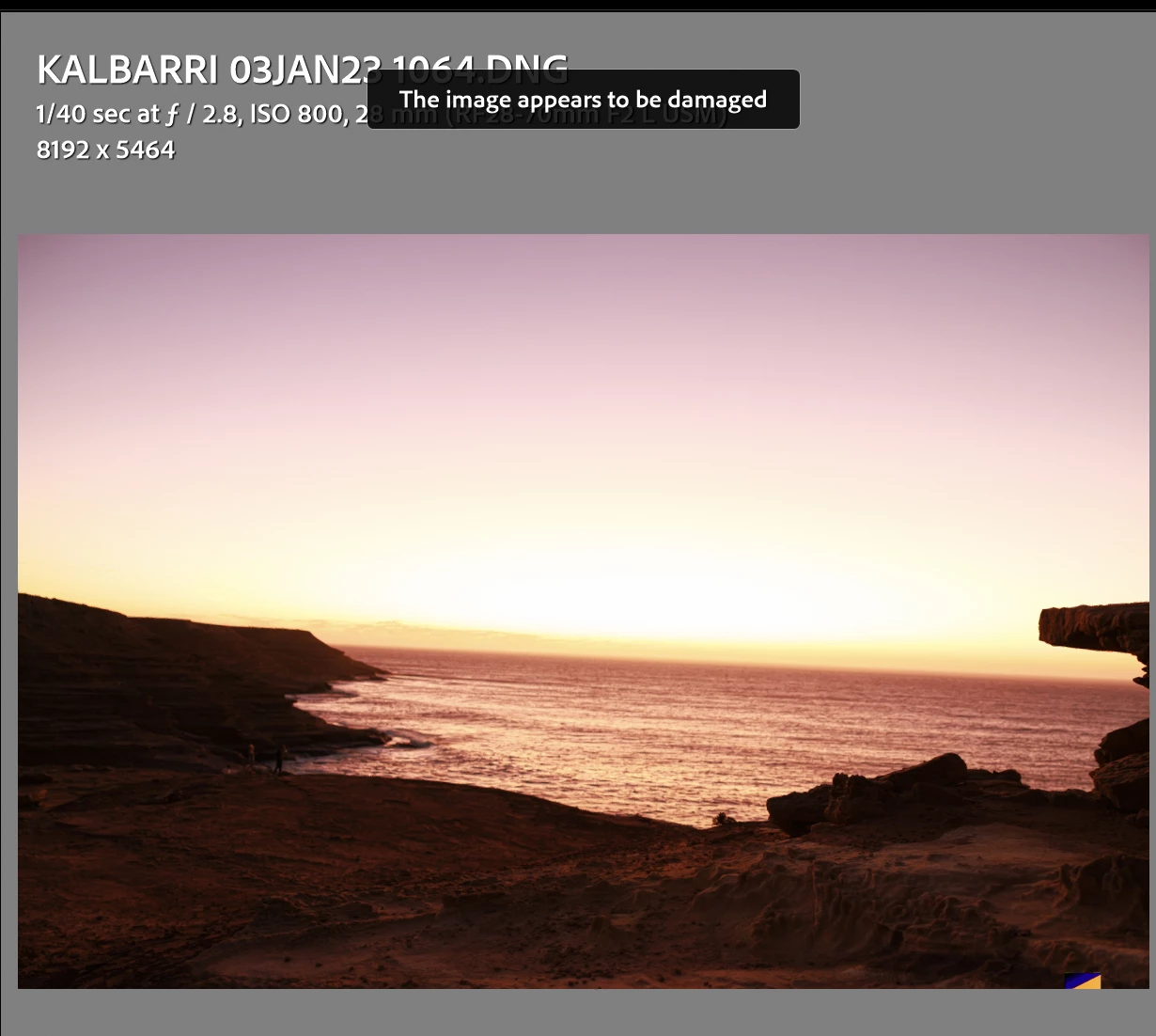
And it is damaged, its very small, and anyone with even a small amount of Photoshop or LrC experience could fix that small section - except you cannot develop it… in LrC and in fact the editing tools are Greyed out BUT - in this case you can in Photoshop and save it out as a TIF or JPG.
Now we get weird…… see below.
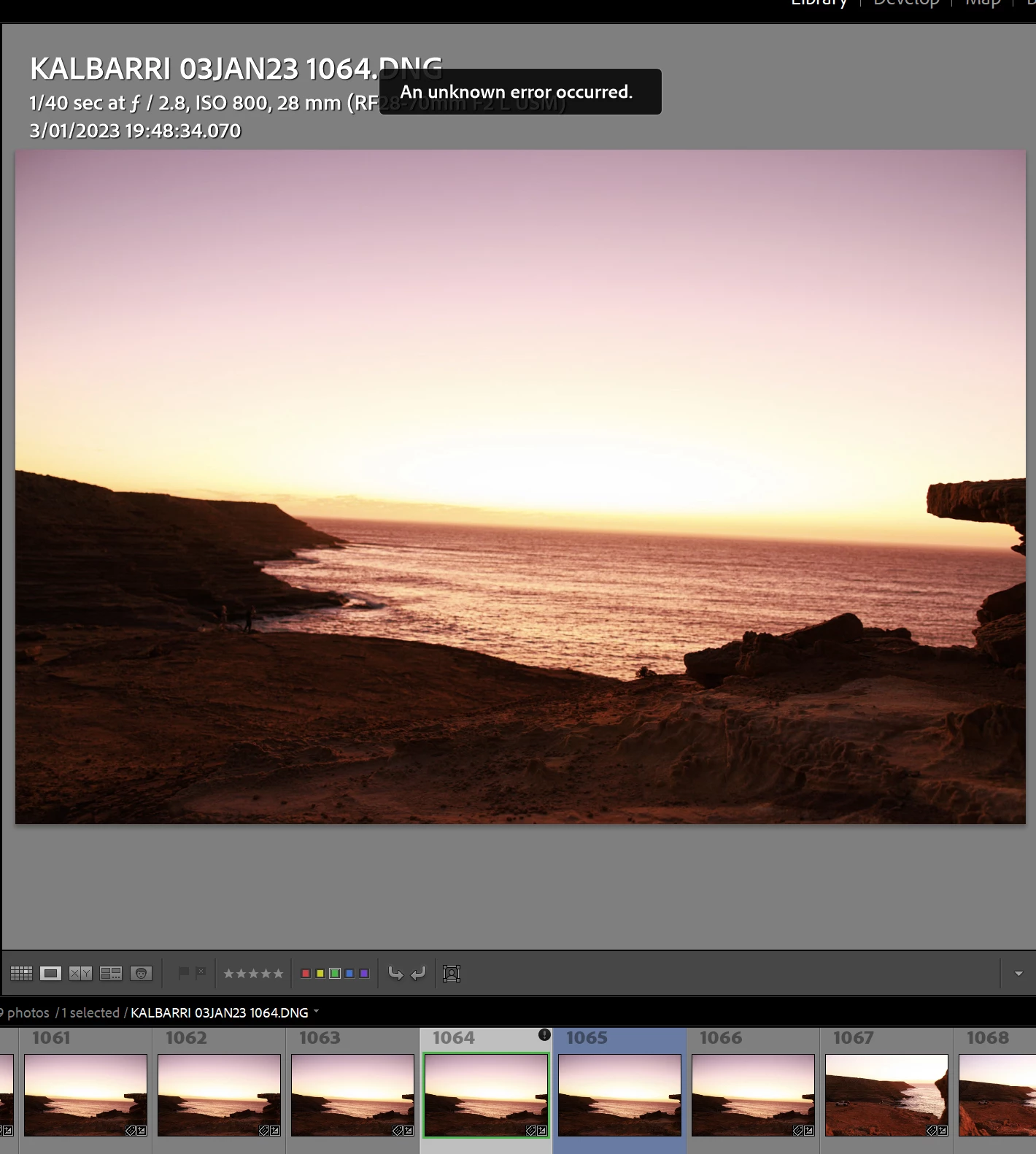
The edited image has been saved out by PS as a JPG - Shown in Blue next to the original, in the film strip at the bottom.
The JPG is fine, you can edit it as normal, however, look at the main image…?
The Yellow Black indicator of Bit Rot is gone.
When you try to edit - open or drag the Greyed out Failed Validated File PS gives you the following.
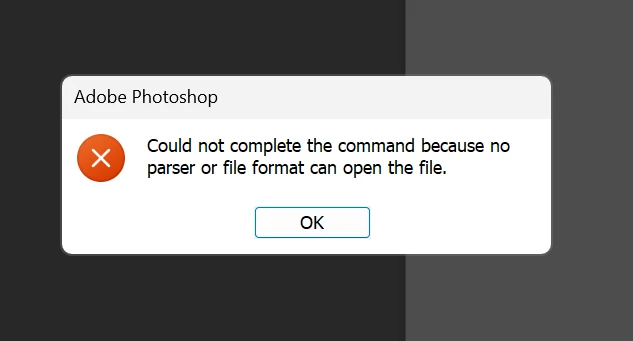
Its a corrupted file, save a backup over it is the fastest way to fix it.
Back to finding bad JPEG’s - Faster than selecting each one and reviewing all the folders in LrC.
Having done a search in the forums I have seen others mention bad Validated Files - one suggestion stood out - rebuild the Previews!
If you do - finally get all the DNG’s validated and you trust you have actually done this - not like me, I’m still cautious, and now you want to find the bad JPEG’s
You can make all the library Thumbnails as small as possible and select all the images in a folder, year or the whole catalog, search for the Black Circle that tells you Lightroom has encountered a problem reading this photo.
However I reckon the suggestion is bang on, rebuild the previews.
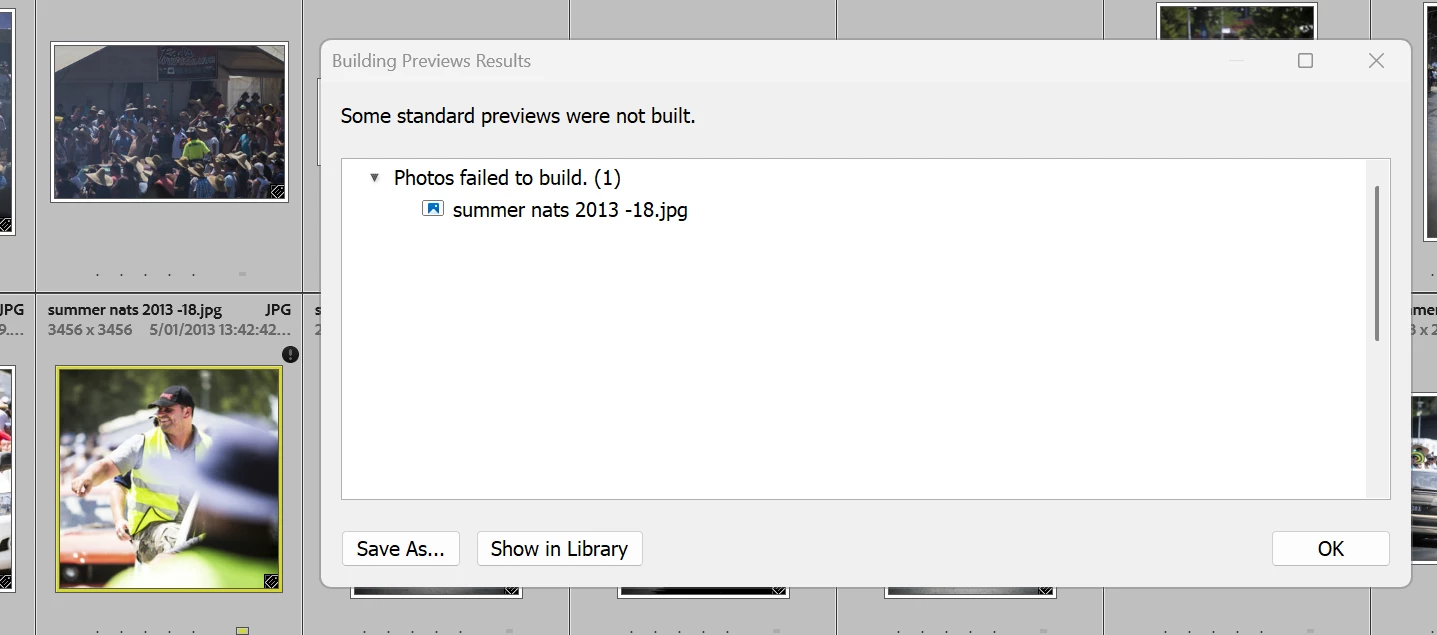
As you can see LrC has found it. Now I have heaps more to do.
Can anyone tell me or point me in the direction of advice that solves the issue of Revalidating a previously Validated folder and getting different results?
I am going crazy !
Again sorry for the long Post, maybe it helps someone else, promotes an idea or two and we share to issue enough to get a resolution.
I am going to try a new database on a spinning disk with a folder of know issues, lets see what I get !
PHEW…….


 AdChoices