
Known Participant
January 21, 2023
Answered

Veröffentlichungsdienst Festplatte macht Probleme - Fotos bleiben in "zu veröffentlichende Fotos"

  • January 21, 2023
  • 2 replies
  • 551 views

Wenn ich den Veröffentlichungsdienst Festplatte verwende, treten plötzliche Probleme auf, die vorher nie aufgetreten sind. Ich verwende macOS (Ventura 13.1) und LR Classic 12.1

Der Veröffentlichungsdienst hat als Speicherort einen Dropboxordner.


Wenn ich nun Fotos mit "Veröffentl. Ordner erstellen" in den Veröffentlichungsdienst stelle (es sind alle Fotos in "zu veröffentlichende Fotos") und dann auf veröffentlichen gehe, tut sich lange nichts und dann kommt die Fehlermeldung "Unbekannter Fehler. Dieses Foto wurde nicht gerendert"- siehe Foto.
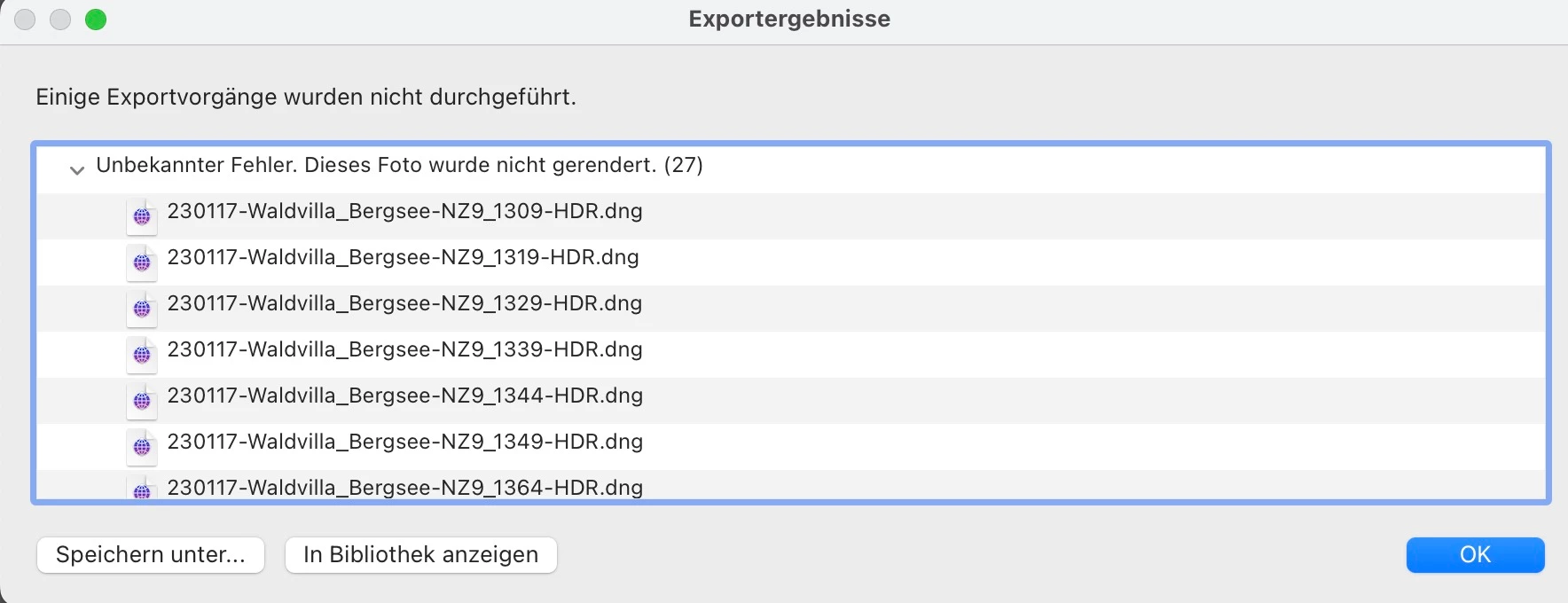
Doch trotz der Fehlermeldung sind die exportieren Fotos nun im Dropboxordner vorhanden. 
Aber die Fotos stehen noch immer unter "zu veröffentlichende Fotos", d.h. wenn ich Bearbeitungen an den Fotos vornehme und dann wieder auf "veröffentlichen" gehe, dann werden wieder ALLE Fotos exportiert. Im angegebenen Finderordner sind dann alle Fotos mit der Ergänzung "_2" ein zweites Mal im Dropboxordner und in LR Classic kommt wieder die selbe Fehlermeldung und sie bleiben nach wie vor unter "zu veröffentlichende Fotos" stehen.

Was ist der Fehler und wie kann ich diesen beheben?

Danke im Voraus für sachliche Hilfestellungen. 🙏


This topic has been closed for replies.
Correct answer AxelMatt

Als ersten Schritt sollte man versuchen die Einstellungen von Lightroom zurückzusetzen.

Bitte die nachfolgenden Schritte ausführen:

  • Schließen Sie Lightroom.
  • Windows: Halten Sie [Alt]+[Shift] gedrückt, während Sie Lightroom neu starten.
    Mac: Halten Sie [Opt]+[Shift] gedrückt, während Sie Lightroom neu starten.
  • Überschreiben Sie die Einstellungen, wenn Sie im Dialogfeld dazu aufgefordert werden.
  • Schließen Sie Lightroom.
  • Starten Sie Lightroom neu.


Hat sich am System was geändert bevor der Fehler aufgetreten ist? Updates, Patches o.ä. installiert?


2 replies

johnrellis
Legend
January 21, 2023

Google translation: "The publishing service has a Dropbox folder as a storage location."


Dropbox recently introduced a new version for Mac OS, which contains Apple-mandated changes forcing the location of Dropbox folders to change (thank you, Apple, for your wisdom and concern for customers).  It may be that your Hard Drive publishing service will need to be updated to have the new location of the Dropbox folders.


https://help.dropbox.com/installs/macos-faqs

--------------------------------------------------------------------

Mac users will need to be on macOS 12.5 or higher to use Dropbox for macOS. However, using macOS 13+ is strongly encouraged.

What changes can I expect?

You can expect the following changes with updated support for Dropbox on macOS:

  • Your Dropbox folder will be moved to ~/Library/CloudStorage.
    • Changing the location of your Dropbox folder is no longer supported by macOS. 
    • Due to the change of the Dropbox folder location, files that were previously linked in some third-party applications will need to be linked again.
    • Storing your Dropbox folder on an external drive is no longer supported by macOS.
    • Your Dropbox folder in Finder will now be found under Locations and no longer under Favorites.
    • Individual folders can be moved from your Dropbox folder to Favorites for quick access.

--------------------------------------------------------------------


Known Participant
January 22, 2023

This didn't work.


I deinstalled and reinstalled Dropbox as mentioned in the description. After sign out, moving Dropbox to trash, I emopty trash, restarted my Macbook and installed the dropbox app.
 
But I was never asked for login details, in order to install Dropbox as Administrator.


My dropboxfolder is still not unter ~/Library/CloudStorage (see Screenshot)

My dropboxfolder is still under Favorites - see screenshot.


What did I wrong?

johnrellis
Legend
January 22, 2023

"My dropboxfolder is still not unter ~/Library/CloudStorage (see Screenshot) ... What did I wrong?"


Hmm, I don't know. 

AxelMatt
Community Expert
AxelMattCommunity ExpertCorrect answer
Community Expert
January 21, 2023

Als ersten Schritt sollte man versuchen die Einstellungen von Lightroom zurückzusetzen.

Bitte die nachfolgenden Schritte ausführen:

  • Schließen Sie Lightroom.
  • Windows: Halten Sie [Alt]+[Shift] gedrückt, während Sie Lightroom neu starten.
    Mac: Halten Sie [Opt]+[Shift] gedrückt, während Sie Lightroom neu starten.
  • Überschreiben Sie die Einstellungen, wenn Sie im Dialogfeld dazu aufgefordert werden.
  • Schließen Sie Lightroom.
  • Starten Sie Lightroom neu.


Hat sich am System was geändert bevor der Fehler aufgetreten ist? Updates, Patches o.ä. installiert?


My System: Intel i7-8700K - 64GB RAM - NVidia Geforce RTX 3060 - Windows 11 Pro 25H2 -- LR-Classic 15 - Photoshop 27 - Nik Collection 8 - PureRAW 5 - Topaz Photo
Known Participant
January 22, 2023

Danke vielmals für den Tip.


Das einzige Update war das auf Ventura 13.1, sonst nichts geändert.


Welche Einstellungen sind dann weg und müssen neu eingerichtet werden?

Sind die Druckvorlagen, Exportvorlagen, etc. neu zu installieren?

Danke im Voraus für die Aufklärung. 🙏