


Inspiring
March 1, 2025
Answered

View actual backup date in new backup management dialog (and make fields resizable/scrollable)

  • March 1, 2025
  • 2 replies
  • 216 views

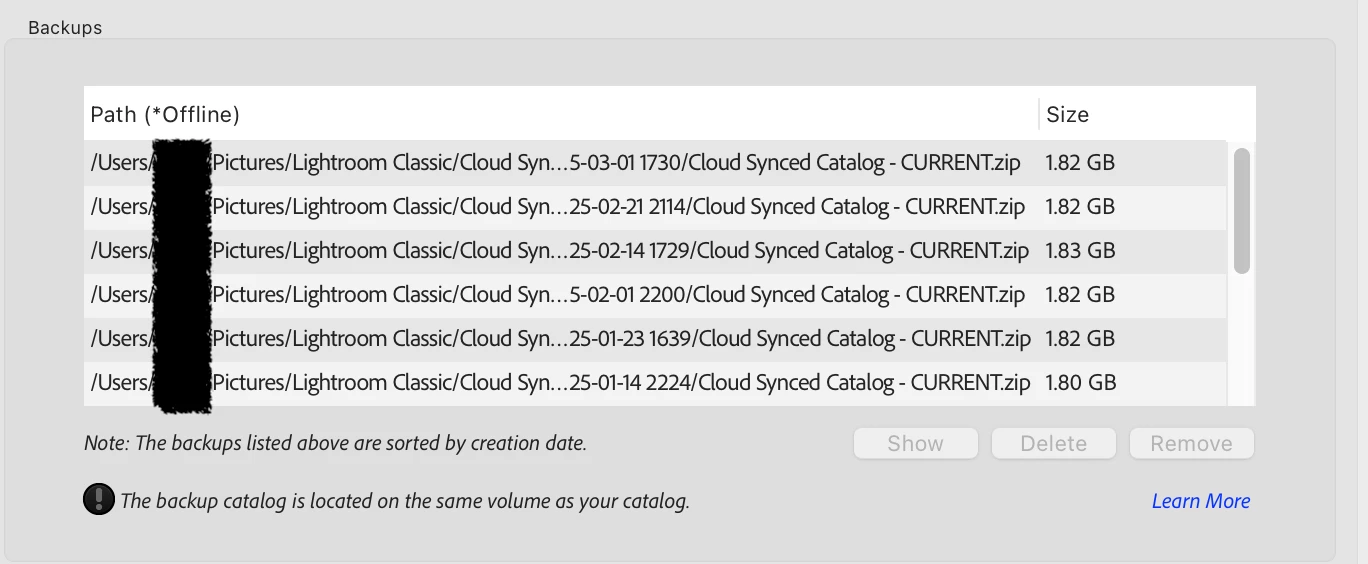
I'm a fan of the new backup management tool in LrC v14.2. However, I'd really like for the interface to be a bit clearer/more useful in terms of showing when the backups were made. Above all, I think there should be a simple backup date column. That seems like the most important detail to me.


That said—even if path is an important focus for a given user, you should be able to see the full path in the list without having to hover momentarily over each item. You should be able to expand the column and have a horizontal scroll, rather than having to hover over each one.


I suspect(?) that most people using this tool are backing up to the same place each time. I suspect most of us just want to be able to manage/delete unneeded backups. Truncated paths are incredibly unhelpful for this, ordered or no.


So—either I'm missing something, or this is a feature request for better UI on this feature. I'm already a fan, please make it better!



Correct answer JohanElzenga

The path of your backups is long, because you still store them in the default location inside your catalog folder. That is a very bad idea. If you ever get a disk failure, then you'll have lost everything: your catalog and all its backups. See the warning at the bottom of the dialog... Get an external drive and store your catalog backups on that drive. As an extra bonus you will see more clearly (because the path is no longer so truncated), that the date of the backup is actually already there: each backup is stored in a folder with the date and time as the folder's name. Your screenshot does show this too.


2 replies

dj_paige
Legend
March 2, 2025

Truncated paths are incredibly unhelpful for this, ordered or no.


Isn't that what the "Show" button is for? With that one click, you can find the full path, and the actual backup file of interest. And then you can also see the exact date and time the file was created (at least, that's how it works on Windows).


Agreeing with Johan, backups in your Pictures folder is a very bad idea. My backups go to my V: drive (an external drive) on Windows, in a root level folder named Lightroom Backups so they are easy to find, unlike burying the backups 6 folders levels deep; and no one can doubt what that folder contains.

JohanElzenga
Community Expert
JohanElzengaCommunity ExpertCorrect answer
Community Expert
March 2, 2025

The path of your backups is long, because you still store them in the default location inside your catalog folder. That is a very bad idea. If you ever get a disk failure, then you'll have lost everything: your catalog and all its backups. See the warning at the bottom of the dialog... Get an external drive and store your catalog backups on that drive. As an extra bonus you will see more clearly (because the path is no longer so truncated), that the date of the backup is actually already there: each backup is stored in a folder with the date and time as the folder's name. Your screenshot does show this too.


-- Johan W. Elzenga