Thank you very much for your time and for your help. I tried and get the same resultat with the settings you suggest.
However, it is not right that we have to do that for every photo. This issue should be solved in one click : "Enable Profile Corrections" and that's all. Especially with a brand new / first-rate / pro camera like the Canon R6 Mark III. Since 2011, non of my previous DSLR has ever struggled to remove vignetting.
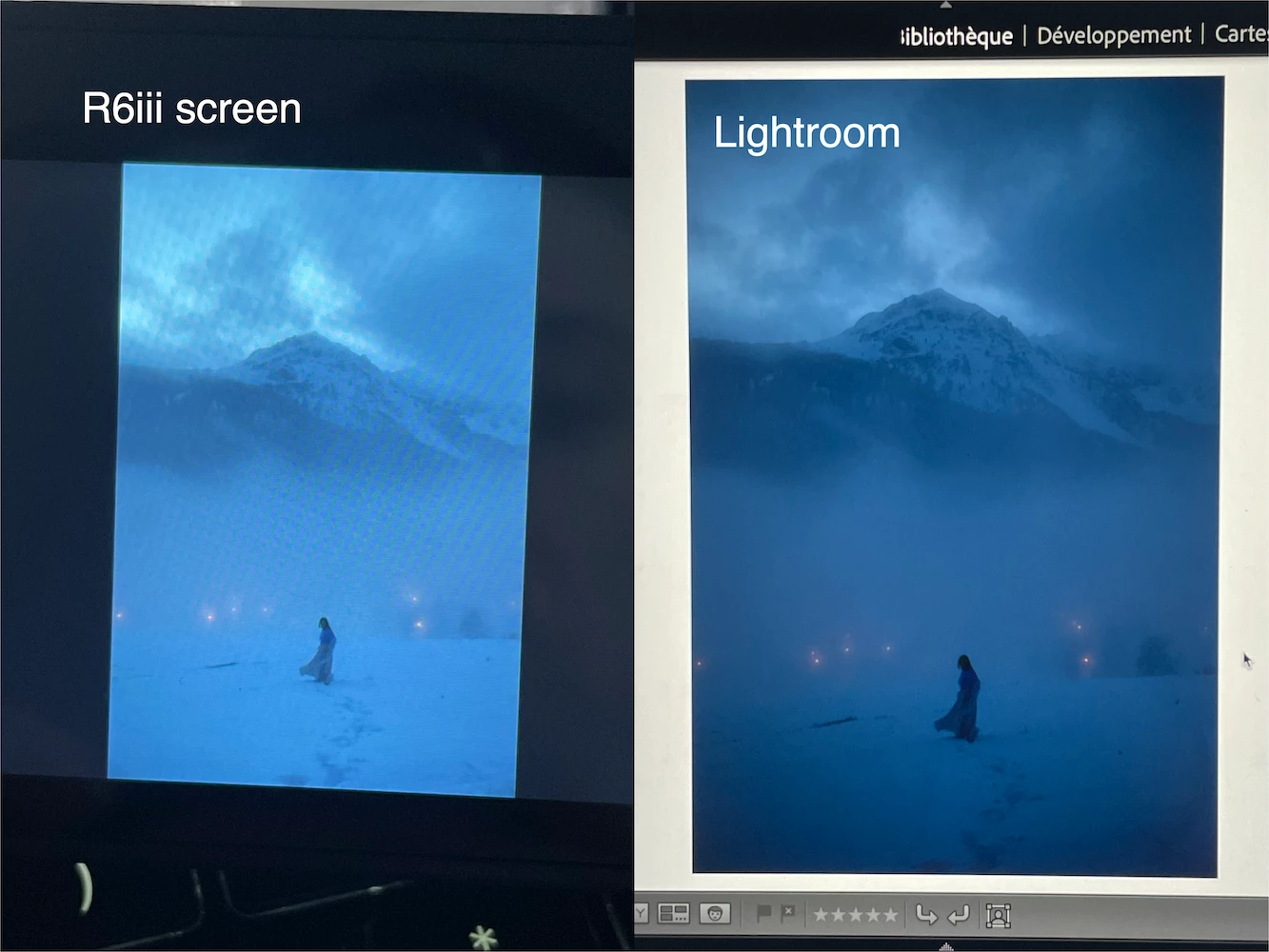
And as I said before, there is absolutely no vignette on my R6iii screen. The vignette appears in Lightroom only.
"there is absolutely no vignette on my R6iii screen. The vignette appears in Lightroom only."
JPEGs created by the camera contain noticeable vignetting too, as I showed with the JPEG preview above. You can demonstrate that by changing the camera to record both JPEG and raw and then examining both on the computer display. Examine the JPEG in Mac Preview to see what it looks like independent of LR, if you don't trust LR.
Camera screens aren't reliable indicators of what either JPEGs or raws will look like on calibrated computer displays -- the camera screens tend to be brighter (for good reason, so you can see them in variable lighting conditions).
Given that the camera-created JPEG also shows vignetting, the issue, as Ian suggested, might be that the Adobe lens profile was created using the lens on a camera not using the adapter, and the profile doesn't work as well with the adapter.
"However, it is not right that we have to do that for every photo. This issue should be solved in one click"
There are three options going forward:
1. Post a request in the official Camera Raw thread that Adobe make a new profile that works better with the adapter (assuming the adapter is the cause):
https://community.adobe.com/t5/camera-raw-discussions/p-lens-profile-requests-and-information/m-p/12354777
Based on past history, it may take months for Adobe to do so, if they ever do.
2. Make a develop preset incorporating the lens profile and manual vignetting corrections, letting you correct an entire batch of photos with a couple clicks. You can optionally apply that profile on import.
(Note to others: Creating a new lens profile default won't help in this case, because the best settings involve manual vignetting correction, which isn't captured in a lens profile default.)
3. Make your own lens profile using the free Adobe Lens Profile Creator:
https://helpx.adobe.com/camera-raw/digital-negative.html#Adobe_Lens_Profile_Creator
Unfortunately, Adobe hasn't done the trivial amount of effort to make it compatible with newer versions of Mac OS. But you could use the free trial of Parallels to run the Windows version of the Lens Profile Creator on your Mac.
This last option is obviously more involved.




 AdChoices