Participant
December 29, 2019
Answered

Where is my before picture!

  • December 29, 2019
  • 5 replies
  • 673 views

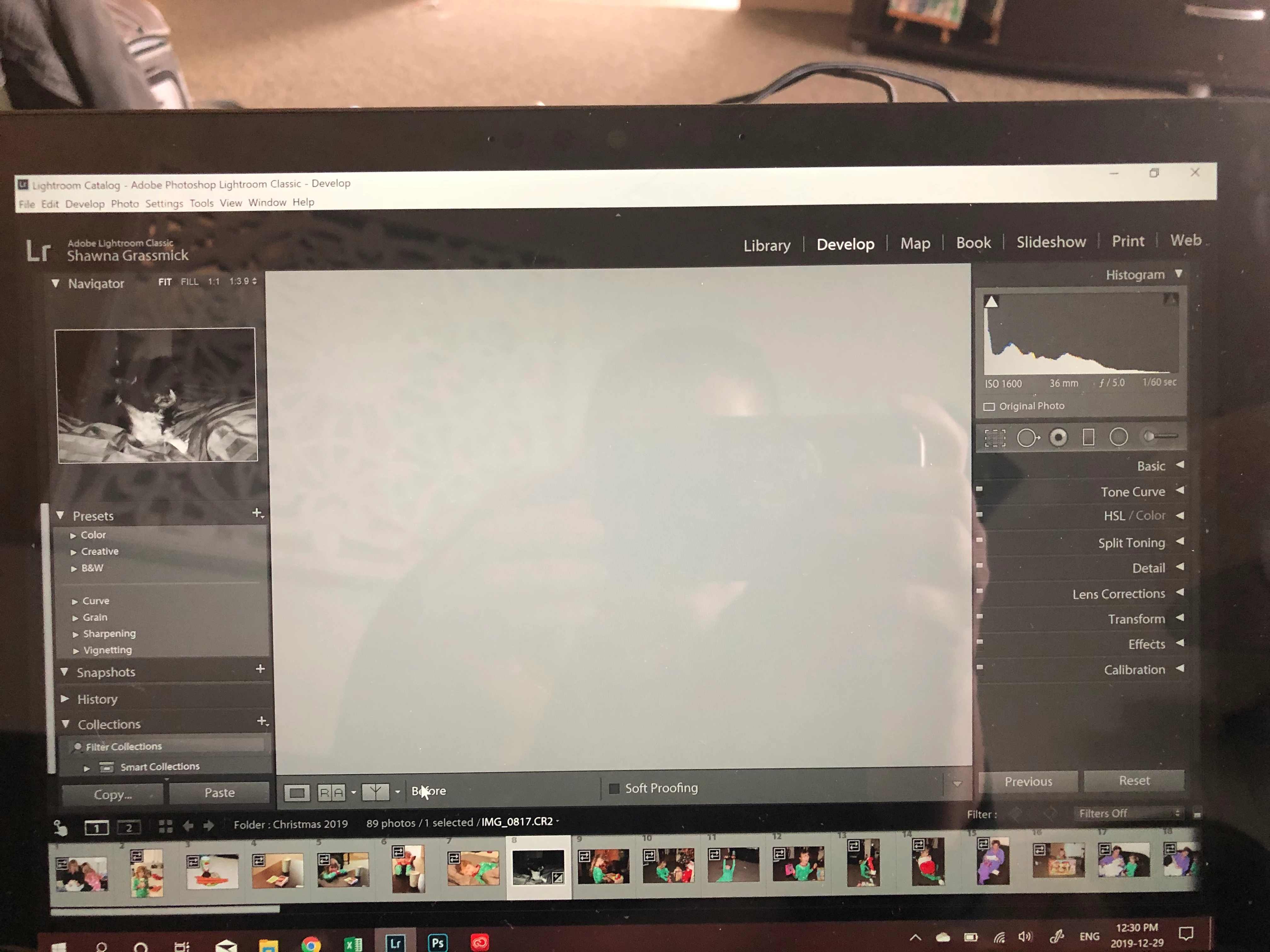
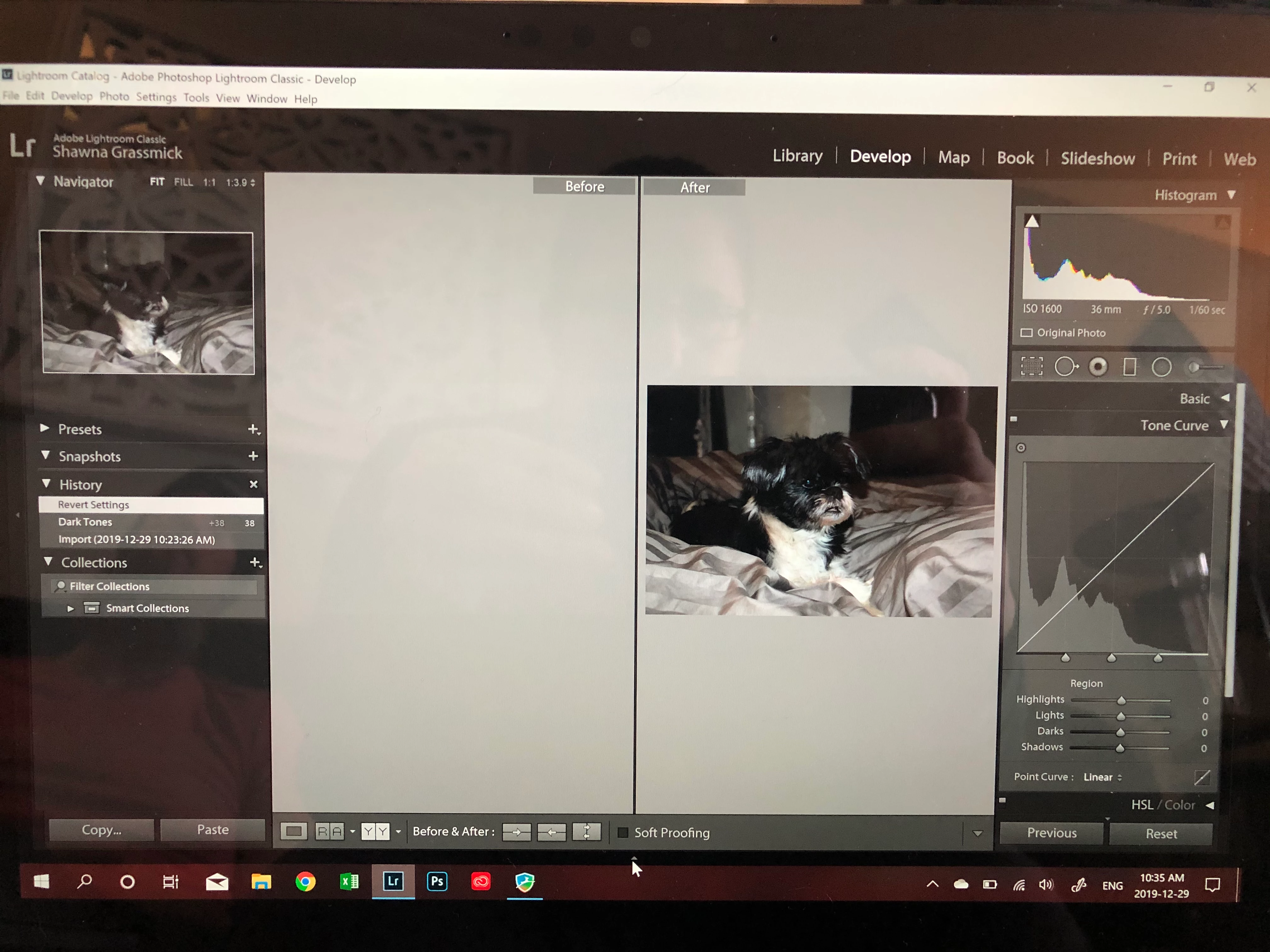
Help!  I recently purchased a surface pro 7 and installed Lightroom on it. I then imported some photos from my camera and started to develop them and am running into a frustrating issue. It cannot seem to find a before picture when I try to look at before and after. If I press / in develop I just get a blank grey nothing. Press it again I get my after photo. And if I press y to go to the side by side it shows my after photo but not my before. Why!!! 
 

This topic has been closed for replies.
Correct answer Per Berntsen

First of all, try to disable the GPU. Edit > Preferences > Performance  > uncheck Use graphics processor.

If this fixes the issue, updating your graphics driver may let you work with the GPU enabled.


Another possibility is that you have a defective monitor profile.

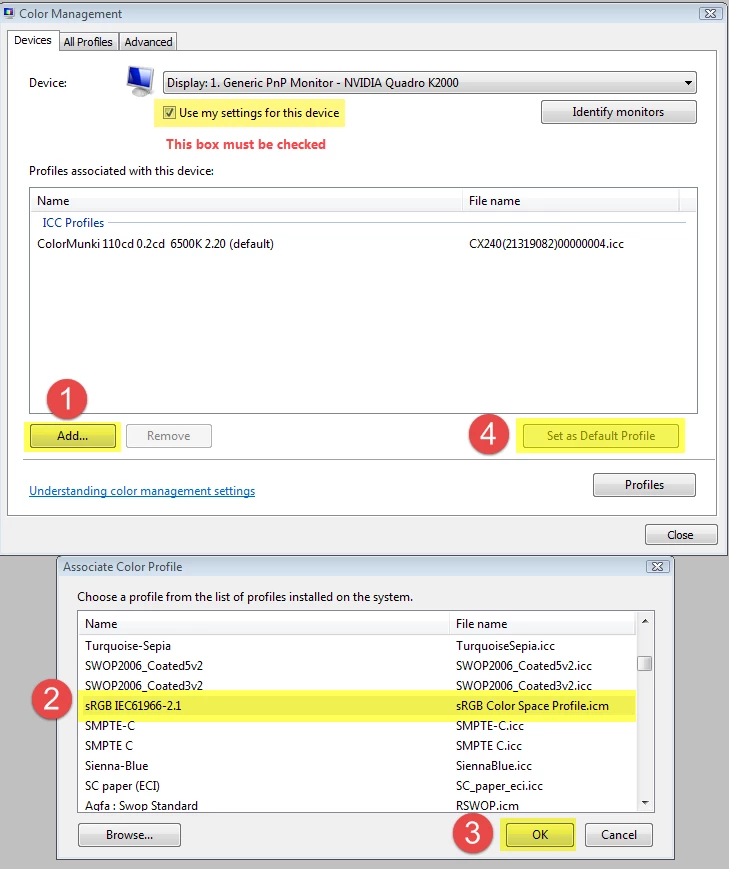
As troubleshooting, and as a possible temporary fix, try setting the monitor profile to sRGB.

With Lightroom closed, press the Windows key + R, type colorcpl in the box and press Enter.

Add the sRGB profile, and set it as default.

If this fixes the issue, it is recommended that you calibrate the monitor with a hardware calibrator, which will also create and install a custom monitor profile that accurately describes your monitor.

Depending on your monitor, and your requirements, sRGB may be close enough, but if you're concerned about color accuracy, use a calibrator.


5 replies

Participant
February 20, 2020

Hi. I also have a Surface Pro 7 and I also have the same problem. Any chance you can show me how to change the color profile stuff? Im new to all these Adobe thing

Rob_Cullen
Community Expert
Community Expert
February 20, 2020

On your Surface Pro- Press your {Windows} key for the desktop and type "Color Management", [Enter], then-

Follow the Steps 1,2,3,4 in the Answer from Per Bernsten....

Regards. My System: Windows-11, Lightroom-Classic 15.3, Photoshop 27.5, ACR 18.3, Lightroom 9.3, Lr-iOS 10.4.0, Bridge 16.0.3 .
JP Hess
Inspiring
December 31, 2019

Those clipping indicators can be deactivated by unchecking the little boxes in the upper right-hand corners of the histogram.

Per Berntsen
Community Expert
Community Expert
December 30, 2019

The blue pixels are a warning for clipped shadows. Red pixels means clipped highlights.

Press J to toggle them on/off.


A hardware calibrator is something  you have to purchase, like the ColorMunki or i1 from X-write, or Spyder from Datacolor.

I did a search on the Surface Pro 7, and it seems that its color gamut is very close to sRGB.

So unless you do professional work, sRGB as monitor profile will probably be fine.

OctoberMeAuthor
Participant
December 30, 2019

T

hank you. Changing to color profile fixed it however now when I look at my pictures to edit them I sometimes have blue pixels where black shadows are?!?  You suggested calibrating. How do I do that or what do I have to purchased to do that?  I’m assuming that will fix the blue issue.


Per Berntsen
Community Expert
Per BerntsenCommunity ExpertCorrect answer
Community Expert
December 30, 2019

First of all, try to disable the GPU. Edit > Preferences > Performance  > uncheck Use graphics processor.

If this fixes the issue, updating your graphics driver may let you work with the GPU enabled.


Another possibility is that you have a defective monitor profile.

As troubleshooting, and as a possible temporary fix, try setting the monitor profile to sRGB.

With Lightroom closed, press the Windows key + R, type colorcpl in the box and press Enter.

Add the sRGB profile, and set it as default.

If this fixes the issue, it is recommended that you calibrate the monitor with a hardware calibrator, which will also create and install a custom monitor profile that accurately describes your monitor.

Depending on your monitor, and your requirements, sRGB may be close enough, but if you're concerned about color accuracy, use a calibrator.


Participant
April 24, 2021

What if I try both of these things and it still does not fix the issue on my surface pro 7?


Rob_Cullen
Community Expert
Community Expert
April 24, 2021

So you have- 1) Disabled the GPU Acceleration in LrC, and 2) Set the monitor profile to sRGB.

My next suggestion would be to update the Graphic Card Driver.

(Another forum post, for Surface Pro, suggested this -Intel® Driver & Support Assistant )

Surface Pro 7 Iris Plus Graphics Driver Update - Microsoft Community


Regards. My System: Windows-11, Lightroom-Classic 15.3, Photoshop 27.5, ACR 18.3, Lightroom 9.3, Lr-iOS 10.4.0, Bridge 16.0.3 .