


Participant
October 10, 2026
Question

White Balance eyedropper maps neutral gray to magenta on 4-channel RGBI DNG files (VueScan film scans)

VueScan can save film scans as DNG files with four channels: R, G, B, plus an infrared (I) channel that is used for dust and scratch removal. Older versions of Camera Raw could not open these files at all. The current versions of Lightroom Classic and Adobe Camera Raw now open them, which I really appreciate.

I tested most of the Develop tools on these files: Exposure/tone, Tone Curve, Color Grading, Color Mixer (HSL), and Calibration. All of them work correctly.

The one problem is the White Balance eyedropper. When I click a neutral gray area with it, the resulting white balance does not neutralize that area. Instead, the area turns magenta/purple-red. The same thing happens in Adobe Camera Raw [version] inside Photoshop [version], so the problem seems to come from the shared Camera Raw engine rather than from Lightroom Classic alone.


Lightroom Classic Version: 15.6, CameraRaw 18.7 [202609251514-f839cde9]
OS Version: macOS 26.0.1(25A362)
Scanner / Software: Epson GT-X980, VueScan 9, output: DNG with infrared channel (RGBI)
Film: color negative

Steps to Reproduce

  1. In VueScan, scan a film frame with the infrared channel enabled and save it as DNG (RGBI).
  2. Import the DNG into Lightroom Classic (or open it in Adobe Camera Raw).
  3. In the Develop module, select the White Balance eyedropper (W).
  4. Click an area of the image that should be neutral gray.

Expected Result

The sampled area becomes neutral gray (R ≈ G ≈ B), like it does with a standard 3-channel DNG.

Actual Result

The sampled area turns noticeably magenta/purple-red, and the Temp/Tint values are set incorrectly. Setting Temp/Tint by hand works normally. Only the eyedropper result is wrong.

Attachments

  • Sample RGBI DNG file: raw0010.dng
  • Screenshots before and after using the eyedropper, with the RGB readout of the sampled point: 
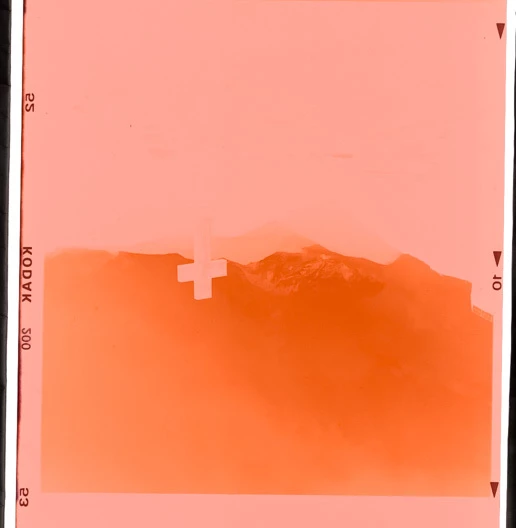
    Before, the raw scan
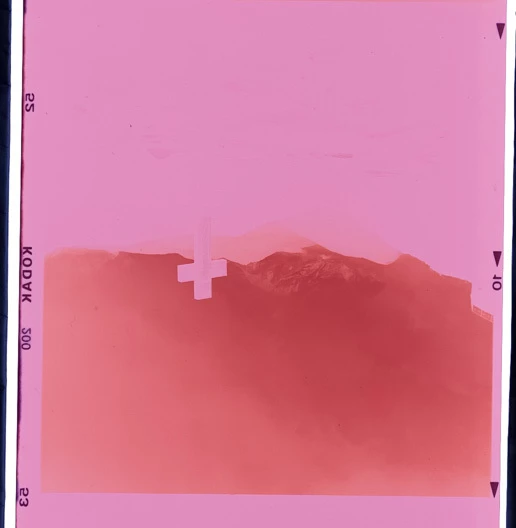
    After I click the cross ✝ area


    2 replies

    bw5C4BAuthor
    Participant
    October 13, 2026

    Update: root cause found. It’s the ColorMatrix in the file, not Lightroom

    Following up on my own report: I tracked this down. It’s caused by the color metadata VueScan writes into the RGBI DNG, not by a bug in Lightroom Classic or Camera Raw. Feel free to close this.

    What’s going on:

    • A 4-channel RGBI DNG has a 4×3 ColorMatrix1, one row per color plane. In the file I attached (raw0010.dng, VueScan 9.8.16, Epson GT-X980), the fourth row, which belongs to the infrared plane, is (0, 1, 0). That tells Camera Raw the IR channel responds to light like a green/luminance channel. It doesn’t: the IR value has nothing to do with the visible color.
    • When you click with the White Balance eyedropper, Camera Raw takes the sampled values of all four planes as the neutral and solves for the white point through that 4×3 matrix. Because the IR row is non-zero, the IR value at the clicked pixel pulls the solution away from the right answer. On a negative scan the IR value is unrelated to the RGB values, so the result ends up far from neutral, toward magenta.
    • Manual Temp/Tint and the other tools are unaffected because they never feed the IR value into the white point.

    How I verified it:

    • On a 4-plane file, changing only the IR component of the neutral from 1.0 to 0.3 moved the As Shot white balance in Camera Raw from about 7200 K / +26 to 8900 K / −69, a strong magenta shift. The same RGB neutral on a 3-plane version of the file gives 7250 K / +21.
    • With the IR row of ColorMatrix1 set to (0, 0, 0), the IR value has no effect anymore: renders with an IR neutral of 1.0 and 0.3 are pixel-identical, Temp/Tint match the 3-plane version, and the eyedropper on a neutral gray gives neutral gray in Lightroom Classic. Rendered colors are otherwise unchanged, since ReductionMatrix1 already drops the IR plane.

    So the fix belongs on the side that writes the file (a zero IR row in ColorMatrix1), not in Lightroom. Thanks to anyone who looked into it.


    Translate
    bw5C4BAuthor
    Participant
    October 13, 2026

    One optional solution for Adobe: the eyedropper could ignore planes that ReductionMatrix1 drops, which would make files like this behave even when the matrix is written this way.

    Translate