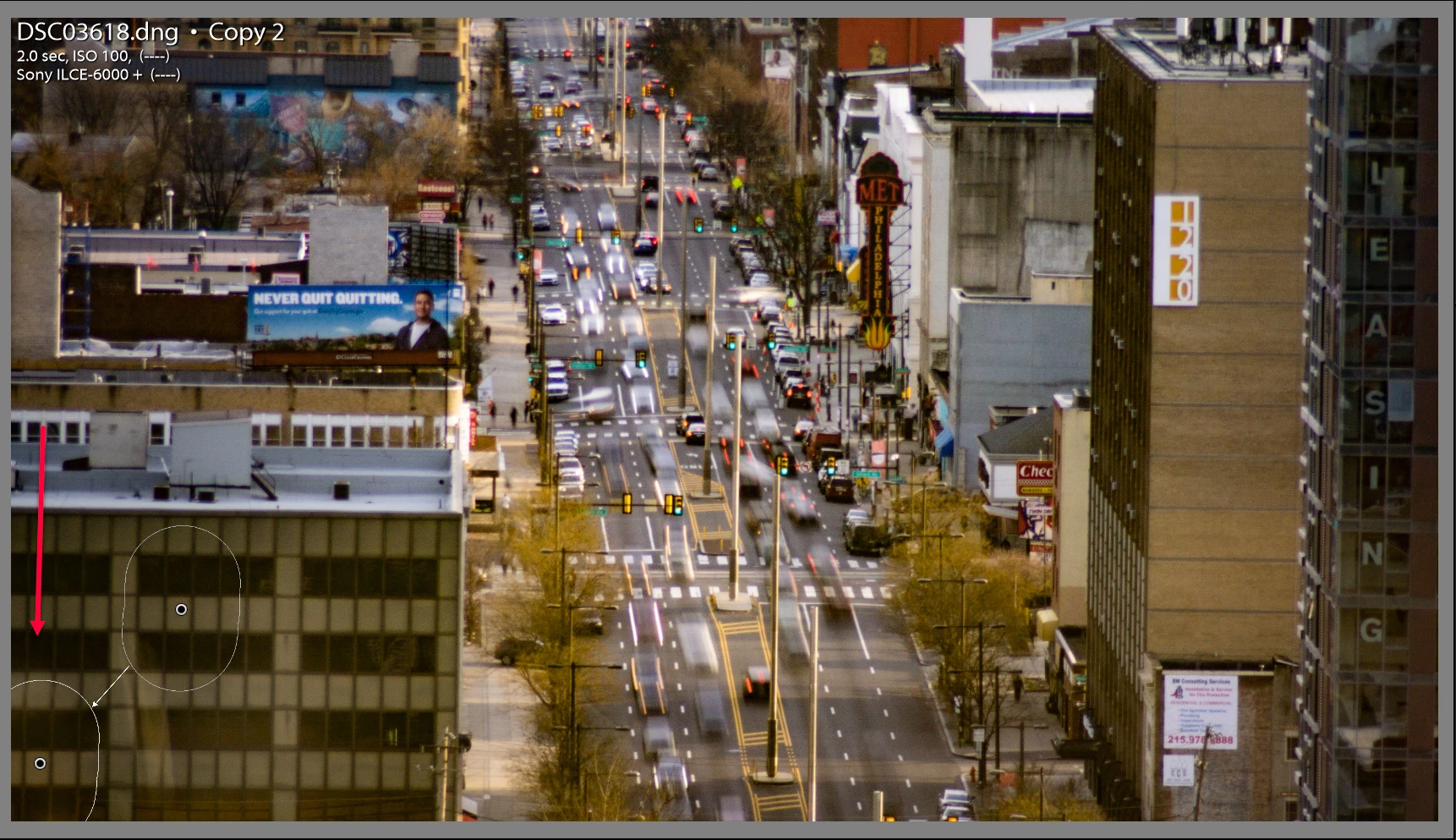
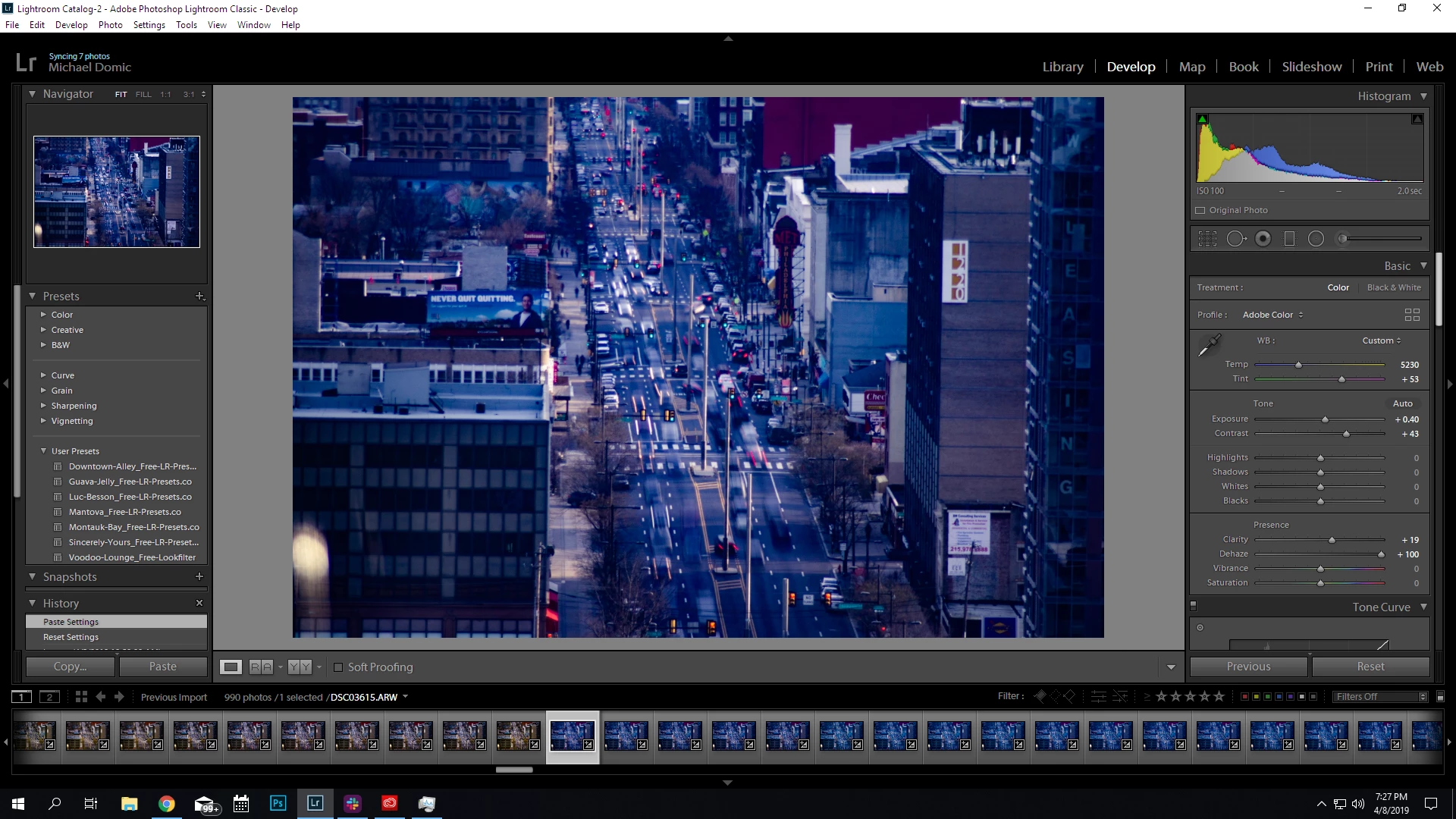
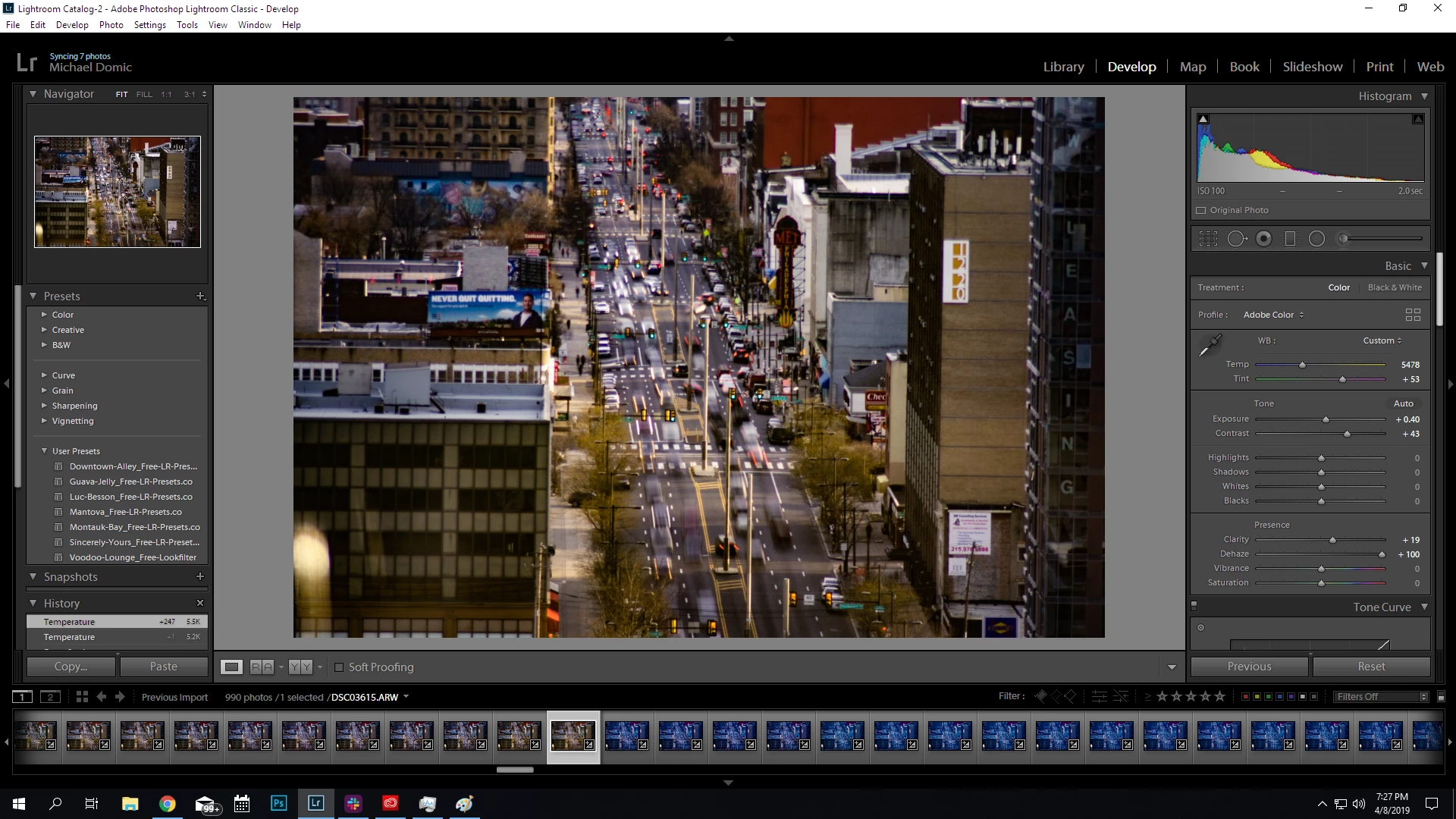
Found one more way to fix this without having to use Export files. Simply apply a Clone Heal Spot to remove the bright spot as shown below. That appears to work as well with +100 Dehaze.
I'm coming from the same angle as Todd. I think Dehaze is amplifying a small color difference across images. Since I also do time lapses, I will also advise that Dehaze is one of the options to avoid applying at high amounts to time lapses; more on that at the end of this post.
Adobe has stated that Dehaze is based on a physical model of haze, which models distance and such. It increases contrast and saturation, and shifts white balance, based on what it thinks the distance layering is. Pushing Dehaze to 100 would make it try to reverse the loss of contrast and color from the atmospheric layering assumed for a typical landscape. But the loss of contrast in this time lapse is not from distance haze, it's from window glare at one distance. While Dehaze does improve image contrast, the solution is somewhat distorted here since it's trying to solve a different contrast problem than the one that it was applied to.
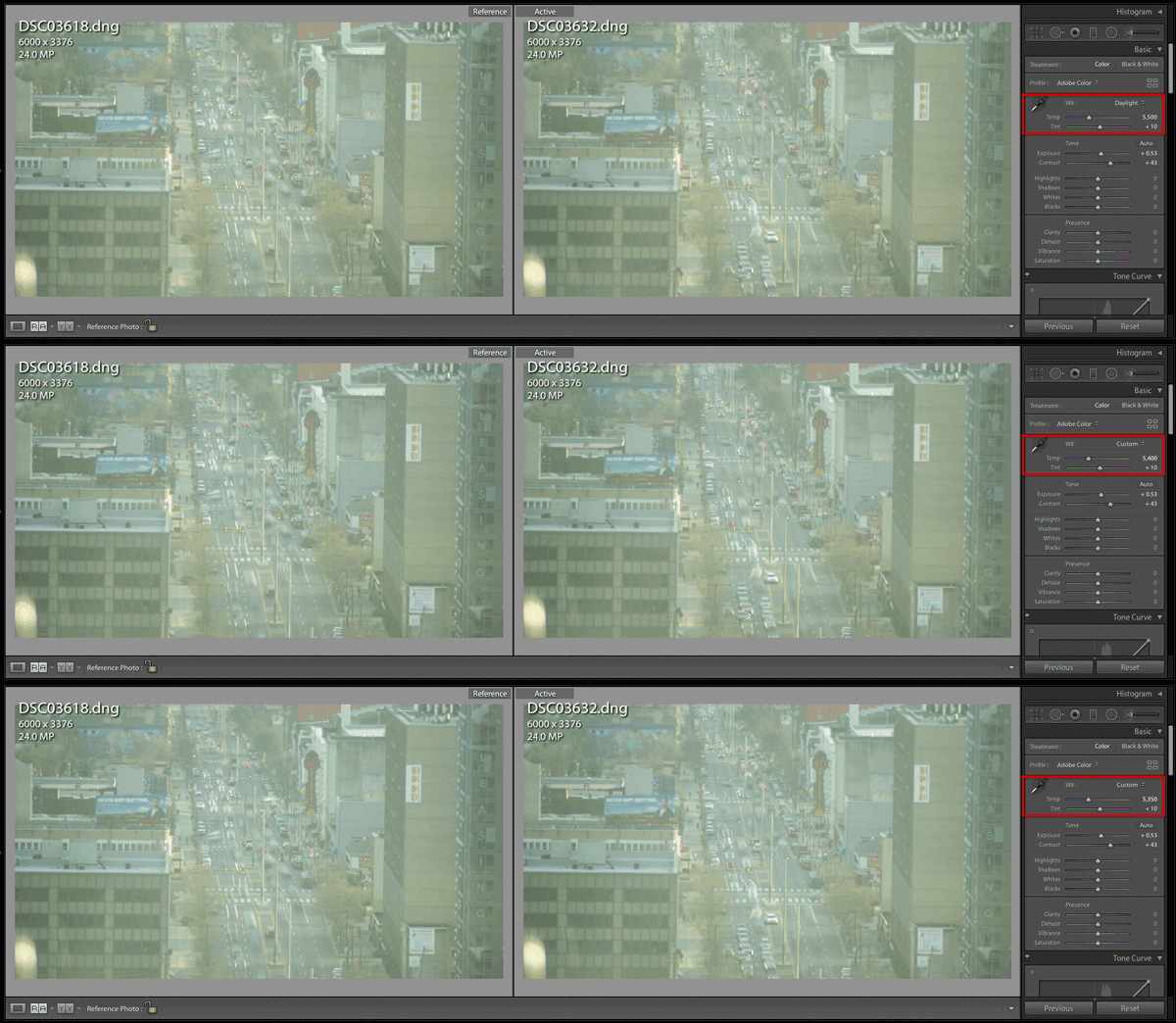
A reply said that there was a big change between 5400 to 5350. But I agree with Todd that there is not much visible difference, at 0 Dehaze. (The image below is animated, if you don't notice that, that's the point  )
)
The difference only becomes visible as Dehaze is applied at an extreme level. The following animation shows that ramp up.
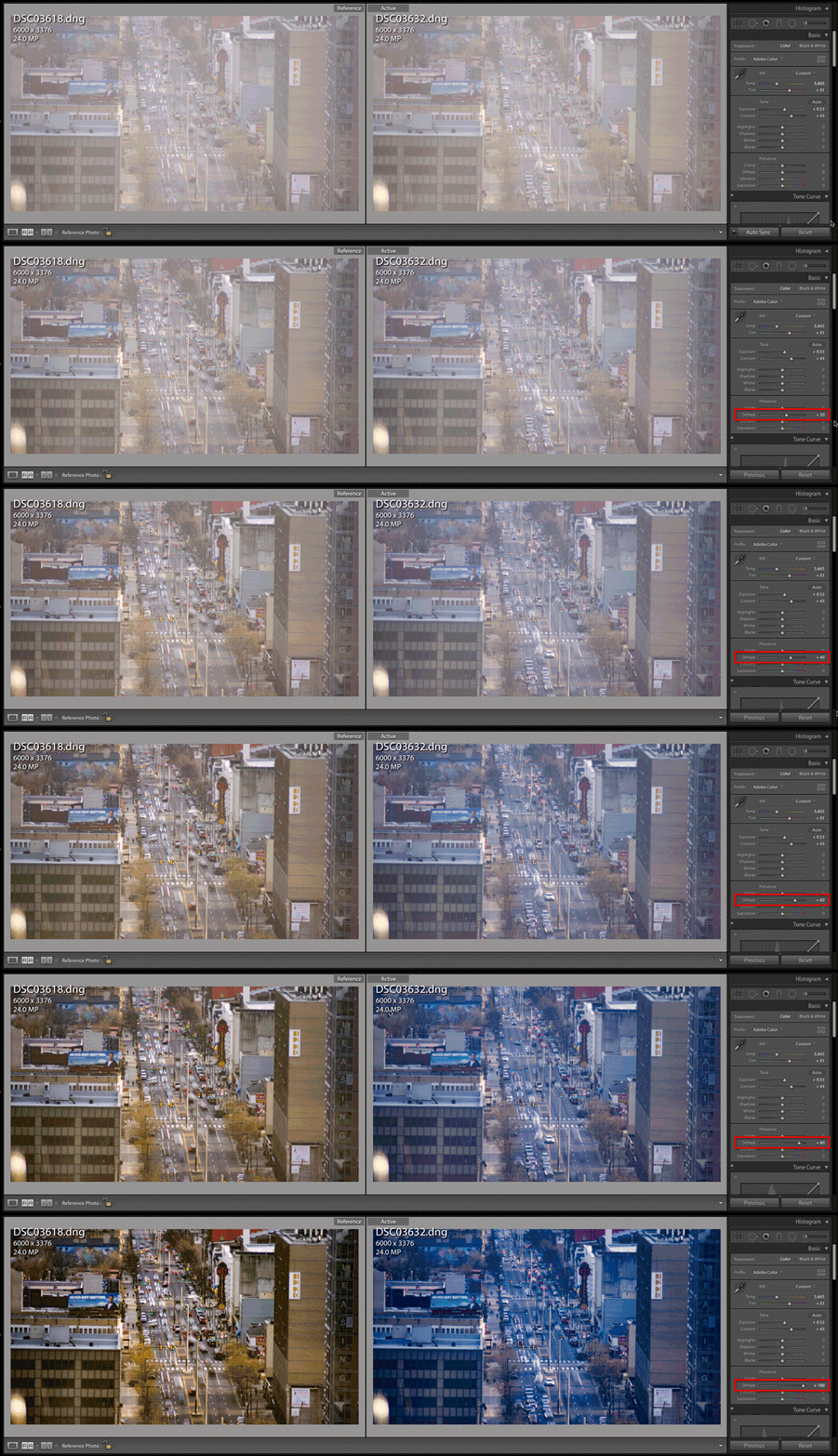
In my tests I reduced Clarity to 0 to remove any influence it might have, since it's a similar control in some ways, and that can amplify the distortion further.
There was a reply saying there is a difference in As Shot white balance, but there is not. The camera was set to manual so the As Shot white balance for both shots is Temp 7300, Tint 13. They were manually moved to 5665/51 in both of the sample files.
But the Auto white balance, as calculated by Lightroom, is different.
Image 3618: 6100/30
Image 3632: 6050/30
That tells us that there are differences in the content. Todd figured out that variation in a single bright spot that's different in each image is probably influencing the frame-by-frame image analysis. In another situation it could be something as simple as a car headlight or emergency vehicle light pointed at the lens, or more red tail-lights than in another shot.
I use LRTimelapse to easily ramp changes in Develop adjustments over time across hundreds of images, and to deflicker the results. The developer, Gunther Wegner, thought this issue was important enough to write a blog post about: Use the new “Dehaze” with care on Time Lapses
Here's an excerpt:
First the good news: Adobe introduced a new “Dehaze” feature in Lightroom CC 2015.1 that works quite nice – and it is already supported by LRTimelapse 4.1. But here is the downside: this filter works in a very context sensitive way. This means, that images with different contents will have the filter applied differently, even if the strength of the filter is the same. For normal photography this doesn’t matter – but for time lapse unfortunately it does. Each image in a time lapse sequence is a bit different from the last. Depending on the changes between images, the Dehaze filter might work stronger or weaker on subsequent images and even deliver different looks with the same settings. Small changes between images might be sufficient to introduce a large change after applying the filter. This means a rather smooth sequence might get some serious flicker introduced when you apply the dehaze filter... ...The more intelligent and context sensitive the tools in Lightroom are or get, the likelier it gets, that for time lapse use they have to be used with care and in small amounts only, because otherwise they might introduce the effects described above. |
(He added the bold formatting to that paragraph in his own post.)
So if we are to avoid high Dehaze amounts, what can we do to fix images like this for time lapses? Well, I said earlier that this is not hazy because of the atmospheric haze that Dehaze is designed to reverse. It's largely reduction of contrast due to window glare. Lightroom has multiple ways to adjust contrast without Dehaze. Todd found one way to solve it without Dehaze, using the Tone Curve. The solution I got independently mainly uses the Blacks and Whites sliders to expand the dynamic range and improve contrast, with some color tweaks in the HSL panel, and switching to the Adobe Vivid profile. So you've got choices.
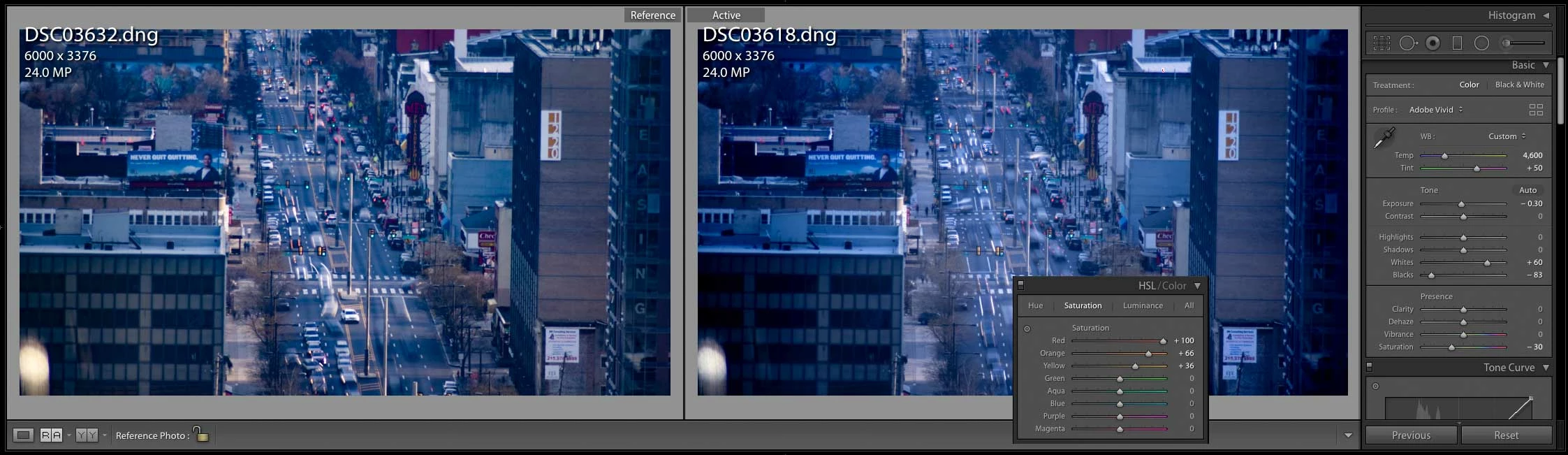
Again…we're not saying Dehaze should not be used. It is brilliant on individual photos, and in modest amounts. And Todd's solution with the Spot Removal tool may have resolved this one. But still, time lapses always present a problem in that multiple frames must play back with minimal flicker, while content-specific options like Dehaze can introduce frame-to-frame variations.
Does this mean Dehaze is bug free? No, for example Adobe recently improved how Dehaze works with negative values. So if you really think Dehaze should have handled those frames without such a dramatic change, submit a bug report at Lightroom Classic Feedback. Maybe there is a legitimate problem there.
But that does not change the fact that the nature of Dehaze (and other content-specific options like Clarity, Shadows, Highlights) means that when we are doing time lapses, best practice is to try to use those options at as low amounts as possible, and use other controls to get the look you want. I personally try to keep those content-sensitive options at 10 or below when applied to time lapse sequences.


 AdChoices