Answered

This topic has been closed for replies.
The others are correct…another way it works is, if you set up Print Settings on the left in advance, you can then use the Print button on the right without having to go through the Print dialog first because you already set it up.
@MarkDB wrote:
...is it possible to configure one of them off the screen?
As we know from the replies so far including this one, the Print Settings button on the left is the one that lets you configure in advance (“off the screen”).
@MarkDB wrote:
They both bring up the exact same Print dialog. Can't this inadverdently created the dreaded two profile printer condition that creates incorrect colors?
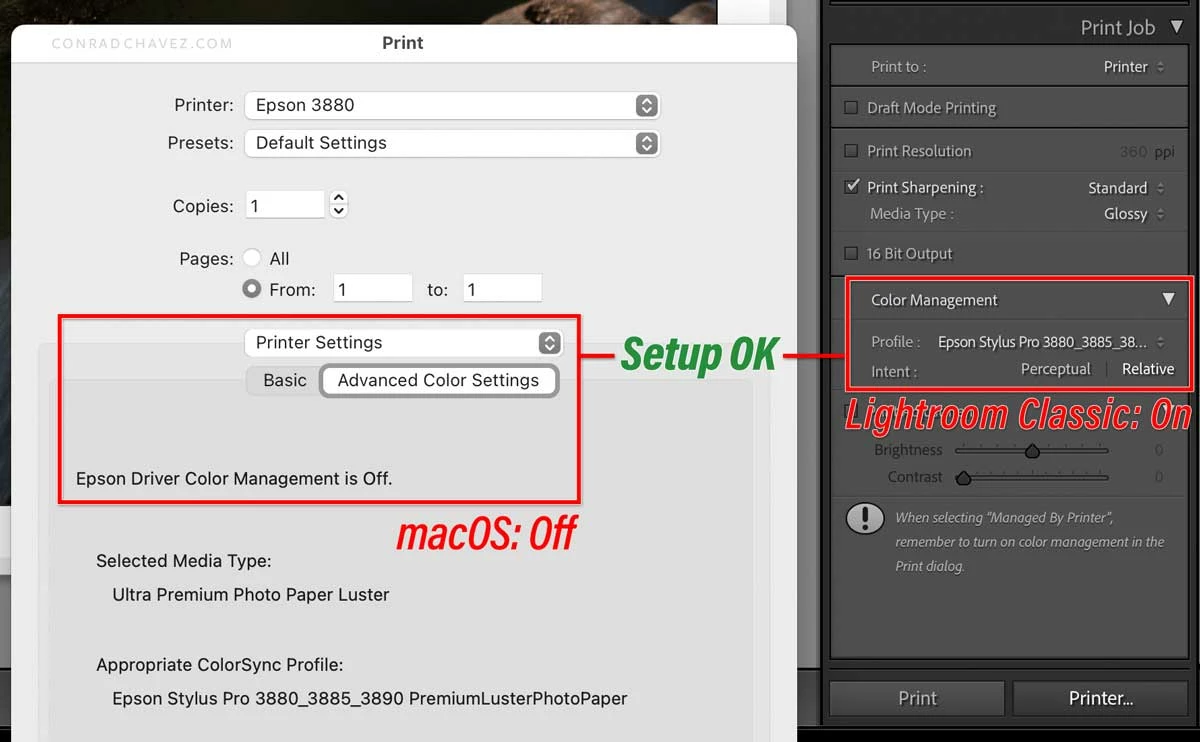
No, they are two paths to the same macOS Print dialog box, so either path changes the same setting, so no conflict. The potential conflict you are thinking of could happen between the macOS Print dialog box and the Lightroom Classic Print Job panel, Color Management Profile option, as shown below, where it’s set correctly. Same as in Photoshop; the two color management settings to coordinate are in the application and in the OS.


Sign up
Already have an account? Login
To post, reply, or follow discussions, please sign in with your Adobe ID.
Sign inSign in to Adobe Community
No account yet? Create an account
To post, reply, or follow discussions, please sign in with your Adobe ID.
Sign inEnter your E-mail address. We'll send you an e-mail with instructions to reset your password.
 AdChoices