If a JPEG file changes outside Lightroom Classic, Lightroom Classic should update the preview of that file in the catalog the next time you open the catalog. But there are a lot of “if”s:
- If you don’t edit the JPEG images in Lightroom Classic (you’re only using the catalog for tracking), you could then upload those directly to WordPress.
- If you only edit the metadata in Lightroom Classic (description, keywords…) then I think you can simply Save Metadata to Files and be able to upload the JPEG files without exporting a copy.
- If you edit in Photoshop in a way that uses layers or transparency, Photoshop will not save directly back to the same JPEG image because JPEG doesn’t support layers or transparency. That means you would have to save the layered TIFF/PSD version, save the flat JPEG derivative, and make sure that replaces the JPEG you started with, because if the file name changes, Lightroom Classic will not recognize it as the same file you started out with; it’s watching for changes to a document of the same file name.
It is often better to simplify all of that, so that Lightroom Classic is both the catalog and the editor of the master files, only sending them to Photoshop if there is something Lightroom Classic can’t do. If I want to gather images for a specific WordPress post, I might add them all to the same Collection (which does not move the originals because it’s just a list), and when they are all ready, I export all of them at once, as JPEGs, into a folder used to stage WordPress uploads.
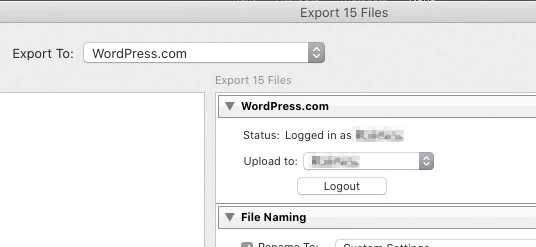
That last step can be avoided by using the WordPress export plug-in for Lightroom Classic, which can upload directly into the Media Library of whatever WordPress site you signed it into.
As for thumbnails and watermarks, in Lightroom Classic you could set up a separate Export Preset where Lightroom Classic Export settings set the image frame to lower pixel dimensions and add a watermark. But after uploading your thumbnails, you’d have to figure out how to manually associate the thumbnails with the originals on the WordPress site, because it’s not usually done that way. WordPress automatically generates thumbnails from every image in that site’s Media Library, using the thumbnail sizes specified in Settings > Media Settings.
However…if you are using a good gallery manager plug-in on your WordPress site (such as NextGEN Gallery), those types of plug-ins typically generate their own thumbnails and watermarks on the site, so that you can upload watermark-free originals that the site can provide only to customers who bought a print or a download, while the version shown to the public has a watermark that was added by the WordPress gallery plug-in.
The simplest solution is to edit and upload just high quality originals straight from Lightroom Classic, and let a WordPress photo gallery plug-in manage downsampled thumbnails and watermarks on the site side. Some WordPress gallery plug-ins integrate with Lightroom Classic through an Export plug-in or a Publish Service, which again gives you that direct line from an LRC catalog to a WordPress site’s Media Library, so you can skip the export-files-then-upload steps.
Another advantage of using a good photo gallery plug-in on a WordPress site is that many of them have real support for IPTC Keywords and other fields entered in photo editors like Lightroom Classic. The default basic Media Library in WordPress supports only Title and Caption/Description.

 AdChoices