AnaPalm
Participant
September 28, 2025
Answered

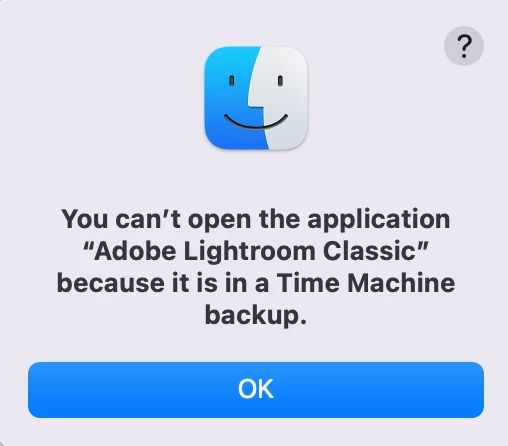
You can't open the application "Adobe Lightroom Classic" because it is in a Time Machine backup.

  • September 28, 2025
  • 2 replies
  • 106 views

MyiMac crashed and I erase eerything so now its like new- I download LrC and open my airport capsule time machine and tried to open it and I got this message: "You can't open the application
"Adobe Lightroom Classic" because it is in a Time Machine backup." Anyone has any odea why wont it open? I know its in a Time Machine thats the idea of the Time Machine so I can go an opne it anytime I need it. Please help me- I have all my folders inside and pictures of my kids I want to have. 


Dont tell me about an HD because I have those I just want to be able to go back into my LrC and work on the old folder I had in there.


Thank you,

LrC crisis!


[Moved from ‘Bugs’ to ‘Discussions’ by moderator, according to forum rules. A ‘bug’ is not just a fancy word for any software problem! It’s defined as a coding error that makes the application behave in a way that was not intended by the developer.]

Correct answer Conrad_C

By the way, the answers you’re getting are true for any Mac app, not just Lightroom Classic, because this is about how Apple designed Time Machine…


To protect the integrity of your backups, Apple designed a Time Machine backup to be two things: 


Read-only. Not only does macOS not allow anyone to manually save documents on a Time Machine backup volume, you are not allowed to work directly on a Time Machine backup in any way. The only purpose of a Time Machine backup is to let you restore files to a Mac from it, and then you continue working on those files from the Mac (after you’ve fixed the problem on the Mac, of course).


Not a valid location to run an application. macOS doesn’t let you run an application from anywhere, and for security/anti-malware reasons they have been tightening this restriction. In some cases, an application can run only if it’s located in the Applications folder (or a subfolder of it) on your Mac. You are trying to run software from a read-only Time Machine volume, and Apple doesn‘t allow that.


So what do you do? This is how you’re always supposed to use files in a Time Machine backup:


If it’s just a document, you copy it from the backup volume back to where you were using it on the Mac (like in the Documents or Pictures folder), then you continue working from it on your Mac. 


This is more complicated if it’s an application like Lightroom Classic, which requires a lot of support files like preferences, presets, profiles, a catalog file, files in the macOS Application Support folder, etc. In this case, after you’ve fixed the Mac, the best way to get going again is to:

1. Use the Creative Cloud desktop application to install the latest version of Lightroom Classic on your Mac. This will properly also install all support files to the correct locations on your Mac. 

2. If you need to restore personal configuration settings, copy them from the Time Machine backup to the correct locations on your Mac. If you’re not sure how to do that, you can refer to the link below. 

Preference file and other file locations | Lightroom Classic – Adobe


For example, if Lightroom Classic isn’t showing your presets, refer to the document and you’ll find that presets are stored at

/Users/[user name]/Library/Application Support/Adobe/Lightroom/

So go into the Time Machine backup, dig the out of there, and copy them to the same location on the Mac so that they show up in Lightroom Classic again.


Again, the bottom line: macOS does not let you work directly from a Time Machine backup. First, fix the Mac (e.g. reinstall macOS), then restore the needed file(s) from the Time Machine backup to the Mac. Then you can keep working from the Mac itself.


If you’d like to restore the entire Mac as it was before the crash, you can easily do it in just a few steps:

Restore from a Time Machine backup – Apple

If macOS on the Mac isn’t working quite right yet so you want to reinstall macOS, this link includes that step:

Recover all your files from a Time Machine backup – Apple

2 replies

Conrad_C
Community Expert
Conrad_CCommunity ExpertCorrect answer
Community Expert
September 28, 2025

By the way, the answers you’re getting are true for any Mac app, not just Lightroom Classic, because this is about how Apple designed Time Machine…


To protect the integrity of your backups, Apple designed a Time Machine backup to be two things: 


Read-only. Not only does macOS not allow anyone to manually save documents on a Time Machine backup volume, you are not allowed to work directly on a Time Machine backup in any way. The only purpose of a Time Machine backup is to let you restore files to a Mac from it, and then you continue working on those files from the Mac (after you’ve fixed the problem on the Mac, of course).


Not a valid location to run an application. macOS doesn’t let you run an application from anywhere, and for security/anti-malware reasons they have been tightening this restriction. In some cases, an application can run only if it’s located in the Applications folder (or a subfolder of it) on your Mac. You are trying to run software from a read-only Time Machine volume, and Apple doesn‘t allow that.


So what do you do? This is how you’re always supposed to use files in a Time Machine backup:


If it’s just a document, you copy it from the backup volume back to where you were using it on the Mac (like in the Documents or Pictures folder), then you continue working from it on your Mac. 


This is more complicated if it’s an application like Lightroom Classic, which requires a lot of support files like preferences, presets, profiles, a catalog file, files in the macOS Application Support folder, etc. In this case, after you’ve fixed the Mac, the best way to get going again is to:

1. Use the Creative Cloud desktop application to install the latest version of Lightroom Classic on your Mac. This will properly also install all support files to the correct locations on your Mac. 

2. If you need to restore personal configuration settings, copy them from the Time Machine backup to the correct locations on your Mac. If you’re not sure how to do that, you can refer to the link below. 

Preference file and other file locations | Lightroom Classic – Adobe


For example, if Lightroom Classic isn’t showing your presets, refer to the document and you’ll find that presets are stored at

/Users/[user name]/Library/Application Support/Adobe/Lightroom/

So go into the Time Machine backup, dig the out of there, and copy them to the same location on the Mac so that they show up in Lightroom Classic again.


Again, the bottom line: macOS does not let you work directly from a Time Machine backup. First, fix the Mac (e.g. reinstall macOS), then restore the needed file(s) from the Time Machine backup to the Mac. Then you can keep working from the Mac itself.


If you’d like to restore the entire Mac as it was before the crash, you can easily do it in just a few steps:

Restore from a Time Machine backup – Apple

If macOS on the Mac isn’t working quite right yet so you want to reinstall macOS, this link includes that step:

Recover all your files from a Time Machine backup – Apple

JohanElzenga
Community Expert
Community Expert
September 28, 2025

The message says it all. You try to open Lightroom Classic directly from within a Time Machine backup, but that is not how Time Machine works. You need to use it to restore files on the computer from that backup. In this case, it's probably easier to just reinstall Lightroom Classic from the Adobe CC app rather than trying to restore it from Time Machine.


-- Johan W. Elzenga