NotQuiteAlice
Participant
January 7, 2023
Answered

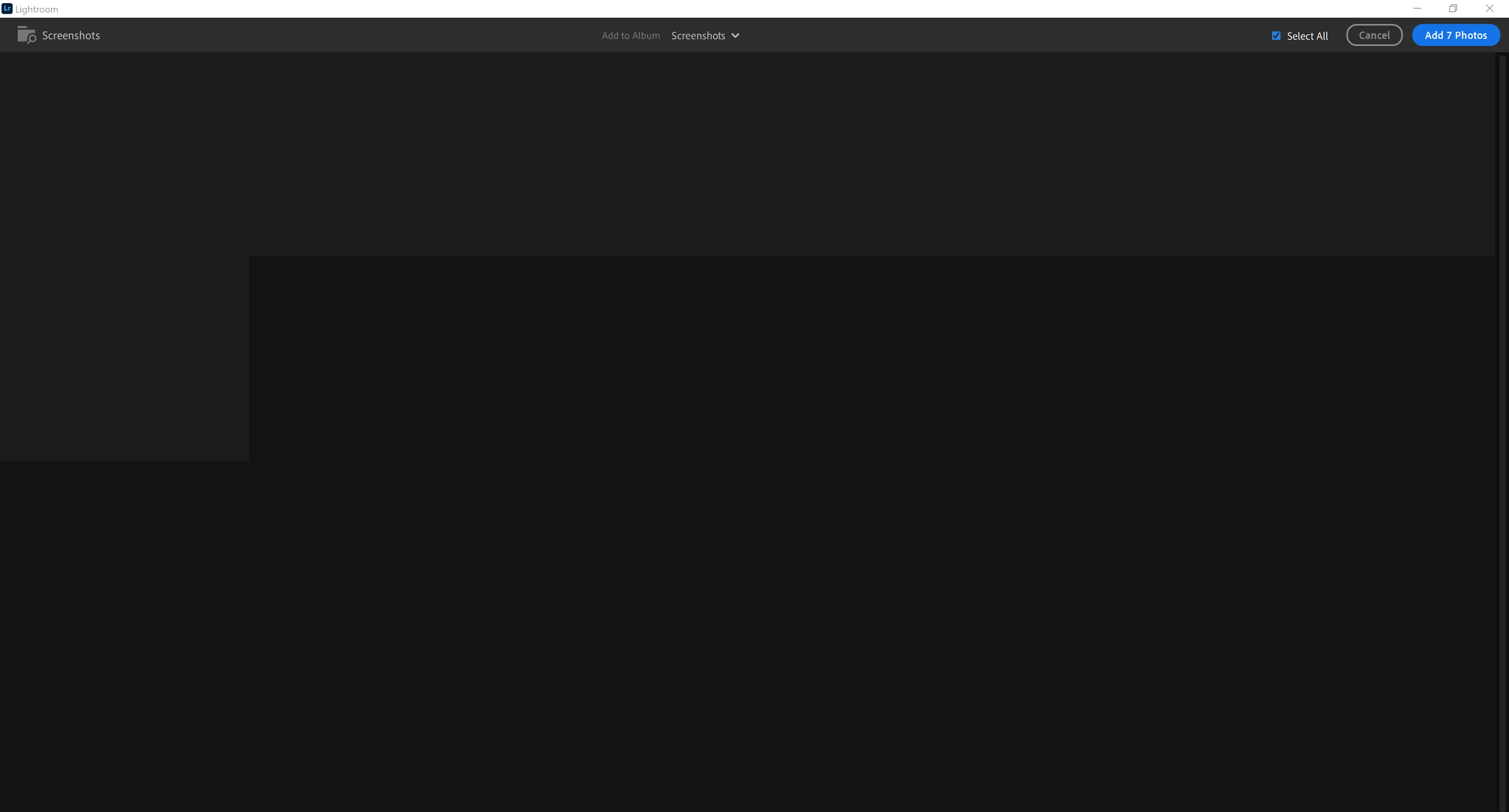
Add Photos dialog is empty

  • January 7, 2023
  • 2 replies
  • 435 views

When ever I try to add any photos to Lightroom all I see is the what's shown in the image! Just dont know what to do? I use Windows 10 64bit 

This topic has been closed for replies.
Correct answer NotQuiteAlice

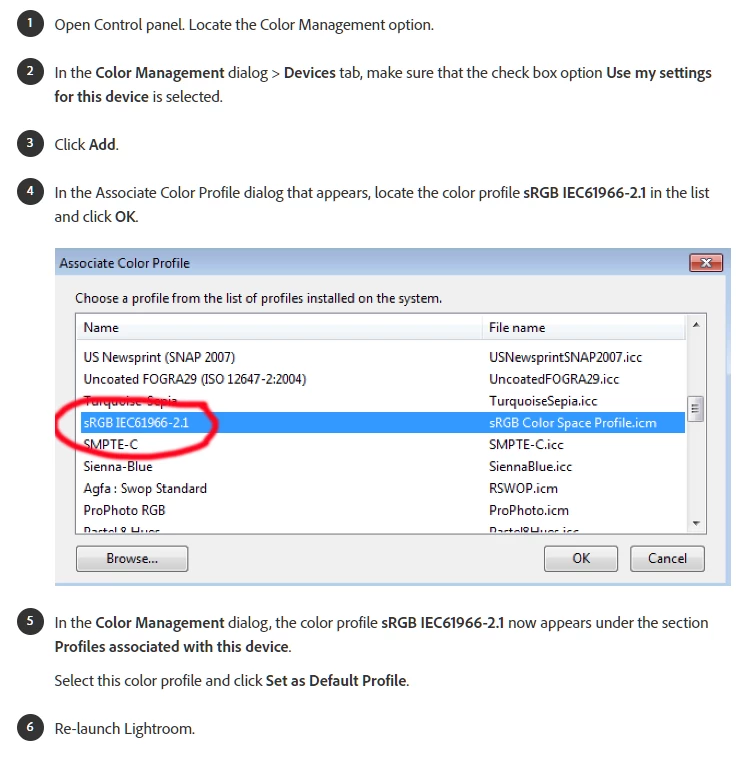
I have solved this problem. Apparently changing my "Colour Profile" as suggested in the image below solved the issue for me in both Lightroom and Lightroom Classic. So if anybody else has this issue, please try this below!


I think this is something adobe needs to address, because we shouldn't have to search out a solution like this to begin with. Not to mention, that changing the colour profile may have an impact on other system ecosystems... Who know?


2 replies

Community Expert
January 8, 2023

Note that while this solves the immediate problem it is just a trouble-shooting step to deal with the very common problem of corrupt color profiles on windows machines. Setting the monitor profile to sRGB guarantees that your color inside the program won't be correcrtly displayed as very few displays have exactly the sRGB gamut. To get correct color you have to use calibration hardware such as a Spyder Pro, Colormunki, i1 display, etc. 

Corrupt display profiles are very common on windows machines. It is due to the amazing variety of hardware and GPU drivers you can encounter there. It is very much the wild west. Not much Adobe can do about it as it is completely outside of their control. They do say in the help files that you have to calibrate your display to create a correct display profile in order to get correct color. This is true for every application out there.

NotQuiteAlice
Participant
January 8, 2023

Thank you Jao.


This actually very useful information that I was not aware of. Please accept my apologies, Adobe team, it was not my intention to suggest the software was a fault, as I was unaware of Windows habit of corrupted colour profiles. Regardless it did work, troubleshooting or not 😄


May I ask another question in direct response to your post Jao?

As I use a UHD TV as my monitor, would a Spyder Pro still work or does it just work on stock monitors?


Community Expert
January 8, 2023

I actually agree that Adobe could do more to create awareness of this issue as it really only will get noticed as an issue by people that use photographic and other image software and it comes up a lot on this forum (y images look differently in Lightroom from my phone/browser/etc.. My guess is they are hesitant to say things like if you want our software to work correctly you need to buy this other thing. Also it is quite common for displays to be perfectly well calibrated out of the box and hardware calibration only subtly changes the display so many people never notice an issue.  

Calibration will work on all monitors as long as they are addressed as an RGB monitor (this is something you can set in the display preferences in windows). There are some subtleties if the TV can do HDR signals and your machine's GPU can too and calibration might not work correctly there but yeah in general it works just fine with any display including TVs. 

NotQuiteAlice
NotQuiteAliceAuthorCorrect answer
Participant
January 8, 2023

I have solved this problem. Apparently changing my "Colour Profile" as suggested in the image below solved the issue for me in both Lightroom and Lightroom Classic. So if anybody else has this issue, please try this below!


I think this is something adobe needs to address, because we shouldn't have to search out a solution like this to begin with. Not to mention, that changing the colour profile may have an impact on other system ecosystems... Who know?