
Participating Frequently
April 17, 2024
Question

Applying Preset On Import

  • April 17, 2024
  • 2 replies
  • 370 views

Hello All,


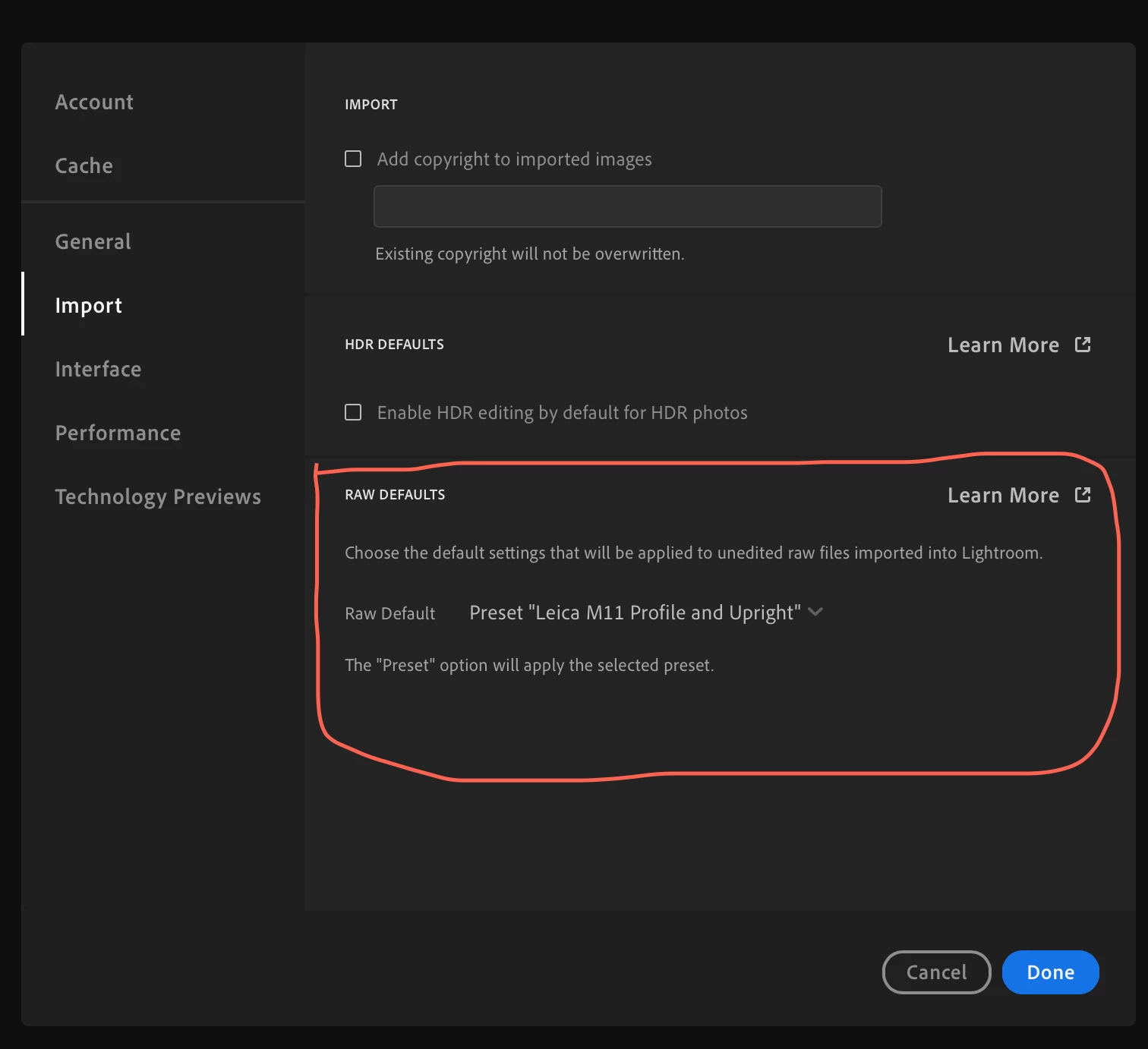
I created a preset which changes profile and uprights photo and would like to get this preset applied on new photographs when they get imported. 


I have the following workflow:

  1. I shoot in raw and upload raw files into folder
  2. Adding to raw files directly GPS coordinates 
  3. Using Bridge I am renaming files and adding some keywords
  4. Importing files from Bridge into Lightroom mobile


After import, no preset gets applied.

Is it because Lightroom sees that I made some changes to raw file?
 

This topic has been closed for replies.

2 replies

Rikk Flohr_Photography
Community Manager
Community Manager
April 18, 2024

Thanks for the additional information. 


I am not able to replicate this problem. 


Procedure: 

  1.  Set Raw Default to an obvious preset
  2.  Select qualifying image in Edit 
  3.  […] > Reset Image -  Preset applies.
  4.  [Add Photos] > Preset applies on import. 


I will need to see detailed step-by-step instructions for how to reproduce this issue and possible a copy of the preset as well to see if I can tell what is the issue.  Step 3 is a good test to perform on any unedited image to see if the preset is applying.  You may want to swap out the preset temporarily for a more garish preset to ensure that what you are seeing is accurate. 

Rikk Flohr: Adobe Photography Org
Participating Frequently
April 18, 2024

Hello Rikk,


I put example of raw file and preset itself here:

https://www.dropbox.com/scl/fo/bywauhtua72pdw58iep33/AOjX1Op9G9XUhfBvA1cjzJ8?rlkey=87cjakmnij5flz719578kx3mq&dl=0


Mind trying it out?

Rikk Flohr_Photography
Community Manager
Community Manager
April 18, 2024

Thanks for the samples:  


  1.  Installed Preset
  2.  Set Preferences to use the provided preset as Raw Default
  3.  Import Photo - Preset Applies :✓
  4.  Use Adobe Default Preset to reset image to neutral
  5.  […] Reset Image -  Applies Raw Default Preset✓

    Appears to work here. 


If you are seeing otherwise, resetting your preferences may be in order.


This procedure works for both Lightroom Classic and Lightroom Desktop.

If you are using Lightroom Desktop, it can change your local storage location. Please review this setting after resetting preferences. 


Reset Procedure:

1. Close Lightroom.

2. Hold down [Alt/Opt]+[Shift] while restarting Lightroom.

3. Overwrite the Preferences when prompted by the dialog.

4. Close Lightroom.

5. Restart Lightroom.


Rikk Flohr: Adobe Photography Org
Rikk Flohr_Photography
Community Manager
Community Manager
April 18, 2024

Is the Preset you are using specific to an individual camera? 

Are the files you are importing from that same camera? 

Rikk Flohr: Adobe Photography Org
Participating Frequently
April 18, 2024

This is correct, profile is specific to the camera which produced imported files.