
Button goes off screen to reset storage location of originals
Description
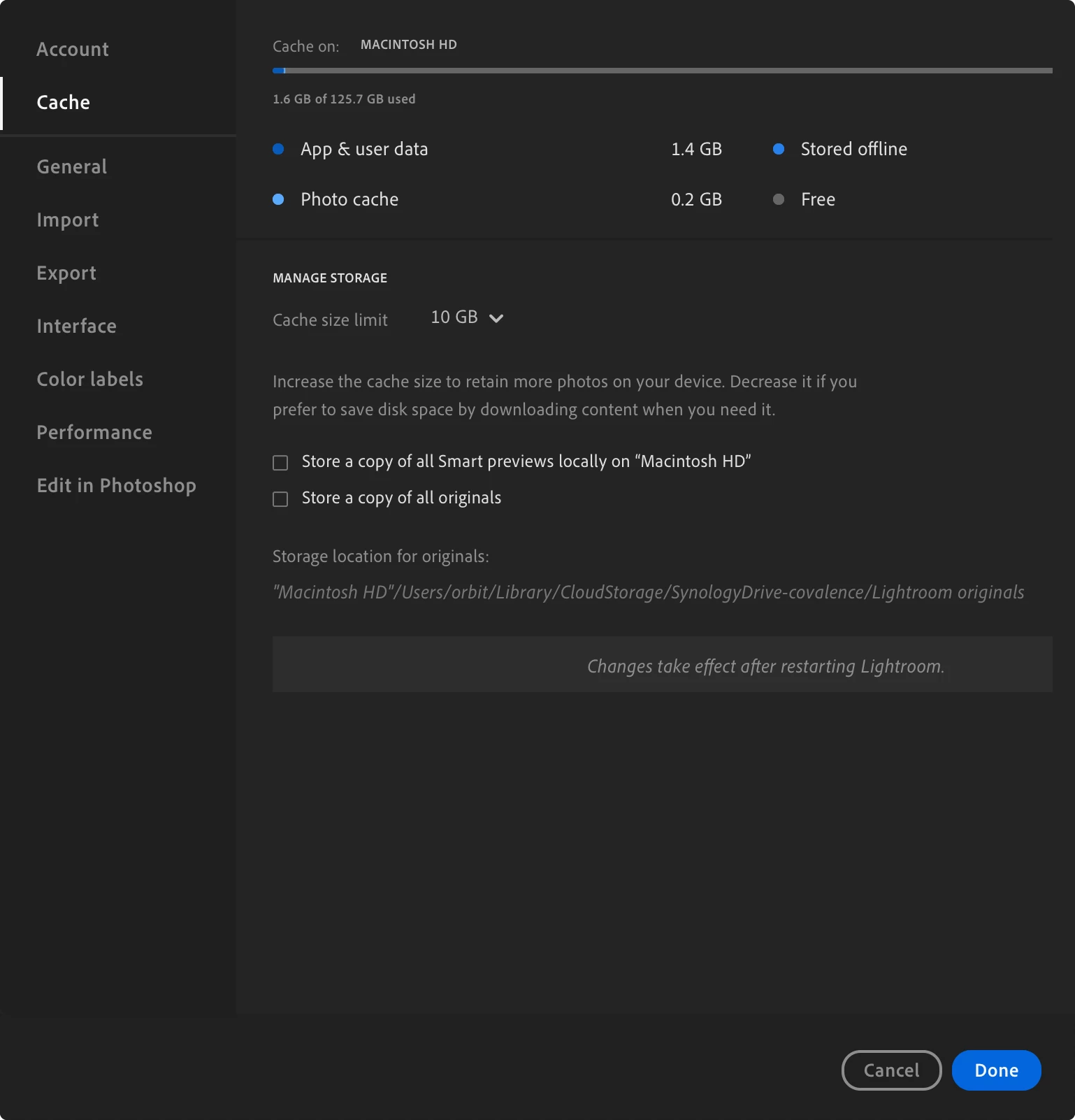
Under Preferences > Cache > Storage location for originals, there are supposed to be the buttons “Reset” and “Browse...” to change the specified path. However, if the current path is too long, these buttons go out of the window. See the screenshots below.
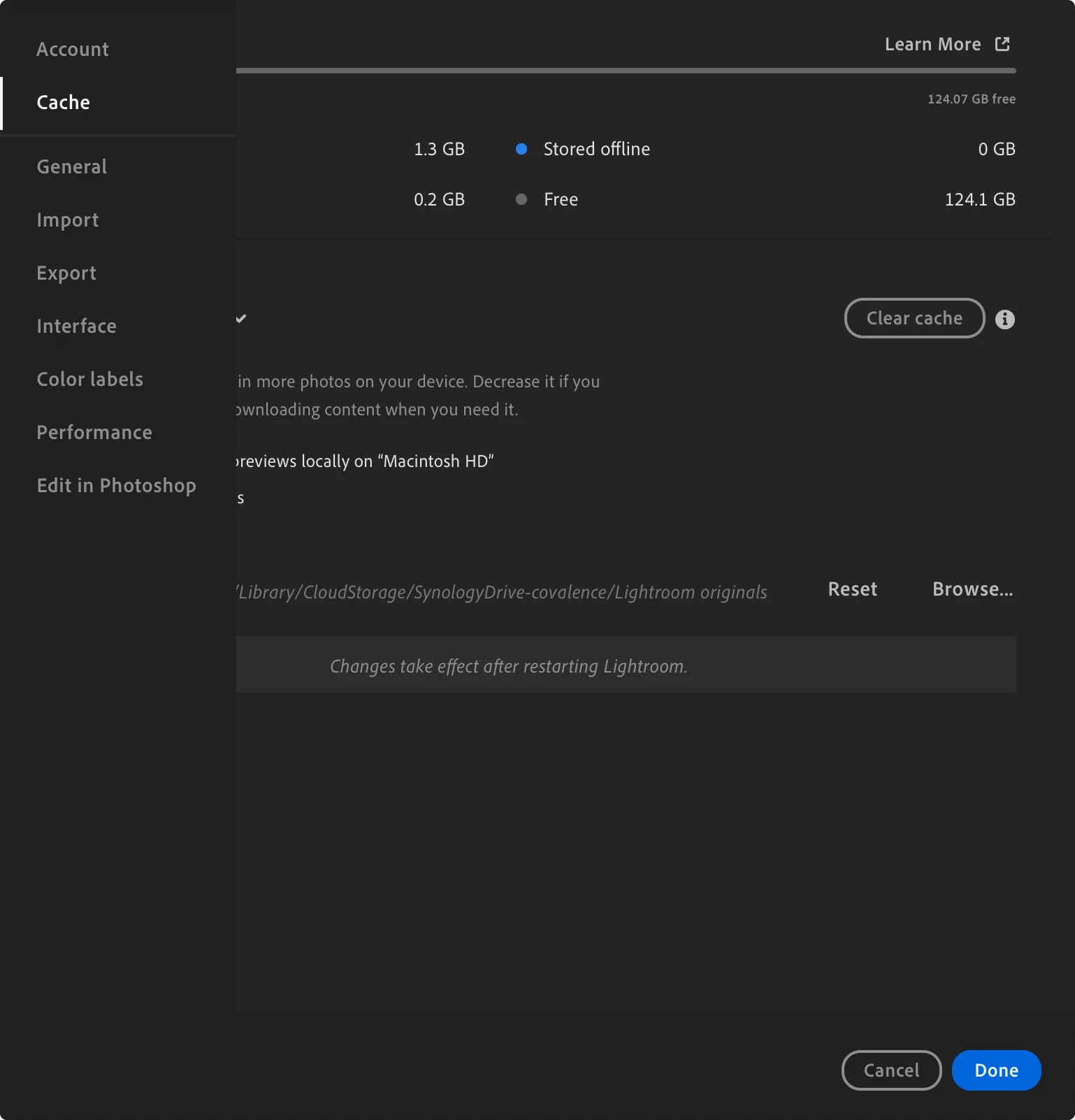
This can be worked around by scrolling horizontally to see the buttons, but I highly doubt this is intentional. I’m not even sure it’s possible unless you have something like a Magic Mouse or MX Master. In any case, I thought I had trapped myself permanently with this bug while reproducing it to write this report until I accidentally scrolled sideways.
Expected Result
The buttons to change the storage location are always visible.
Actual Result
The buttons go outside the window where they cannot be seen nor pressed without horizontal scrolling.
Steps to Reproduce
- Go to Preferences > Cache
- Change the “storage location for originals” to somewhere with a long path (i.e. many characters).
Screenshots
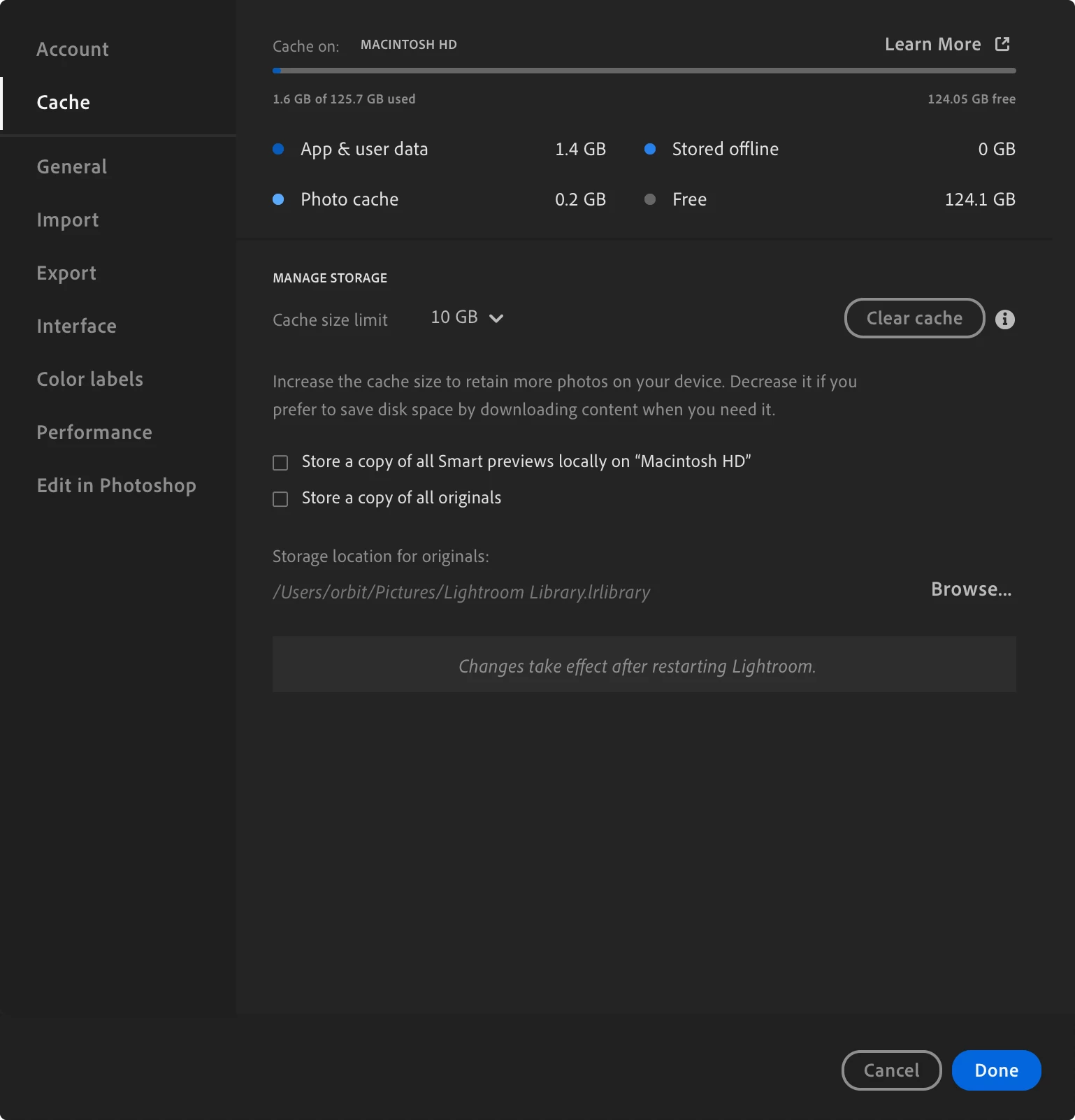
Default path chosen. “Browse...” button visible.
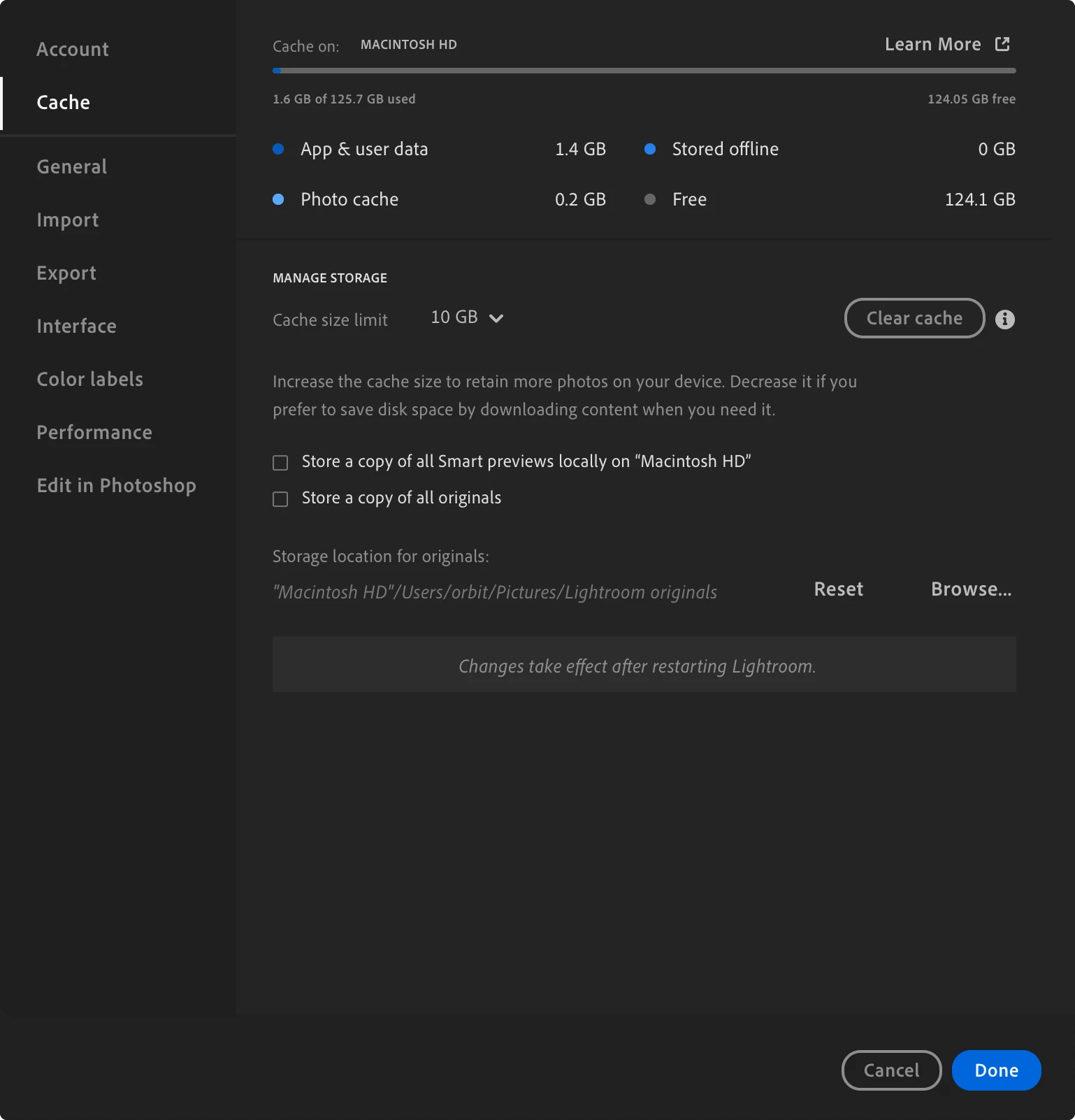
Short custom path. “Reset” and “Browse...” buttons visible.
Long custom path. No buttons are visible and it appears impossible to change the path.
After scrolling horizontally:
Suggested Fix
When a long path is given, the buttons should reflow into a new row beneath the path.
System Information
- Lightroom 9.5.1 (latest)
- macOS Tahoe 26.6
- 14” M5 MacBook Pro


 AdChoices