


Cletus
Known Participant
July 5, 2026
Question

Cannot purge unused keywords in Desktop

  • July 5, 2026
  • 1 reply
  • 13 views

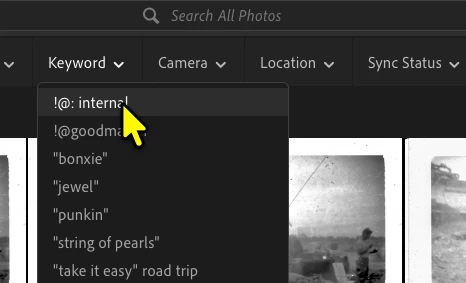
In Lightroom Classic I can remove unused keywords  from the keyword list or from the Menu {Metadata}{Purge Unused Keywords}.   This process does not exist in Lightroom mobile/desktop/web.

If I search on an unused keyword answer select it I get the “Black Hole’ message. 
    1 reply

    Claire H.
    Community Manager
    Community Manager
    July 22, 2026

    Hi ​@Cletus, Just to confirm the process, in Lightroom (cloud), how to remove keywords:

    • Select the photo(s) in Grid view.
    • Open the Keywords panel and click the keyword you want to remove. It will appear red with a strikethrough, indicating it's being removed from the selected photo(s).

    If you need to remove a keyword from all photos, Lightroom (cloud) doesn't have a keyword manager. Instead:

    1. Filter or search for the keyword to display all photos using it.
    2. Select all of those photos.
    3. Click the keyword in the Keywords panel to remove it from every selected photo. Once no photos use that keyword, it will disappear from your library.

    Lightroom (cloud) currently doesn't support renaming keywords or managing a master keyword list like Lightroom Classic does. If you misspell a keyword, add the correct keyword to the affected photos, then remove the incorrect one. 

    Learn more about keywords here: https://www.lightroomqueen.com/clean-keyword-list/

    If that doesn’t help, could you send a screen recording of what you’re seeing when you try to remove a keyword? I hope this helps! ^CH