
Known Participant
December 8, 2024
Answered

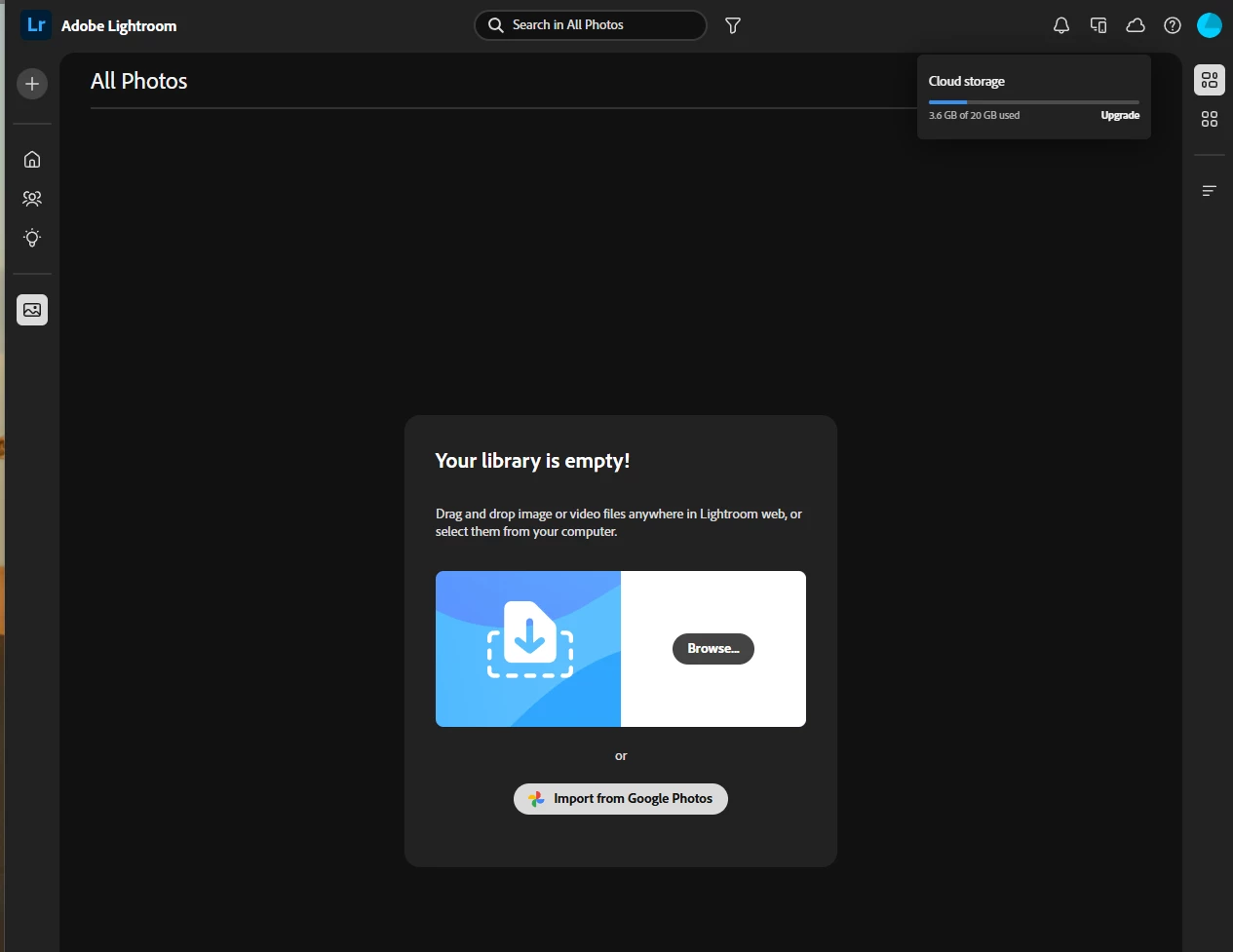
Cloud storage says 3.6GB but library is empty. Cant syncronise any thing

  • December 8, 2024
  • 1 reply
  • 192 views

Hi. Trying to resolve an issue on my wife's LR mobile which she has basically never used.  I have turned off all the collection syncronising in LR classic. Online and in LR classic I see 3.6GB used of cloud storage. However if I go online her library is empty.  In LR classic if I open preferences and go to syncronisation activity it shows a bunch of images as "Image", but they are in a folder that isnt possible to syncronise. 


Is there a way to completely delete whatever is in cloud storage so we can start again?  If i try to syncronise new files they just sit spinning its wheels.  


Thanks for any advice
This topic has been closed for replies.
Correct answer Sameer K

Hey, @masplin. I'll help you figure this out. Before you empty Lightroom storage, here are a few things to know.


1 - When you delete images from Lightroom, they're first sent to the deleted section in Lightroom & stay there for 60 days until permanently deleted. While in the deleted section, the images will continue to count against your total storage.

2 - Your Cloud storage is also used by assets in Creative Cloud libraries. Head here to learn more about What does cloud storage include?


Only once are you sure to proceed further, follow these steps:

  • Log on to Lightroom Web (https://adobe.ly/3OMv4Ck)
  • Click on your profile logo on the top right.

    SameerK_0-1681845102823.png


  • Click on Account Info > Delete Lightroom Library > Complete the required authorization.

This is a permanent and irreversible change to the Lightroom Library. You can use the sync workflow from scratch. 


Let me know if this helps.

Thanks!

Sameer K

(Type '@' and type my name to mention me when you reply)

1 reply

Sameer K
Community Manager
Sameer KCommunity ManagerCorrect answer
Community Manager
December 9, 2024

Hey, @masplin. I'll help you figure this out. Before you empty Lightroom storage, here are a few things to know.


1 - When you delete images from Lightroom, they're first sent to the deleted section in Lightroom & stay there for 60 days until permanently deleted. While in the deleted section, the images will continue to count against your total storage.

2 - Your Cloud storage is also used by assets in Creative Cloud libraries. Head here to learn more about What does cloud storage include?


Only once are you sure to proceed further, follow these steps:

  • Log on to Lightroom Web (https://adobe.ly/3OMv4Ck)
  • Click on your profile logo on the top right.

    SameerK_0-1681845102823.png


  • Click on Account Info > Delete Lightroom Library > Complete the required authorization.

This is a permanent and irreversible change to the Lightroom Library. You can use the sync workflow from scratch. 


Let me know if this helps.

Thanks!

Sameer K

(Type '@' and type my name to mention me when you reply)

masplinAuthor
Known Participant
December 9, 2024

perfect all sorted thanks