Participant
April 18, 2023
Answered

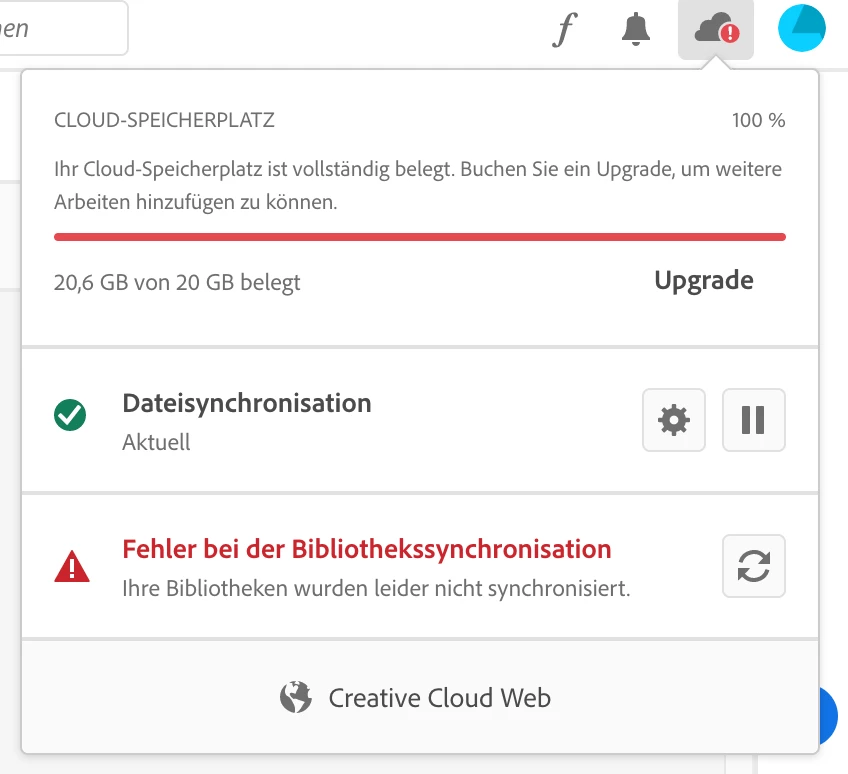
Cloudspeicher voll, aber ich finde nicht eine einzige Datei!

  • April 18, 2023
  • 1 reply
  • 755 views

Hallo,


ich habe in der aktuellen Lightroom Version (macOS) Bilder von meiner Kamera importiert.  Dabei nicht bedacht dass LR alles in die Cloud lädt.  

Jetzt ist die Cloud voll (20GB).  Die Bilder habe ich in Lightroom entfernt aber der Cloudspeicher ist angeblich immer noch voll. 

Gibts eine Funktion um den Cloudspecher zu putzen.  auf einen Schlag leer zu machen? 
 

This topic has been closed for replies.
Correct answer Sameer K

Hey @Tom_50354. Welcome to the Lightroom Community. I'll help you figure this out.

If you want to empty the cloud storage with a few clicks, you must ensure all the data is backed up locally.

Please export presets & the original images are stored away from the Lightroom database.


Only once are you sure to proceed further, follow these steps:

  • Log on to Lightroom Web (https://lightroom.adobe.com)
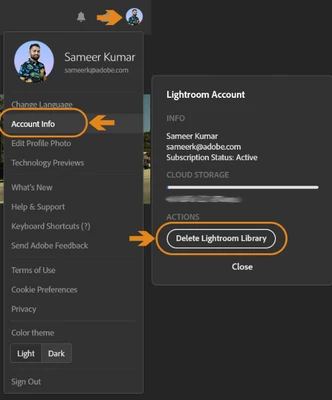
  • Click on your profile logo on the top right.


  • Click on Account Info > Delete Lightroom Library > Complete the required authorization.


This is a permanent change to the Lightroom Library and irreversible. You can use the sync workflow from scratch. If you'd like to have the ability to selectively sync images between a desktop & Lightroom iPad, you can follow the suggestion I have shared here: https://community.adobe.com/t5/lightroom-ecosystem-cloud-based-discussions/about-cloud-storage-image-gallery-amp-selective-sync-lightroom-on-macos/m-p/12973713#M66109


Let me know if this helps,

Thanks!
Sameer K

1 reply

Sameer K
Community Manager
Sameer KCommunity ManagerCorrect answer
Community Manager
April 18, 2023

Hey @Tom_50354. Welcome to the Lightroom Community. I'll help you figure this out.

If you want to empty the cloud storage with a few clicks, you must ensure all the data is backed up locally.

Please export presets & the original images are stored away from the Lightroom database.


Only once are you sure to proceed further, follow these steps:

  • Log on to Lightroom Web (https://lightroom.adobe.com)
  • Click on your profile logo on the top right.


  • Click on Account Info > Delete Lightroom Library > Complete the required authorization.


This is a permanent change to the Lightroom Library and irreversible. You can use the sync workflow from scratch. If you'd like to have the ability to selectively sync images between a desktop & Lightroom iPad, you can follow the suggestion I have shared here: https://community.adobe.com/t5/lightroom-ecosystem-cloud-based-discussions/about-cloud-storage-image-gallery-amp-selective-sync-lightroom-on-macos/m-p/12973713#M66109


Let me know if this helps,

Thanks!
Sameer K

Participating Frequently
April 18, 2023

Hi! I synced everything to local and followed these steps. I didn't know this would remove the local catalog too, including all of my albums that I synced to my laptop. How do I restore the catalog? Based on this post, it seems to be possible even after permanent deletion because your servers are backed up. https://community.adobe.com/t5/lightroom-ecosystem-cloud-based-discussions/permanently-deleted-all-photos-is-recovery-possible/m-p/12654058